Build 21 v21.4.1
FEBRUARY 23, 2010 © 2007-2010 RED.COM INC.
105
SD MEMORY CARD / USB MEMORY DEVICES
SD MEMORY CARD
The left front of the camera has a receptacle for an SD memory card (refer to CAMERA CONTROLS under
CAMERA CONTROLS AND CONNECTORS). The SD memory card allows you to upload camera firmware
updates (refer to APPENDIX A: UPGRADING CAMERA FIRMWARE) as well as save LOOK/USER settings
(refer to APPENDIX C: SAVING LOOK/USER PROFILE). When an SD memory card is installed in the cam-
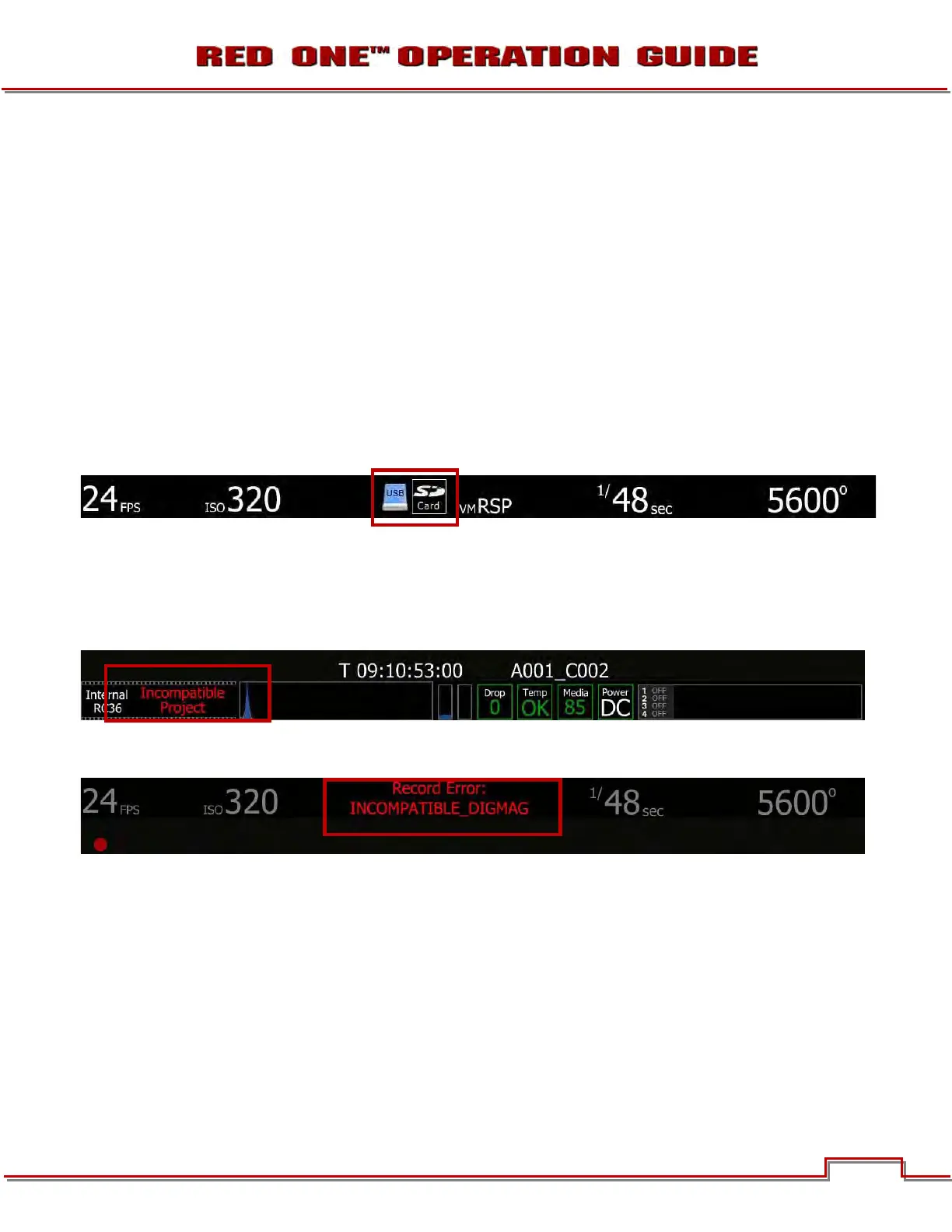
era, the camera displays the SD CARD icon at the top of the EVF, LCD and all external monitors.
USB MEMORY DEVICE
A USB memory device may be plugged into the USB connector located on the right side of the camera
(refer to CAMERA CONNECTORS under CAMERA CONTROLS AND CONNECTORS). You can use a USB
memory device to upload camera firmware (refer to APPENDIX A: UPGRADING CAMERA FIRMWARE),
however the camera CANNOT write to the USB memory device. When a USB memory device is plugged
into the camera, the camera displays the USB icon at the top of the EVF, LCD and all external monitors.
MEDIA ERRORS
INCOMPATIBLE PROJECT/DIGIMAG
The following error may be displayed inserting a CF card or connecting a RED-DRIVE or RED-RAM (the
camera LCD will display DISK INCOMPATIBLE):
When this error is present, the camera will not record and will display the following message at the top of
the screen (the camera LCD will display INCOMPATIBLE_DIGMAG):
This may be caused by one of the following:
• The camera settings were changed while the media was removed and/or disconnected.
• The media was formatted on a different camera with different settings.
To resolve this error, connect the CF card or RED-DRIVE /RED-RAM to a computer and save the files
from the media to the computer. Then you can either erase the CF card or RED-DRIVE /RED-RAM using
the computer or format the CF card or RED-DRIVE /RED-RAM using the camera for which you want to
use the media.


 To Next Page