Build 21 v21.4.1
FEBRUARY 23, 2010 © 2007-2010 RED.COM INC.
97
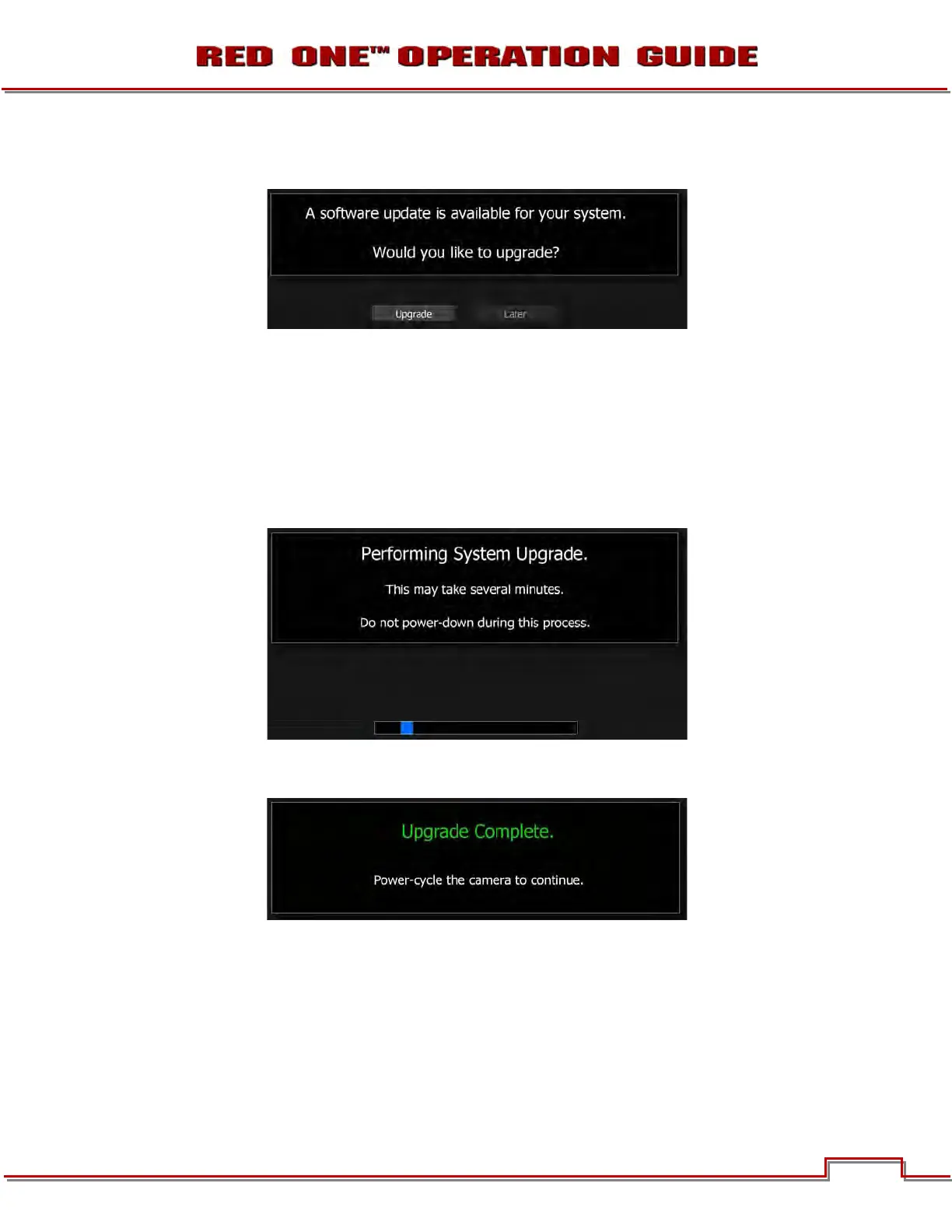
11. If there is valid upgrade firmware (build) version on the SD/CF card or USB memory device, all monitor
outputs will display:
NOTE: If you choose to upgrade later, the camera will continue to operate on the current firmware
version.
NOTE: If the camera does not automatically display the upgrade, to manually upgrade the camera,
go to SYSTEM > SETUP > MAINTENANCE > UPDATE SW and the upgrade will be identified and the
upgrade message will be displayed. Refer to UPDATE SW in MAINTENANCE under SETUP in SYS-
TEM MENU CONTROLS.
12. Push joystick in or down to begin upgrade procedure. Camera LCD will display “Upgrading…” and all
monitor outputs will display:
13. After the upgrade completes (approx. 5 minutes), camera LCD will display “OK. Cycle Power” and all
monitor outputs will display:
14. Cycle the camera OFF and back ON to return to normal operation. During the camera power up
process, the camera will display the camera P.I.N and the upgraded firmware Build and Version num-
ber.


 To Next Page