Build 21 v21.4.1
© 2007-2010 RED.COM INC. FEBRUARY 23, 2010
96 96
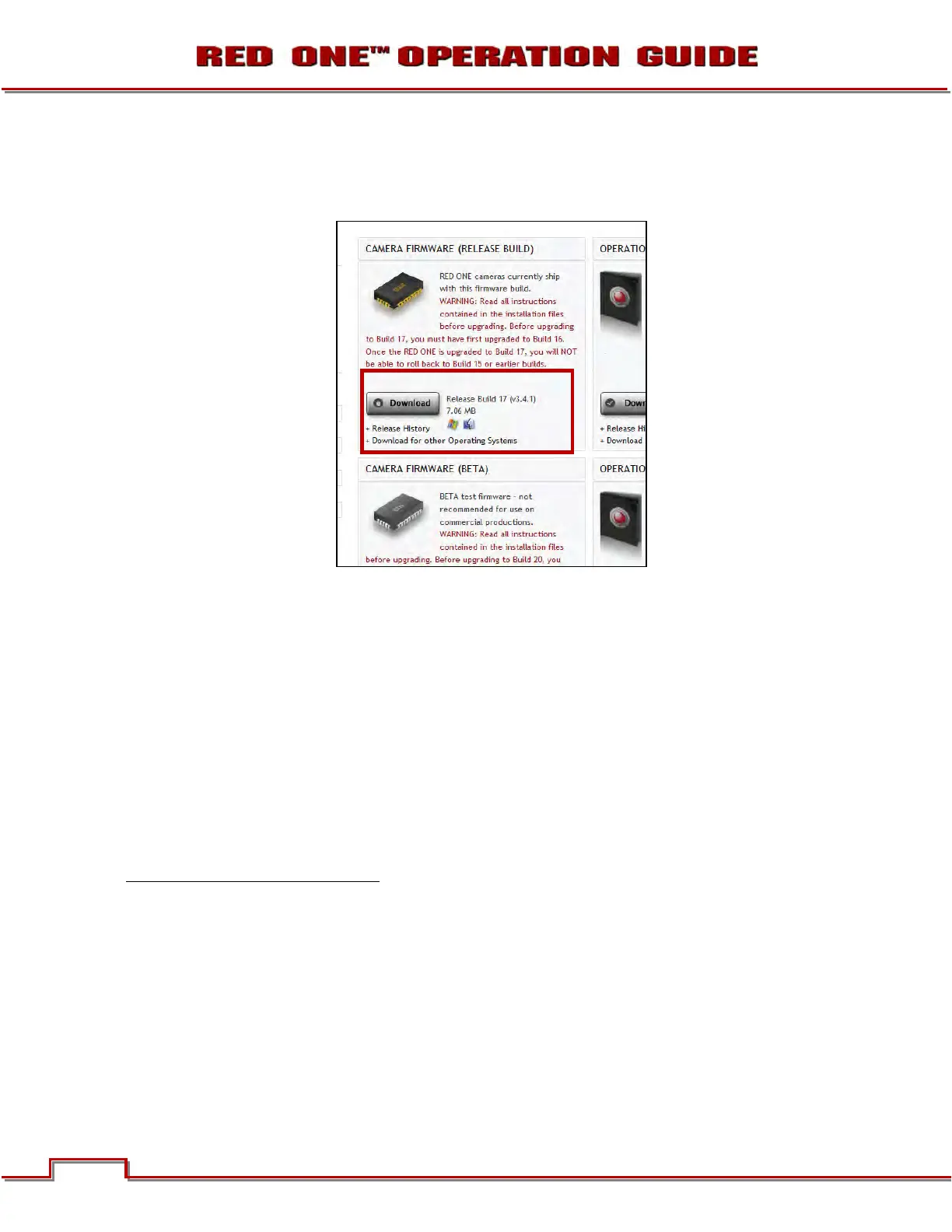
2. Click on the desired build link and download to your desktop or directory of your choosing.
NOTE: Before the download starts you will be prompted to enter your account and password or the
camera’s P.I.N.
3. After downloading the build, you will see the new compressed (zipped) folder on your desktop.
4. Open the new compressed folder and note 2 folders, one for Windows (it will be the same name as
the compressed folder) and one for Macintosh OS X (_MACOSX).
5. Open the folder for your operating system (for Macintosh OS X you will have to open a second folder
with the same as the compressed folder) and verify there is a .txt read me file (containing installation
instructions), and a “UPGRADE” folder.
NOTE: If multiple cameras are to be upgraded, it is necessary to perform STEPS 6 through 17 of
this procedure for each camera.
6. Connect an SD/Compact Flash (CF) card or USB memory device to the computer. Ensure the card
has been formatted by the camera. For detailed instructions on formatting, go to APPENDIX B: MAN-
AGING DIGITAL MEDIA.
7. Open the SD/CF card or USB memory device on the computer and copy ONLY the “UPGRADE” fold-
er for your specific operating system
from the compressed folder onto the card.
8. Remove the SD/CF card or USB memory device from the computer.
9. With the camera OFF, insert the SD/CF card into its corresponding slot in the camera. Connect the
USB memory device to the USB port on the side of the camera.
10. Turn the camera ON.


 To Next Page