3
98-05273-EN R7
MATRIX
®
Pro 570GS
•
MATRIX
®
Pro840GS
HOMESETUPGUIDANCE FULL SCREENIMPLEMENT GNSSRATE CONTROLAPPENDIX INTRODUCTION
RealView® camera
The TeeJet Technologies RealView camera allows video images
to be displayed on the Matrix Pro GS screen. The camera can be
pointed forward to enable RealView guidance over video, or it can
be positioned to view other operational aspects of your equipment.
The camera is equipped with a exible RAM mount, integral sun
shade and provides infrared illumination, allowing clear video
images even in dark conditions.
CONFIGURATIONS
The diagram that was in this location for previous software
versions has been moved to the appendix.
BASIC SCREEN USE
The Matrix Pro GS can be used as a simple current job system or advanced multi-job system. Regardless of which mode the console is
in, the basic screen functions are the same.
• Bottom Tabs and Side Tabs access the various screens and sub-screens
• Warnings and Information Pop-ups inform user of console activities and details on setup or guidance functions
• Setup options can easily be set using the drop-down menus or keyboard entry screens
To quickly nd a setup feature, see “Matrix Pro GS Console Menu Settings” in this manual.
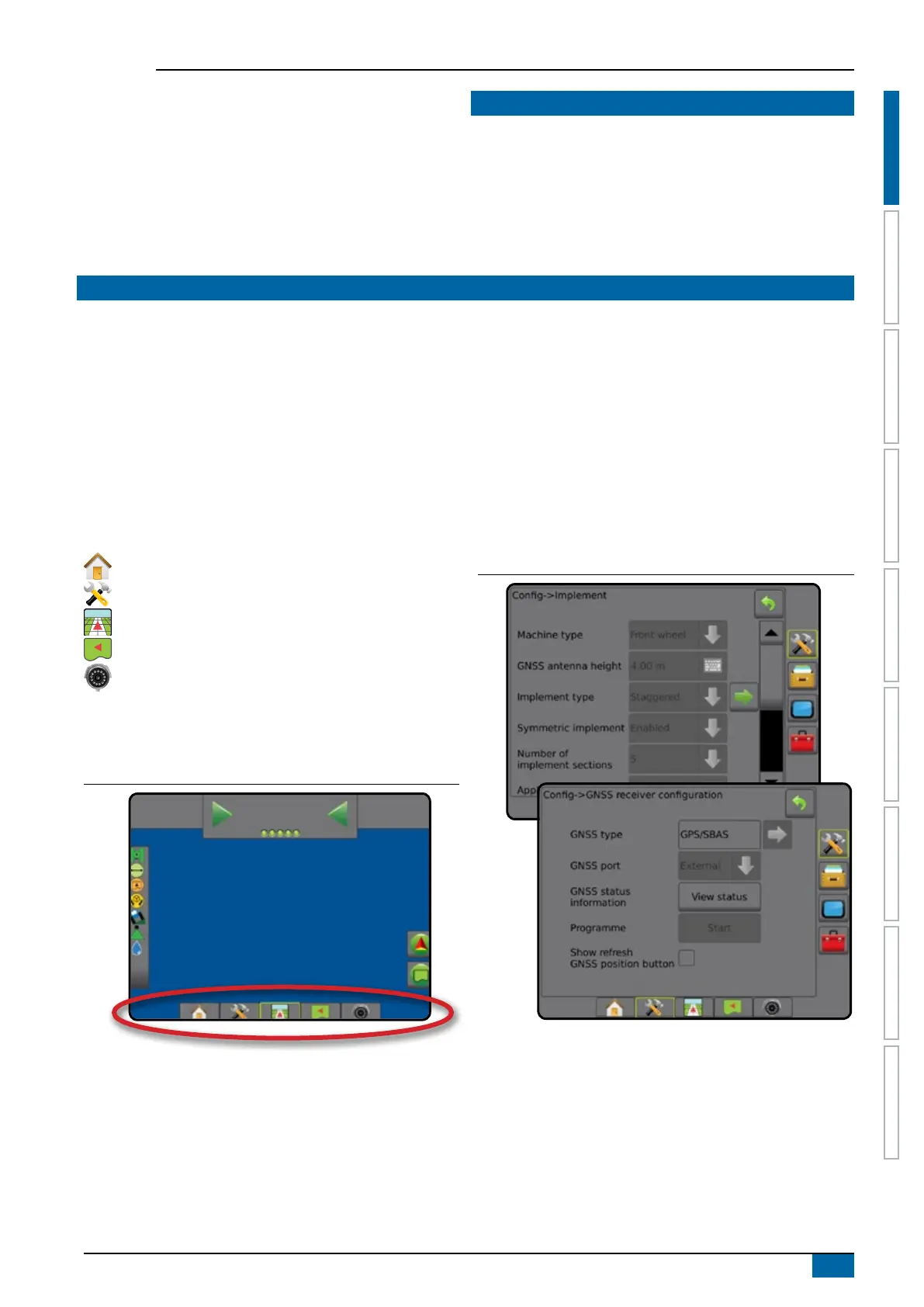
Bottom tab keys
The bottom tab keys are always available on screen. These keys
give access to jobs, setup options, and navigation.
Home/job screen
System setup
Vehicle view guidance
Field view guidance
RealView guidance or
RealView camera full screen video view
NOTE: RealView guidance options are only available with a
camera installed on the system.
Figure 1-3: Bottom tab keys
0.0
km/h
0.00
ha
0.0
Unavailable options when job is active
When a job is active some setup options are unavailable: see
“Matrix Pro GS Console Menu Settings” in this manual.
Figure 1-4: Examples of unavailable options



 To Next Page