50
www.teejet.com
MATRIX
®
Pro 570GS
•
MATRIX
®
Pro 840GS
HOME SETUP GUIDANCEFULL SCREENINTRODUCTION GNSS RATE CONTROL APPENDIXIMPLEMENT
APPLICATION OR WORKING WIDTH
Application width [Straight implement type or Staggered implement type] or Working width [Spreader implement type] is used to enter the
width of the single section or width of each section to calculate the total width of the implement.
Single section
No section control is available on the system.
Application width or Working width is used to enter the total
width of the single section of the implement. Range is 1.0 to
75.0 metres.
1. Press CONFIGURATION side tab .
2. Press
Implement .
3. Press the Application width [Straight implement type] or
Working width [Spreader implement type] KEYPAD icon .
4. Use the numeric keypad to enter a value.
5. Press RETURN arrow or CONFIGURATION side tab
to return to the main Conguration screen.
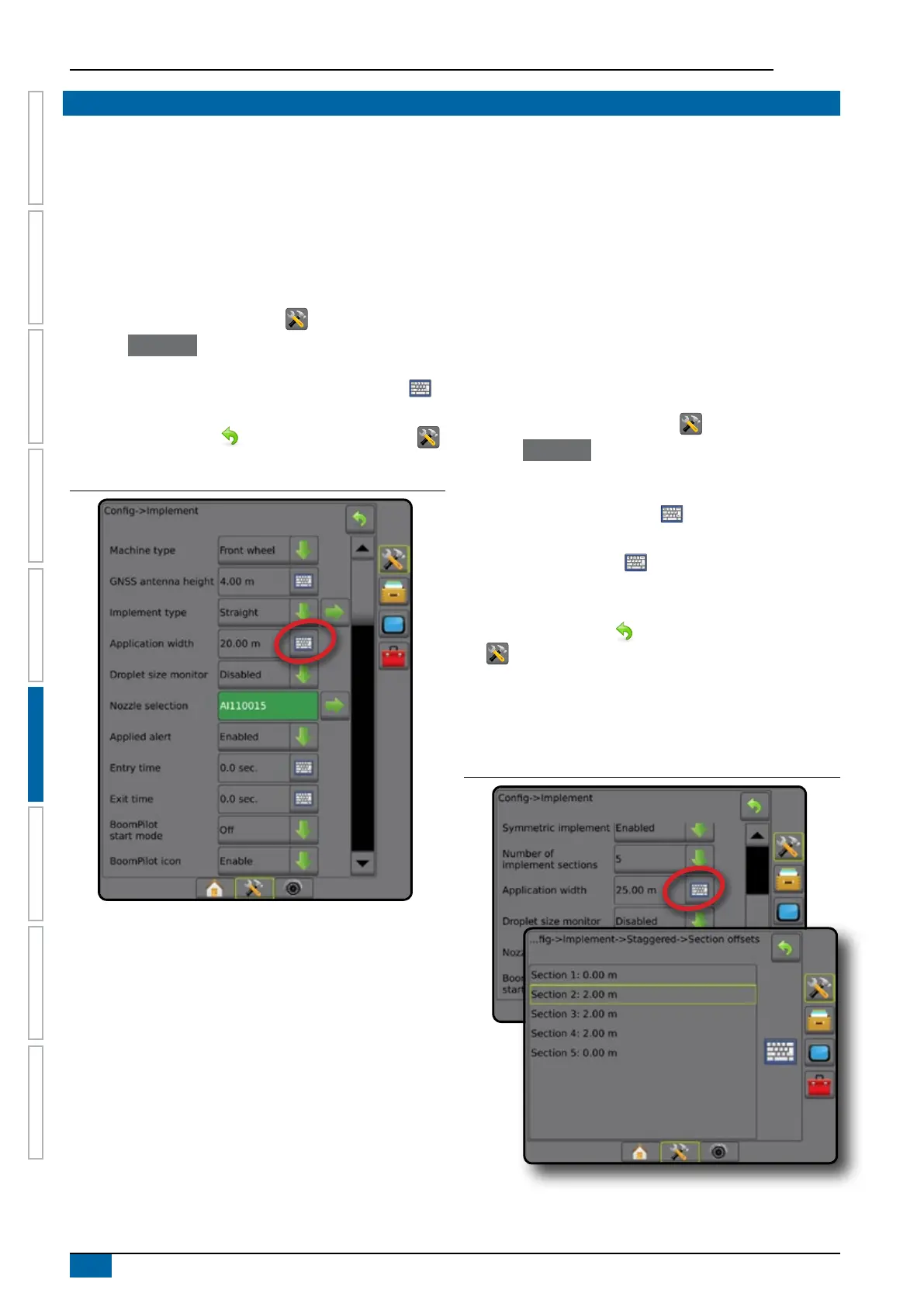
Figure 6-22: Single section – application or working width
Multiple sections
Section control is available when any of the following are on
the system: SmartCable, Section driver module (SDM), Switch
function module (SFM).
Application width or Working width is used to enter the width
of each section to calculate the total width of all sections of the
implement. Each section can be a different width. Sections are
numbered from left to right while facing in the machine's forward
direction. Range for each section is 0.0 to 75.0 metres. Total for all
sections must be greater than 1.0 metre.
1. Press CONFIGURATION side tab .
2. Press
Implement .
3. Press the Application width [Straight implement type or
Staggered implement type] or Working width [Spreader
implement type] KEYPAD icon .
4. Highlight the section to be entered or edited.
5. Press the KEYPAD icon .
6. Use the numeric keypad to enter the width of the selected
section.
7. Press RETURN arrow or CONFIGURATION side tab
to return to the Implement screen or main Conguration
screen.
NOTE: If Symmetric implement layout is enabled, only the first
of each pair of aligned sections will be available to be
highlighted.
Figure 6-23: Multiple sections – application or working width



 To Next Page