18
www.teejet.com
MATRIX
®
Pro 570GS
•
MATRIX
®
Pro 840GS
HOME GUIDANCEFULL SCREEN IMPLEMENTINTRODUCTION GNSS RATE CONTROL APPENDIXSETUP
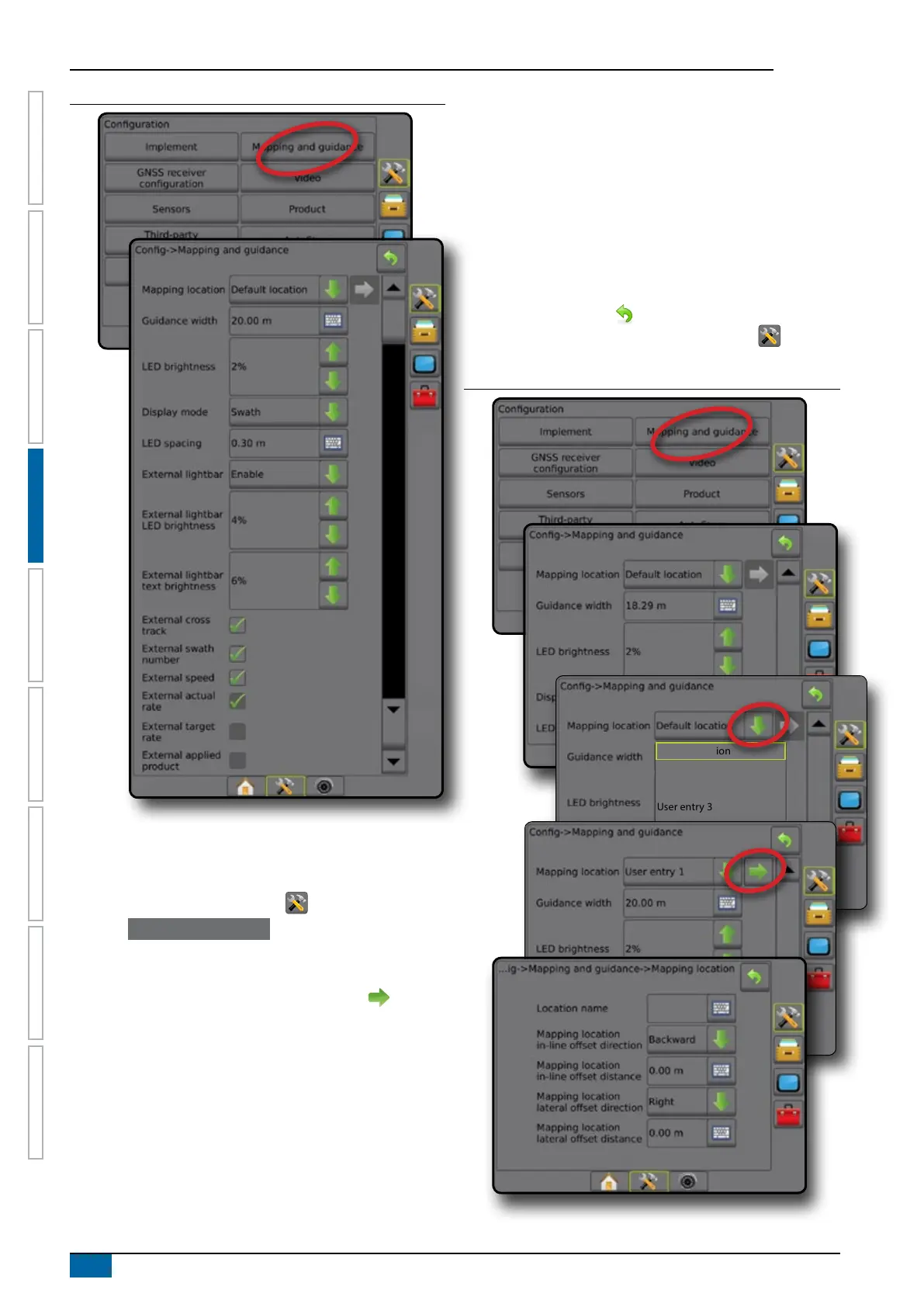
Figure 4-13: Mapping and guidance with external lightbar
User entered mapping location
Mapping location establishes the location from which boundary
and polygon mapping will take place.
1. Press CONFIGURATION side tab .
2. Press Mapping and guidance .
3. Select user entry location from the Mapping Locations drop-
down options.
4. Press MAPPING LOCATION NEXT PAGE arrow to set up
the selected specic mapping location options.
5. Select:
►Location name – used to enter the name of the mapping
location for the current user entry selected
►Mapping location in-line offset direction – used to select
whether the mapping location is located in front of or behind
the GNSS antenna as the vehicle moves in a forward
direction
►Mapping location in-line offset distance – used to dene the
in-line distance from the GNSS antenna to the mapping
location
►Mapping location lateral offset direction – used to select
the lateral direction from the center line of the machine to
the mapping location while facing in the machine’s forward
direction
►Mapping location lateral offset distance – used to dene the
lateral distance from the center line of the machine to the
mapping location
6. Press RETURN arrow to return to the Mapping and
Guidance screen or CONFIGURATION side tab to return
to the main Conguration screen.
Figure 4-14: User entered mapping location
Default location
User entry 1
User entry 2
User entry 3
User entry 4
User entry 5



 To Next Page