31
98-05273-EN R7
MATRIX
®
Pro 570GS
•
MATRIX
®
Pro840GS
HOMEGUIDANCE FULL SCREENIMPLEMENT INTRODUCTIONGNSSRATE CONTROLAPPENDIX SETUP
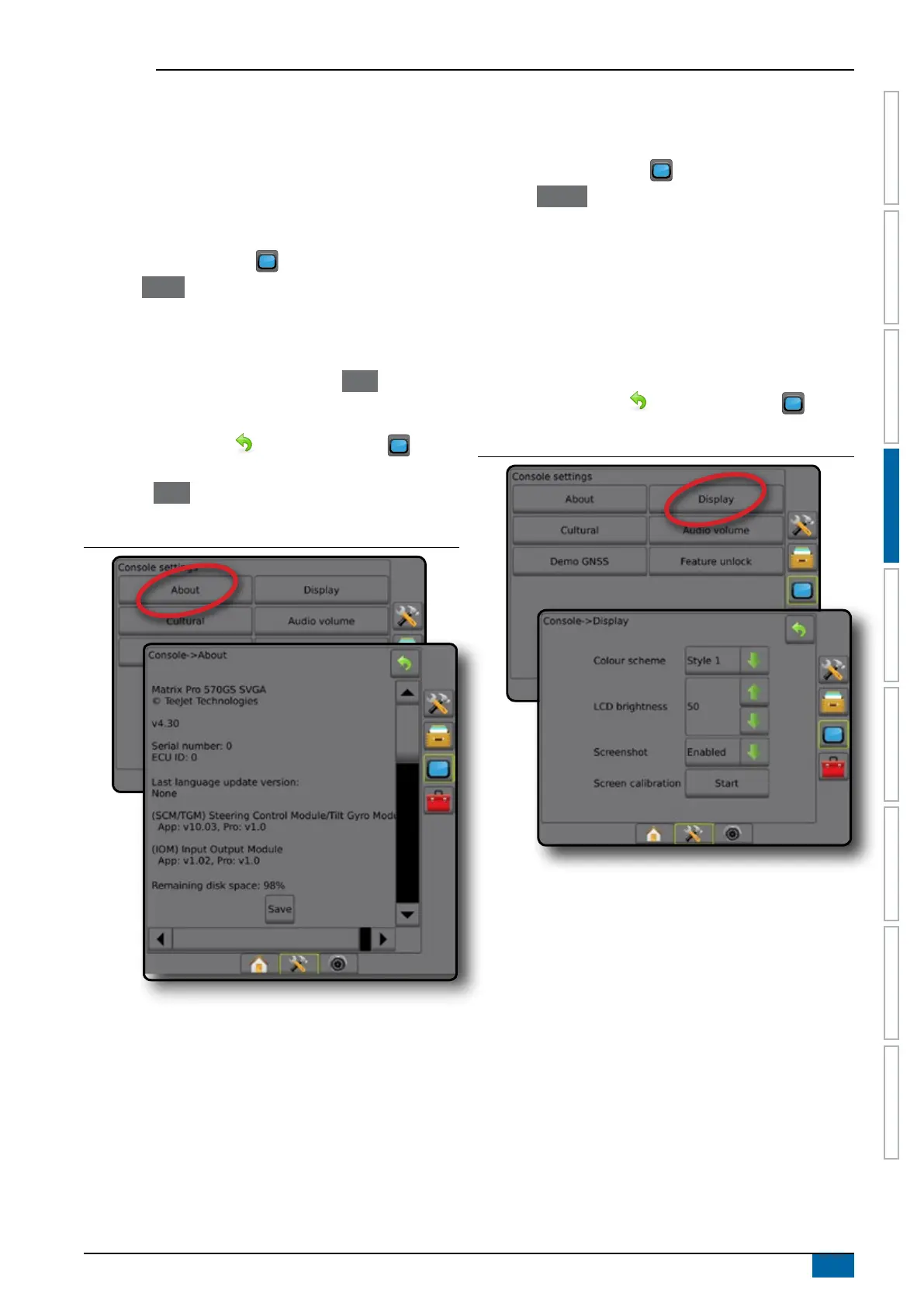
About
About/Save screen displays the system software version as well
as the software versions of modules connected to the CAN bus.
To aid when troubleshooting problems in the eld, an end user
can use the Save button to download a text le containing current
software information to a USB drive, then e-mail the le to support
personnel.
1. Press CONSOLE side tab .
2. Press
About .
3. Select from:
►View information including unit serial number, software
version, and connected modules
►With a USB drive in the console, press
Save to save
the About information to the USB drive. Saved version
information to USB drive will conrm the save.
4. Press RETURN arrow or CONSOLE side tab to
return to the main Console Settings screen.
NOTE: The Save option is not available for selection (greyed
out) until a USB drive is inserted properly.
Figure 4-42: About options
Display
Display is used to congure colour scheme and LCD brightness,
establish screenshot availability and calibrate the touchscreen.
1. Press CONSOLE side tab .
2. Press
Display .
3. Select from:
►Colour scheme – used to choose the colour scheme that is
easiest to read
►LCD brightness – used to adjust the brightness of the
console display
►Screenshot – used to allow screen captures to be saved to
a USB drive
►Screen calibration – used to calibrate the touch screen
4. Press RETURN arrow
or CONSOLE side tab to
return to the main console Settings screen.
Figure 4-43: Display Options



 To Next Page