83
98-05273-EN R7
MATRIX
®
Pro 570GS
•
MATRIX
®
Pro840GS
HOMESETUP FULL SCREENIMPLEMENT INTRODUCTIONGNSSRATE CONTROLAPPENDIX GUIDANCE
REALVIEW SPECIFIC OPTIONS
RealView guidance allows live video input to be displayed instead
of a computer-generated image. RealView setup options accesses
additional guidance tools including guidance over video and a
steering angle indicator.
►Single camera – a single camera is directly attached to the
console
►Video selection module – if a Video selection module
(VSM) is installed on the system, two (2) video options are
available:
• One camera view – one of up to eight camera inputs can
be selected to change the view of the video input.
• Split camera view – one of two sets of four camera inputs
(A/B/C/D or E/F/G/H) can be selected to divide the screen
into four separate video feeds.
To adjust the camera view [reverse, upside down], go to Setup->
Conguration-> Video.
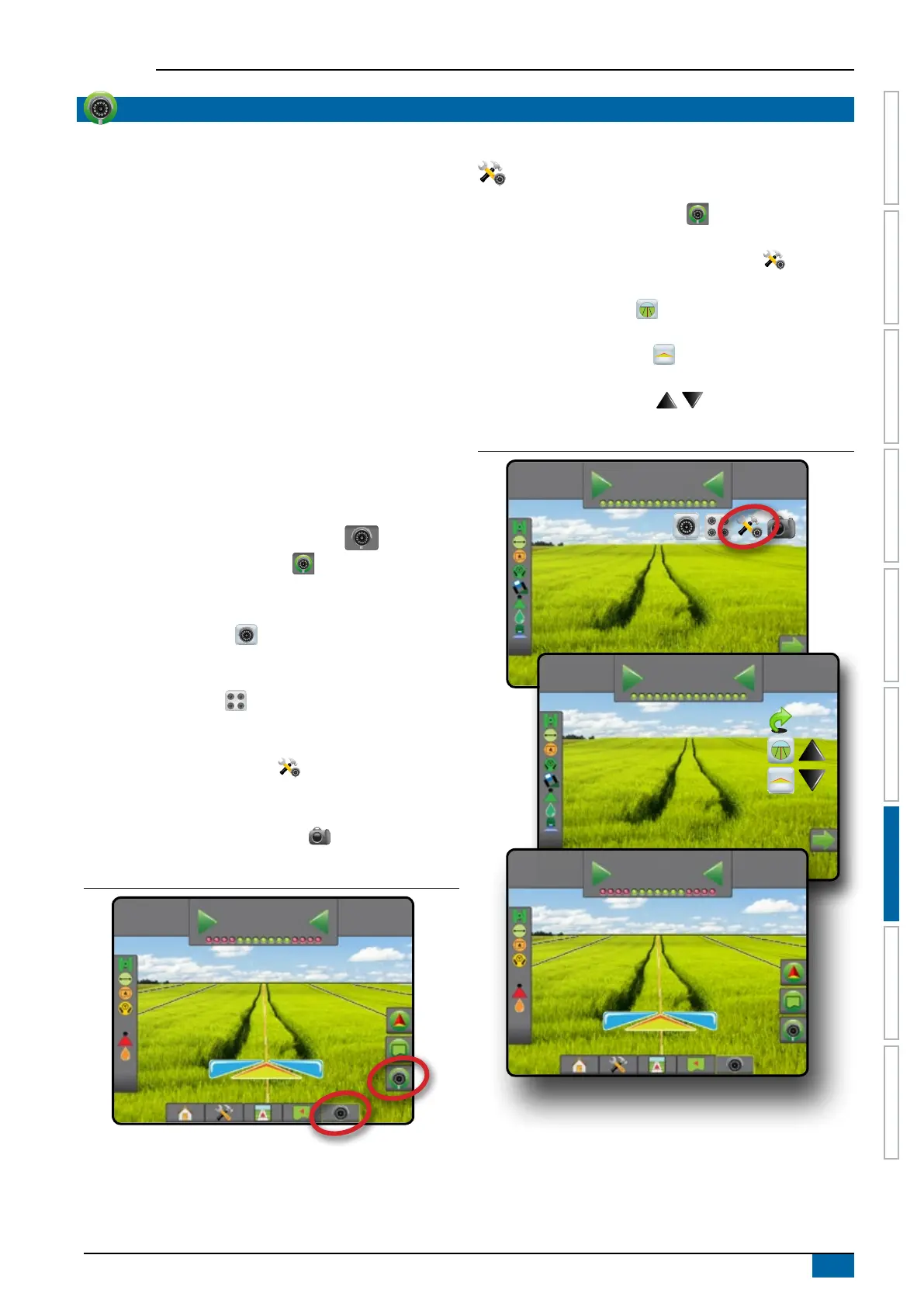
To access the RealView options:
1. Press REALVIEW GUIDANCE bottom tab .
2. Press REALVIEW OPTIONS tab to display RealView
options.
3. Select from:
►Single camera view [VSM only] – one (1) of up to eight
(8) camera inputs can be selected to change the view of the
video input
►Split camera view [VSM only] – one (1) of two (2) sets
of four (4) camera inputs (A/B/C/D or E/F/G/H) can be
selected to divide the screen into four separate video feeds
►RealView guidance options – accesses additional
guidance tools including guidance over video and a steering
angle indicator
►RealView camera image capture – saves a still photo
of the current view on the screen to a USB drive
Figure 7-36: RealView guidance
10.0
km/h
27.00
ha
0.0
RealView guidance options
RealView setup options accesses additional guidance tools
including guidance over video and a steering angle indicator.
1. Press REALVIEW OPTIONS tab to display RealView
options.
2. Press REALVIEW GUIDANCE OPTIONS icon .
3. Select from:
►Guidance over video
– places three-dimensional
guidelines over the video feed for navigation assistance
►Steering angle indicator
– displays the direction in
which the steering wheel needs to be adjusted
►Horizon line adjustment – adjusts the on-screen
horizon line up or down
Figure 7-37: RealView setup options
0.0
km/h
0.00
ha
0.0
0.0
km/h
0.00
ha
0.0
0.0
km/h
0.00
ha
0.0



 To Next Page