76
www.teejet.com
MATRIX
®
Pro 570GS
•
MATRIX
®
Pro 840GS
HOME SETUPFULL SCREEN IMPLEMENTINTRODUCTION GNSS RATE CONTROL APPENDIXGUIDANCE
With TeeJet section control module
SmartCable, section driver module (SDM) or switch function
module (SFM) is present BoomPilot is used to set automatic
section control to off/manual , automatic , or spot
application
NOTE: The BOOMPILOT icon is grey when GNSS is
unavailable. BoomPilot status bar icon will be off/manual
.
To switch application off or on automatically:
1. Press NAVIGATION AND GUIDANCE OPTIONS tab to
display navigation options.
2. Press and release BOOMPILOT icon
.
◄Enable – status bar icon will change to green
◄Disable – status bar icon will change to red
To apply a spot application:
1. Press NAVIGATION AND GUIDANCE OPTIONS tab to
display navigation options.
2. Press and hold BOOMPILOT icon over area to be applied.
◄Spot application– status bar icon will change to yellow
CURVED LOOKAHEAD
The Curved lookahead guideline provides an indication of
where the current steering will take the vehicle using a ‘pointer’
as guidance. The Curved lookahead option is available in all
guidance modes.
To activate the Curved lookahead guideline:
1. Press NAVIGATION AND GUIDANCE OPTIONS tab to
display navigation options.
2. Select CURVED LOOKAHEAD icon .
The pointer will be visible on the navigation screen.
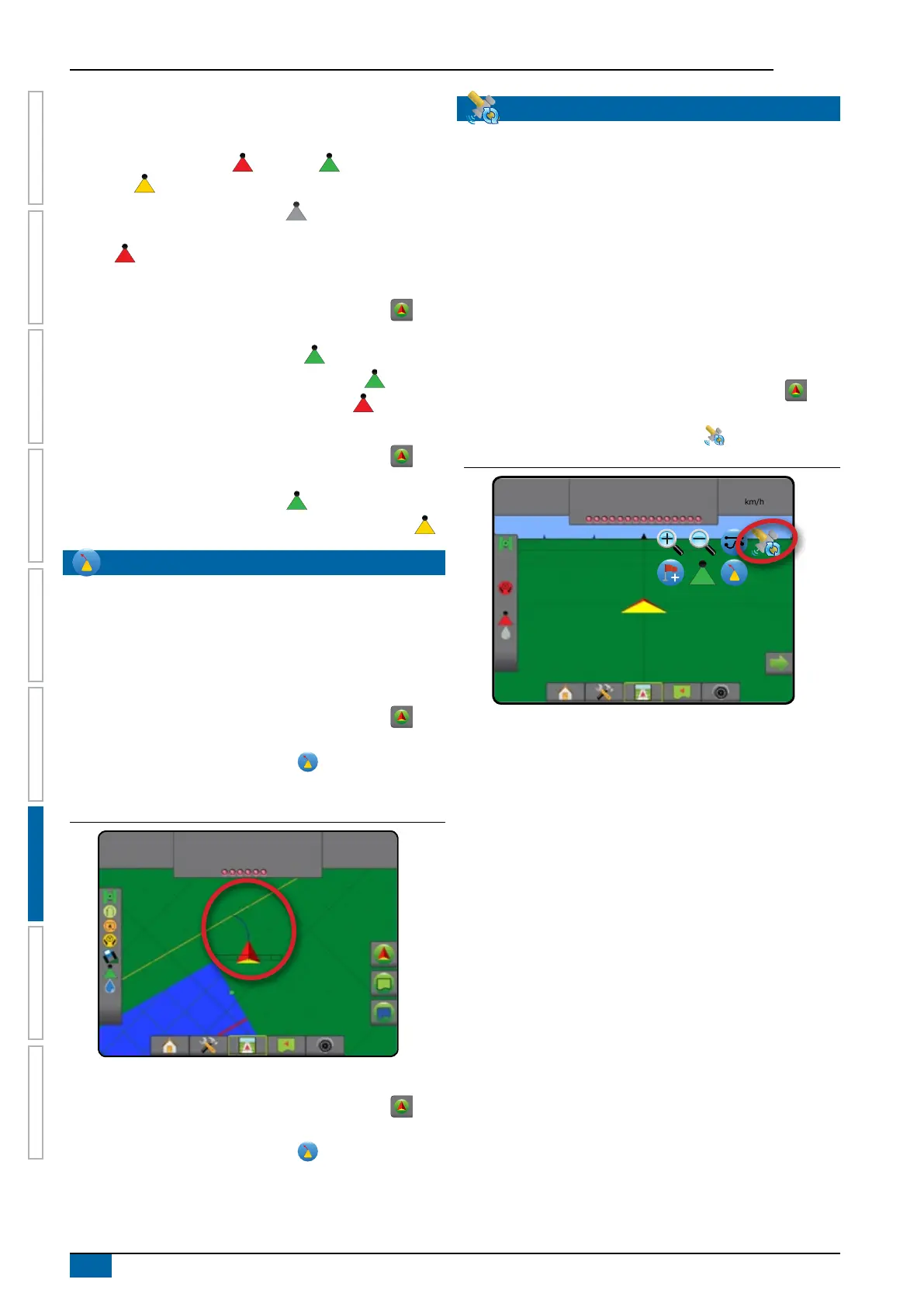
Figure 7-24: Curved lookahead
-13
7.2
km/h
Mark A
To remove the Curved lookahead guideline:
1. Press NAVIGATION AND GUIDANCE OPTIONS tab to
display navigation options.
2. Select CURVED LOOKAHEAD icon .
REFRESH GNSS POSITION
Refresh GNSS position resets the ClearPath lter in the OEMStar
receiver in cases where the user has had the receiver running
in close proximity to heavy tree cover and/or buildings. See
“Conguration-> GNSS receiver conguration” to activate the
Refresh GNSS position icon.
NOTE: Activating the refresh while in a job will cause a
momentary interruption in the relay of GNSS data. This
will most likely result in sections already on in automatic
BoomPilot mode to go off for a short period of time.
The refresh should not be done during active application.
To refresh the GNSS position:
1. Press NAVIGATION AND GUIDANCE OPTIONS tab to
display navigation options.
2. Select Refresh GNSS POSITION icon
.
Figure 7-25: Refresh GNSS position
15:22
0.0
km/h



 To Next Page