87
98-05273-EN R7
MATRIX
®
Pro 570GS
•
MATRIX
®
Pro840GS
HOMESETUPGUIDANCE FULL SCREENIMPLEMENT INTRODUCTIONGNSSAPPENDIX RATE CONTROL
GUIDANCE SCREEN OPTIONS
When a Third-party rate controller is integrated into the system, additional rate control and mapping options are available on the Vehicle
View and Field View guidance screens.
On screen guidance
In addition to the standard guidance options, the following
information will become available with Third-party rate control:
• Guidelines
◄Black/white – prescription map zone boundary line
• Coverage area – illustrates applied area and overlap:
◄ User selected – Application map and Target rate map
applied areas show coloured bars relative to selected
colour range and map selection.
Guidance bar
In addition to the standard Guidance bar options, the following
selectable information will become available with Third-party rate
control:
►Actual application rate – displays the current application
rate
►Target application rate – displays the target application rate
Figure 8-4: Guidance bar selectable information
10.0
km/h
27.00
ha
Mark A
Time
System pressure
Swath number
Droplet size
Actual
application rate
Target
application rate
Status bar
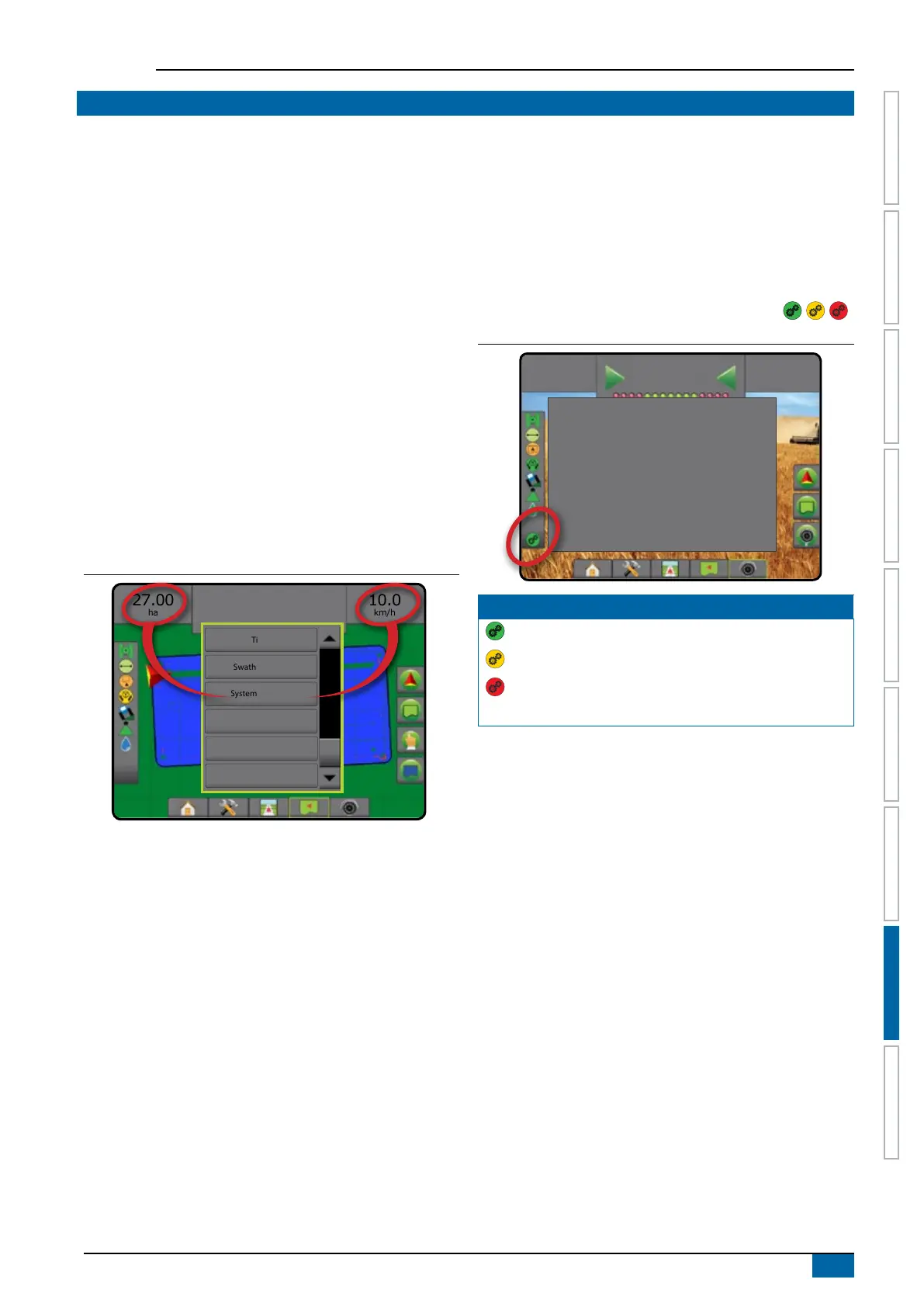
In addition to the standard Status Bar bar options, the Product rate
control status icon provides information on rate control status.
When an icon is pressed, the related status information is
displayed.
1. Press PRODUCT RATE CONTROL STATUS icon .
Figure 8-5: Product rate control status
27.00
ha
10.0
km/h
Mark A
Rate control device status:
Last valid response: <1 second ago
Successful requests: 123,456
Unsuccessful requests: 789,012
Rate Control Status
Green = normal operation
Yellow = system warning (incorrect rate/pressure, etc.)
Red = system error (incorrect rate/pressure, etc.)
No icon = no rate control installed



 To Next Page