24
www.teejet.com
MATRIX
®
Pro 570GS
•
MATRIX
®
Pro 840GS
HOME GUIDANCEFULL SCREEN IMPLEMENTINTRODUCTION GNSS RATE CONTROL APPENDIXSETUP
Tilt correction
When a Steering control module (SCM) or Tilt gyro module
(TGM) is present, Tilt correction is available. This corrects the
GNSS signal to compensate for errors in the GNSS position while
operating on hilly or sloped terrain.
For detailed setup instructions, refer to your specic assisted/auto
steering installation manual or tilt setup bulletin.
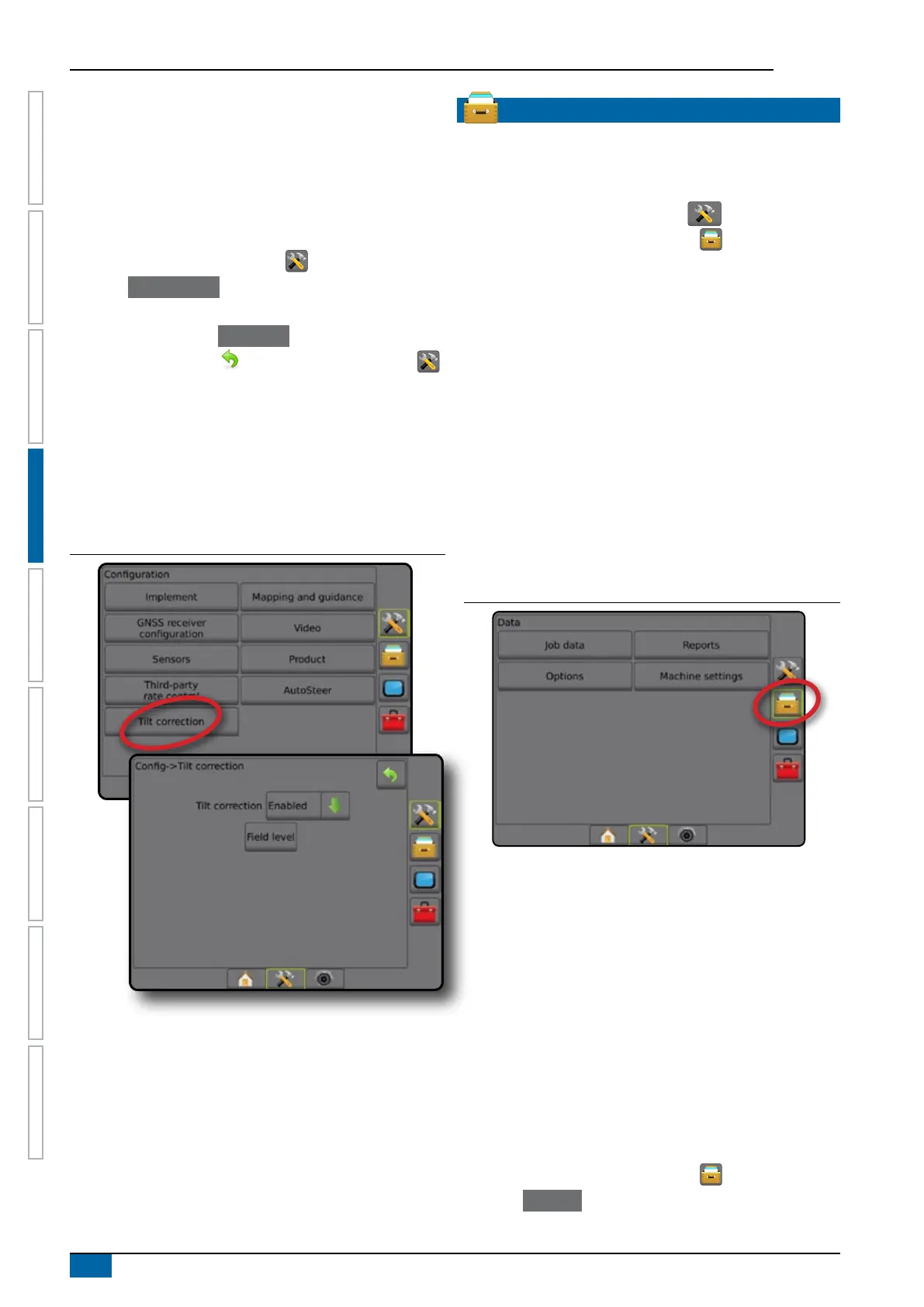
1. Press CONFIGURATION side tab .
2. Press Tilt Correction .
3. Select if Tilt Correction is enabled or disabled.
4. When enabled, select
Field Level to calibrate tilt correction.
5. Press RETURN arrow or CONFIGURATION side tab
to return to the main Conguration screen.
NOTE: If FieldPilot or UniPilot is being used, a Tilt gyro module
is built into the system. When using a FieldPilot Pro or
UniPilot Pro, tilt correction is calibrated under Setup->
Configuration-> AutoSteer-> Manage vehicles-> Adjust->
Tilt calibration.
NOTE: Antenna height must be entered prior to Tilt calibration.
Figure 4-27: Tilt correction
Field level unavailable
If the vehicle is in motion, the eld level option will not be
available. Vehicle must be stopped for at least 10 seconds to
begin to calibrate tilt correction.
Tilt correction unavailable
If an SCM or TGM is not connected, setup options will not
be available. When using a FieldPilot Pro or UniPilot Pro, tilt
correction is calibrated under Setup-> Conguration-> AutoSteer->
Manage vehicles-> Adjust-> Tilt calibration.
DATA MANAGEMENT
Data Management allows for transfer and management of job
data, reporting of job data, changing of job mode, and transfer and
management of machine settings.
1. Press SYSTEM SETUP bottom tab .
2. Press DATA MANAGEMENT side tab
.
3. Select from:
►Job data – in advanced job mode, used to transfer
job information (delete, import, export) and manage
job information (create a new job, delete a job, or
copy a job’s Guidelines, Boundaries, Applied data,
Prescription map and/or polygons to a new job)
►Reports – used to create job reports and save them to
a USB drive
►Options – used to select simple job mode or advanced
job mode
►Machine settings – used to transfer machine settings
(delete, import, export) and manage machine setting (create
a new machine setting, copy a machine setting, delete a
machine setting, save the current machine setting to the
selected le, or load the selected le's machine setting)
Figure 4-28: Data management options
Job data
When in advanced job mode, job data options are used to
transfer job information (delete, import, export) and manage
job information (create a new job, delete a job, or copy a job’s
Guidelines, Boundaries, Applied Data, Prescription Map and/or
polygons to a new job).
Job Data includes:
• Job name
• Client, Farm, and Field names
• Boundary (external, internal)
• Polygons
• Coverage area
• Guidelines
• Maps (Coverage, Prescription, Application, Preset target rate)
1. Press DATA MANAGEMENT side tab .
2. Press Job Data .



 To Next Page