66
www.teejet.com
MATRIX
®
Pro 570GS
•
MATRIX
®
Pro 840GS
HOME SETUPFULL SCREEN IMPLEMENTINTRODUCTION GNSS RATE CONTROL APPENDIXGUIDANCE
NAVIGATION SCREENS
Vehicleview
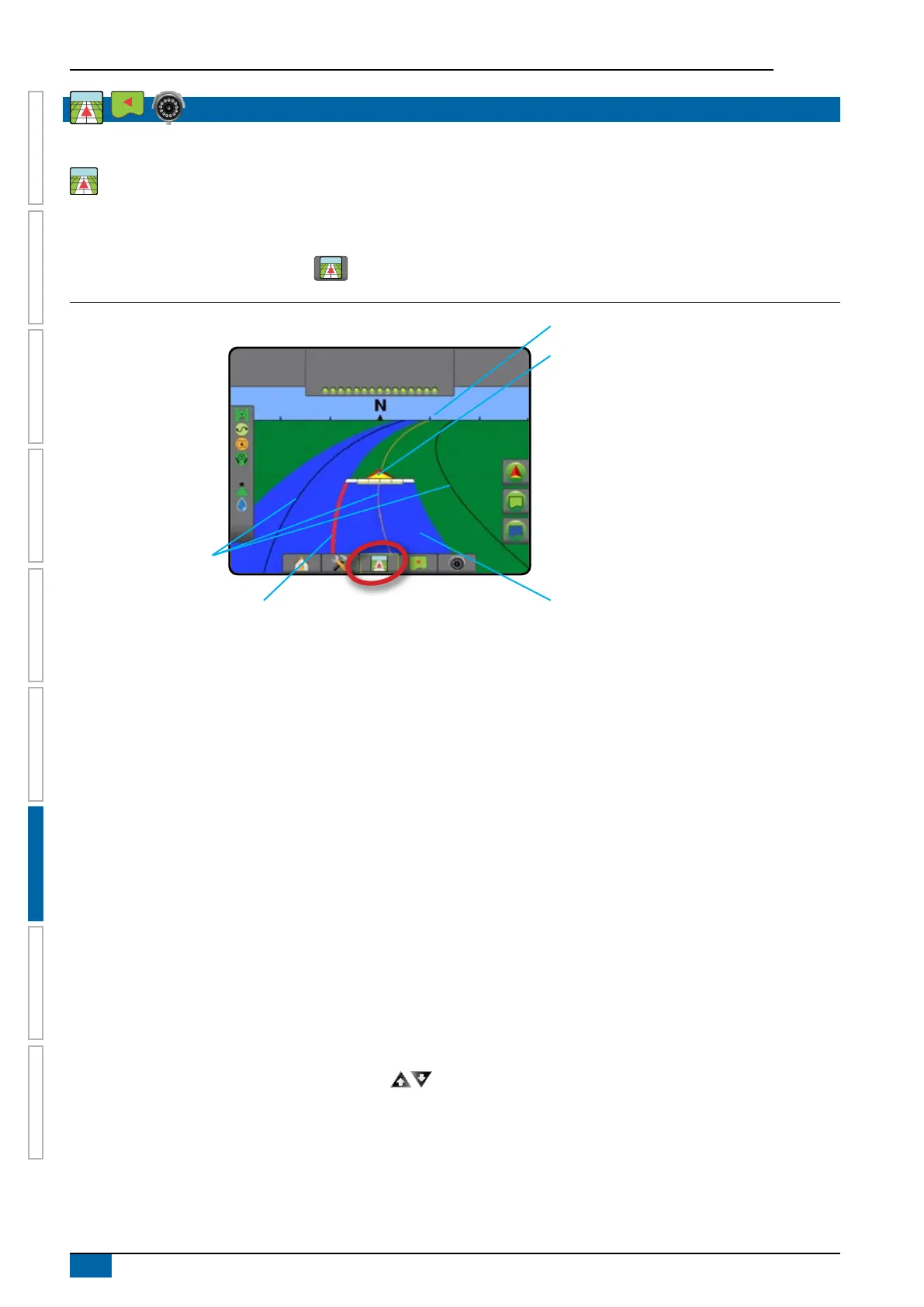
Vehicle view creates a computer-generated image of the vehicle position displayed in the application area. From this screen all
setup, boundary, polygon, mapping, application and navigation options can be accessed via the options tabs on the right side of
the screen.
To access the Vehicle view screen:
1. Press VEHICLE VIEW GUIDANCE tab .
Figure 7-6: Vehicle view
10.0
km/h
27.00
ha
0.0
Status bar
Horizon compass
Guidance bar
Coverage area
Overlap coverage area
Navigation guidelines
Vehicle with real-time representation of
active boom sections
Navigation and guidance options tab
Boundary and polygon options tab
Mapping options tab
On screen guidance
• Guidelines
◄Orange – active guidance line
◄Black (multiple) – adjacent guidance lines
◄Black – exterior boundary line
◄Grey – interior boundary line
◄Blue – polygon boundary line
• Points – markers for established points
◄Red point – Return to point
◄Blue point – Mark A
◄Green point – Mark B
• Horizon compass – general heading can be displayed on
horizon (when zoomed in)
• Coverage area – illustrates applied area and overlap:
◄Blue – one application
◄Red – two or more applications.
• Sections
◄Empty boxes – inactive sections
◄White boxes – active sections
Matrix Pro 840GS console button assistance
• Zoom in/out and perspective – the up/down buttons
adjust the vehicle’s view or perspective to the horizon from
vehicle view to bird’s eye view.



 To Next Page