9
98-05273-EN R7
MATRIX
®
Pro 570GS
•
MATRIX
®
Pro840GS
HOMESETUPGUIDANCE IMPLEMENT INTRODUCTIONGNSSRATE CONTROLAPPENDIX FULL SCREEN
CHAPTER 3 FULL SCREEN VIDEO VIEW
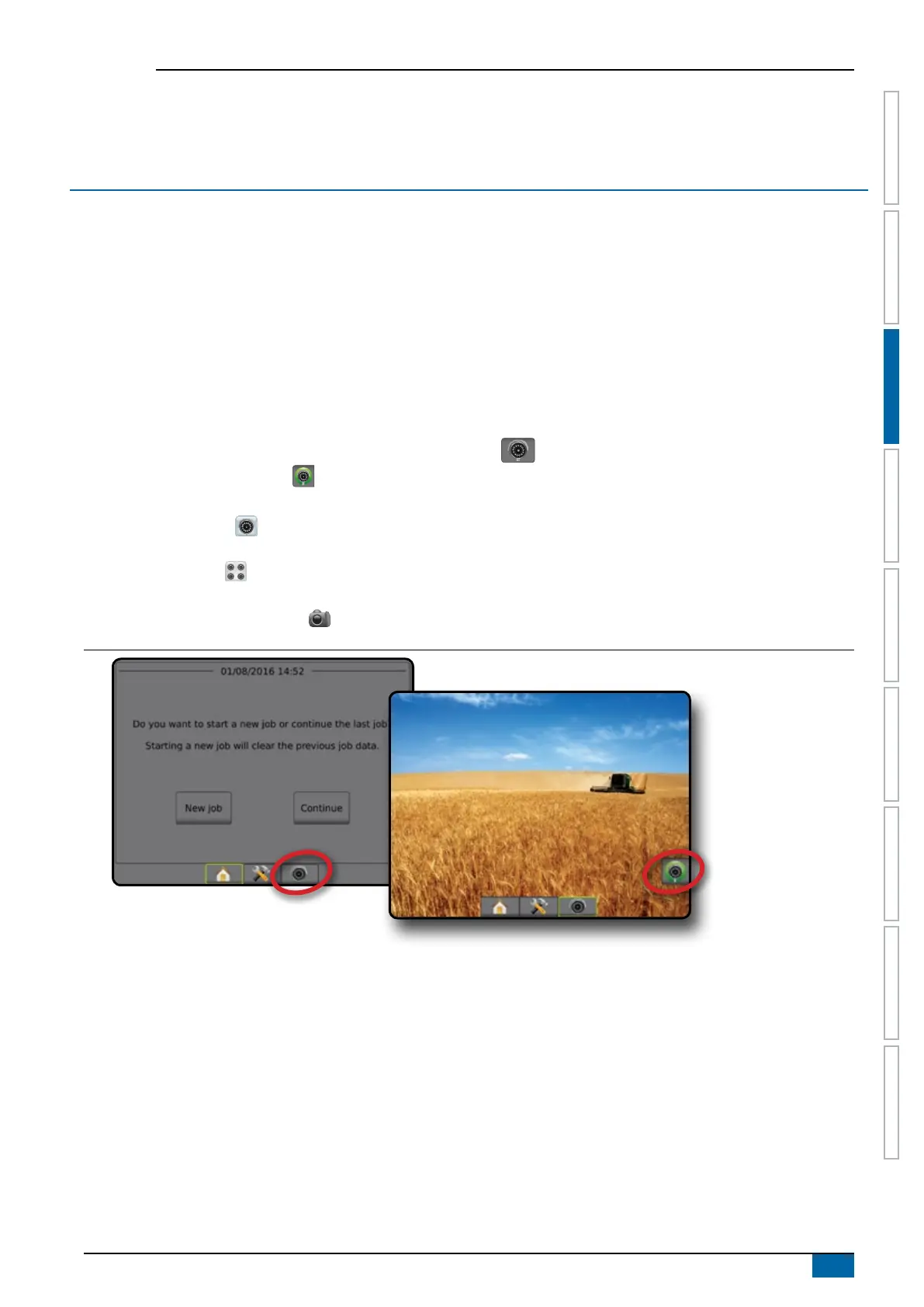
RealView Full Screen Video View allows live video input to be displayed. View video feed(s) and setup cameras without GNSS available.
Options for RealView Guidance are not available on this screen.
►Single camera – a single camera is directly attached to the console
►Video selection module – if a Video selection module (VSM) is installed on the system, two (2) video options are available:
• One camera view – one of up to eight camera inputs can be selected to change the view of the video input.
• Split camera view – one of two sets of four camera inputs (A/B/C/D or E/F/G/H) can be selected to divide the screen into four
separate video feeds.
To adjust the camera view [reverse, upside down], go to Setup-> Conguration-> Video.
To enter Full screen video mode:
1. Press REALVIEW CAMERA FULL SCREEN VIDEO VIEW bottom tab .
2. Press REALVIEW OPTIONS tab to display RealView options.
3. Select from:
►Single camera view [VSM only] – one (1) of up to eight (8) camera inputs can be selected to change the view of the video
input
►Split camera view [VSM only] – one (1) of two (2) sets of four (4) camera inputs (A/B/C/D or E/F/G/H) can be selected to
divide the screen into four separate video feeds
►RealView camera image capture – saves a still photo of the current view on the screen to a USB drive
Figure 3-1: Realview full screen video view



 To Next Page