29
98-05273-EN R7
MATRIX
®
Pro 570GS
•
MATRIX
®
Pro840GS
HOMEGUIDANCE FULL SCREENIMPLEMENT INTRODUCTIONGNSSRATE CONTROLAPPENDIX SETUP
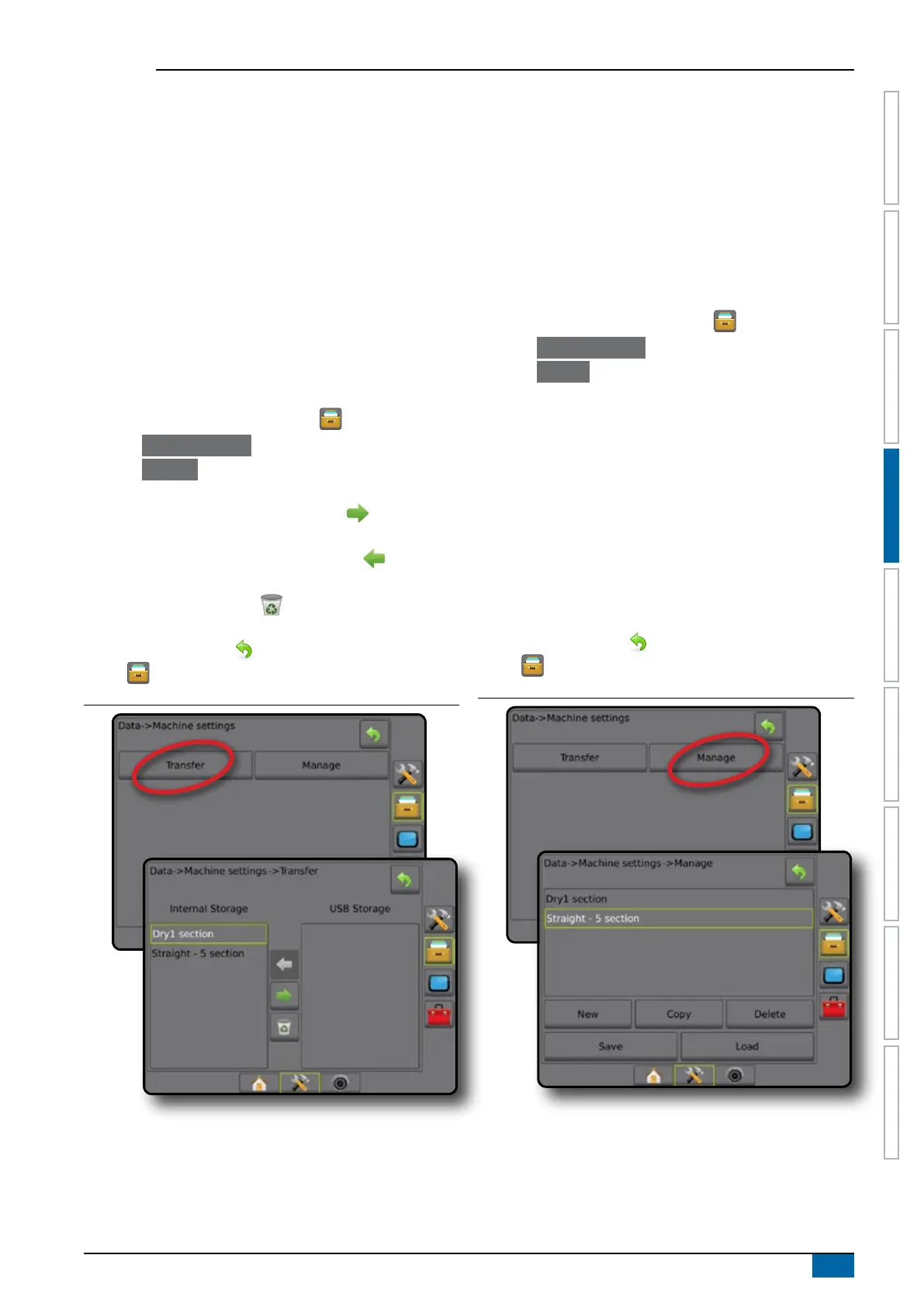
Transfer
The machine settings transfer screen allows the transfer of
selected machine settings to or from a USB drive, as well as
deleting machine settings.
Machine settings transferred to a USB storage device can be
opened and updated using Fieldware Link. From Fieldware Link,
machine settings can be ported back to a USB storage device to
be moved back onto the console internal storage for use.
NOTE: Not all settings saved as part of the machine settings are
available to be edited in Fieldware Link. See the appendix
"Matrix Pro GS Console Menu Settings" for details.
Machine settings transferred to a storage device
are removed from the console and are no longer
available for use.
1. Press DATA MANAGEMENT side tab .
2. Press Machine Settings .
3. Press Transfer .
4. Select from:
►Move Machine settings to USB Storage – used to move
machine settings from internal storage to USB
►Move Machine settings to Internal Storage
– used to
move machine settings from USB to internal storage
►Delete Machine settings – used to delete machine
settings from internal storage or USB storage
5. Press RETURN arrow
or DATA MANAGEMENT side
tab to return to the main Data Management screen.
Figure 4-38: Machine settings – transfer
Manage
The Machine settings manage screen allows the creation of a
new empty machine settings, the copying of a selected machine
settings to a new machine settings, the deletion of a selected
machine settings, the saving of the current machine settings to the
selected machine settings, or the loading of the selected machine
settings to the current settings.
NOTE: Not all settings are saved as part of the machine settings.
See the appendix "Matrix Pro GS Console Menu Settings"
for details.
1. Press DATA MANAGEMENT side tab .
2. Press Machine Settings .
3. Press Manage .
4. Select from:
►New – used to create a new machine setting with no
associated implement information
►Copy – used to copy a selected machine settings into a new
machine settings
►Delete – used to delete a selected machine settings from
internal storage
►Save – used to save the current machine settings to the
selected machine settings
►Load – used to load the selected machine settings to the
current settings
5. Press RETURN arrow or DATA MANAGEMENT side
tab to return to the main Data Management screen.
Figure 4-39: Machine settings – manage



 To Next Page