4
www.teejet.com
MATRIX
®
Pro 570GS
•
MATRIX
®
Pro 840GS
HOME SETUP GUIDANCEFULL SCREEN IMPLEMENTGNSS RATE CONTROL APPENDIXINTRODUCTION
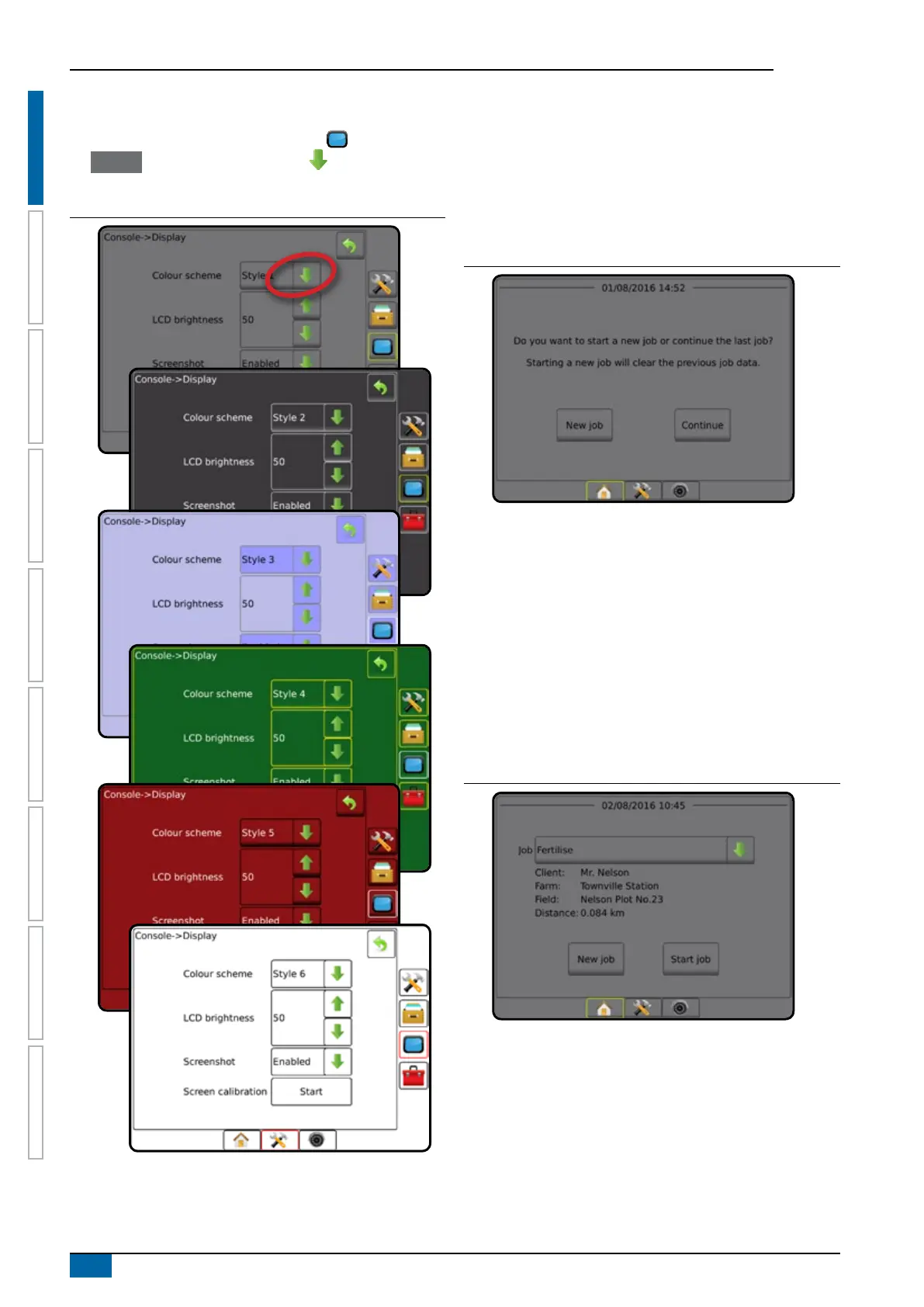
Console screen colours
The console is available in six colour schemes. From the System
Setup Bottom Key, press CONSOLE side tab and enter
the Display options. Press DOWN arrow to access the
Colour Scheme options to select colour mode.
Figure 1-5: Colour schemes
Simple or advanced mode
To change between simple mode and advanced mode, see the
conguration chapter under Data –> Options.
In simple mode, only one job will be available at a time. Only
bounded area and coverage areas are displayed on the home
screen. Only the current job is available for saving in Reports. Use
with Fieldware Link is not available.
Figure 1-6: Simple mode home screen
In advanced mode, more than one job will be available at any time.
Client, farm, eld and job names; bounded and coverage areas;
application time; and distance from selected job are displayed on
the home screen. All saved job proles can be exported as a PDF,
SHP or KML le to a USB drive using Data-> Reports.
Client information, farm information, eld information, and
prescription maps can only be inputted using Fieldware Link. A job
name can only be edited using Fieldware Link.
A user can duplicate jobs for reuse of guidelines, boundaries,
applied data, prescription map and/or polygons using Fieldware
Link or Data-> Job Data-> Manage in the console.
Figure 1-7: Advanced mode home screen



 To Next Page