27
98-05273-EN R7
MATRIX
®
Pro 570GS
•
MATRIX
®
Pro840GS
HOMEGUIDANCE FULL SCREENIMPLEMENT INTRODUCTIONGNSSRATE CONTROLAPPENDIX SETUP
Reports
Reports provides options for generating a report of the Job data in
three different formats and save them to a USB drive.
NOTE: If Simple job mode is selected in the Options page, only
the current job can be saved.
When a job is active/started, Reports are not available for
selection. Stop the current job to enable the function.
When closing a job with a USB drive in the console, you
get the option to create a report on the current job.
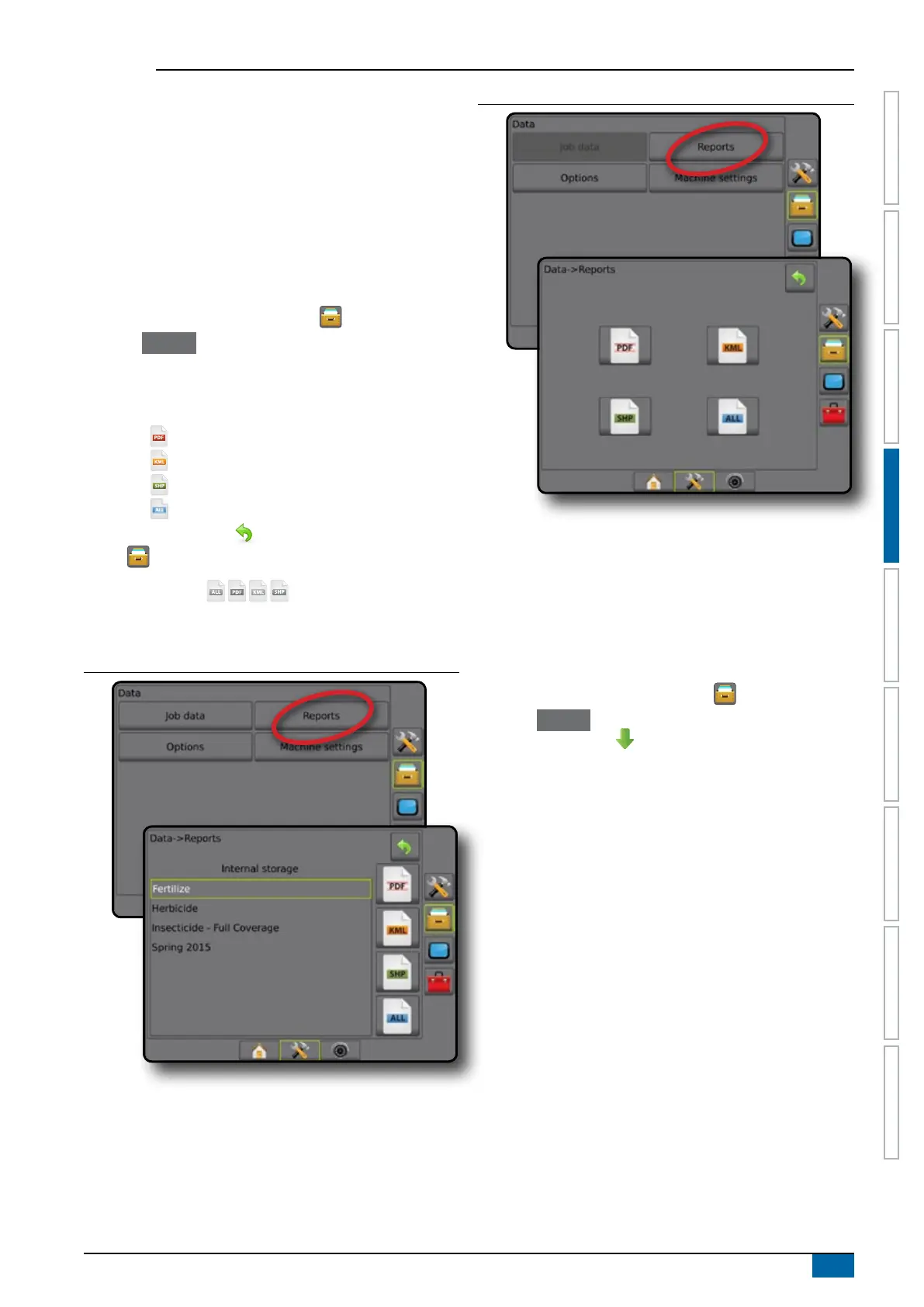
1. Press DATA MANAGEMENT side tab .
2. Press Reports .
3. Insert a USB drive into the console.
4. Select the job to be saved.
5. Select:
►PDF
– report for print
►KML
– Google Earth Map
►SHP
– ESRI shape data
►ALL – all available le types
6. Press RETURN arrow or DATA MANAGEMENT side
tab to return to the main Data Management screen.
NOTE: The file icons or buttons are not available
for selection (greyed out) until a USB drive is inserted
properly.
Figure 4-34: Reports – advanced job mode
Figure 4-35: Reports – simple job mode
Options (Job mode)
Options allows the operator to select between Simple or Advanced
job mode.
NOTE: When a job is active/started, changing the job mode is not
available. Stop the current job to enable the function.
WARNING! Changing job modes deletes all internal job data.
1. Press DATA MANAGEMENT side tab .
2. Press Options .
3. Press DOWN arrow to access the list of options.
4. Select:
►Simple – only bounded area and coverage areas are
displayed on the home screen. Only the current job is
available for saving in Reports. Use with Fieldware Link is
not available.
►Advanced – more than one job will be available at any time.
Client, farm, eld and job names; bounded and coverage
areas; application time; and distance from selected job are
displayed on the home screen. All saved job proles can be
exported as a PDF, SHP or KML le to a USB drive using
Data -> Reports.
● Client information, farm information, eld information, and
prescription maps can only be inputted using Fieldware
Link. A job name can only be edited using Fieldware Link.
● A user can duplicate jobs for reuse of guidelines,
boundaries, applied data, prescription map, and/or
polygons using Fieldware Link or Data -> Job Data ->
Manage in the console.



 To Next Page