75
98-05273-EN R7
MATRIX
®
Pro 570GS
•
MATRIX
®
Pro840GS
HOMESETUP FULL SCREENIMPLEMENT INTRODUCTIONGNSSRATE CONTROLAPPENDIX GUIDANCE
BOOMPILOT
Depending on if there is a section control system present and
when present what kind of section control is being used as well as
what options are enabled, there are multiple options for BoomPilot
section control.
This section includes setup options for these congurations:
►No section control module
● Console only
● With optional work on/off switch
►With TeeJet section control module and switchbox or ISM
►With TeeJet section control module
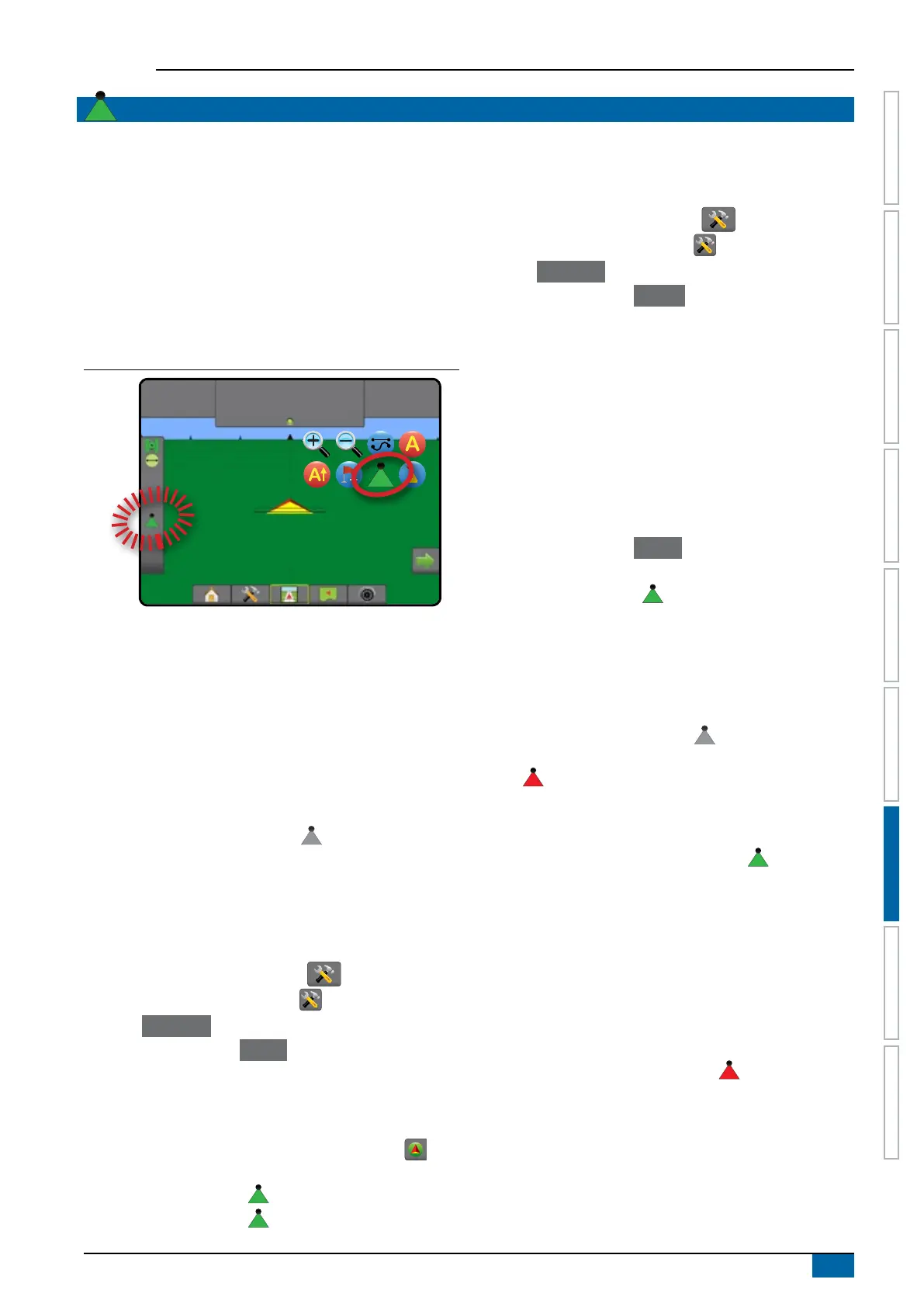
Figure 7-23: BoomPilot icon and status bar indicator
0.0
km/h
0.00
ha
Mark A
No section control module
If a section control system is not present, the BoomPilot Icon or an
optional work on/off switch is used to turn the single section on or
off. Only one section width will be illustrated and the status bar will
have no icon.
NOTE: If an ISOBUS controller, SmartCable, Section Driver
Module (SDM), or Switch Function Module (SFM) is
present, please refer to the following sections for more
information.
NOTE: The BOOMPILOT icon is grey when GNSS is
unavailable.
Console only
The BoomPilot icon is used to turn the section on or off.
To set conguration settings:
1. Press SYSTEM SETUP bottom tab .
2. Press CONFIGURATION side tab .
3. Press
Implement .
4. Set “BoomPilot icon” to
Enable .
NOTE: BoomPilot start mode setting will make no difference in the
function of this option.
To switch application off or on using the console:
1. Press NAVIGATION AND GUIDANCE OPTIONS tab
to
display navigation options.
2. Press BOOMPILOT icon
.
3. Press BOOMPILOT icon to toggle the section on or off.
With optional work on/off switch
The work on/off switch is used to turn the section on or off.
To set conguration settings:
1. Press SYSTEM SETUP bottom tab .
2. Press CONFIGURATION side tab .
3. Press Implement .
4. Set “BoomPilot icon” to
Disable .
NOTE: BoomPilot start mode setting will make no difference in the
function of this option.
In areas where application is desired:
1. Turn work on/off switch to the “on” position.
In areas where application is not desired:
1. Turn work on/off switch to the “off” position.
Using the console
To control the section using the BoomPilot icon while there is a
work on/off switch on the system:
1. Set “BoomPilot icon” to Enable .
2. Work on/off switch should remain in the “off” position.
3. Press BOOMPILOT icon to toggle the section on or off.
With TeeJet section control module
and switchbox or ISM
SmartCable, section driver module (SDM) or switch function
module (SFM) and a switchbox or Implement Status Module (ISM)
is present.
NOTE: The BOOMPILOT icon is grey when GNSS is
unavailable. BoomPilot status bar icon will be off/manual
.
To switch application off or on automatically:
1. Automatic/manual boom switch must be in the “Auto” position.
◄Automatic – status bar icon will be green
2. Master Switch and section switches must be in the “On”
position.
NOTE: Application can be manually controlled while in Automatic
BoomPilot mode using the switches on the switchbox or
switches connected to the ISM.
To switch application off or on manually:
1. Automatic/Manual Boom Switch must be in the “Manual”
position.
◄Manual – status bar icon will be red
2. Use the switches on the switchbox or switches connected to
the ISM.



 To Next Page