68
www.teejet.com
MATRIX
®
Pro 570GS
•
MATRIX
®
Pro 840GS
HOME SETUPFULL SCREEN IMPLEMENTINTRODUCTION GNSS RATE CONTROL APPENDIXGUIDANCE
RealView guidance
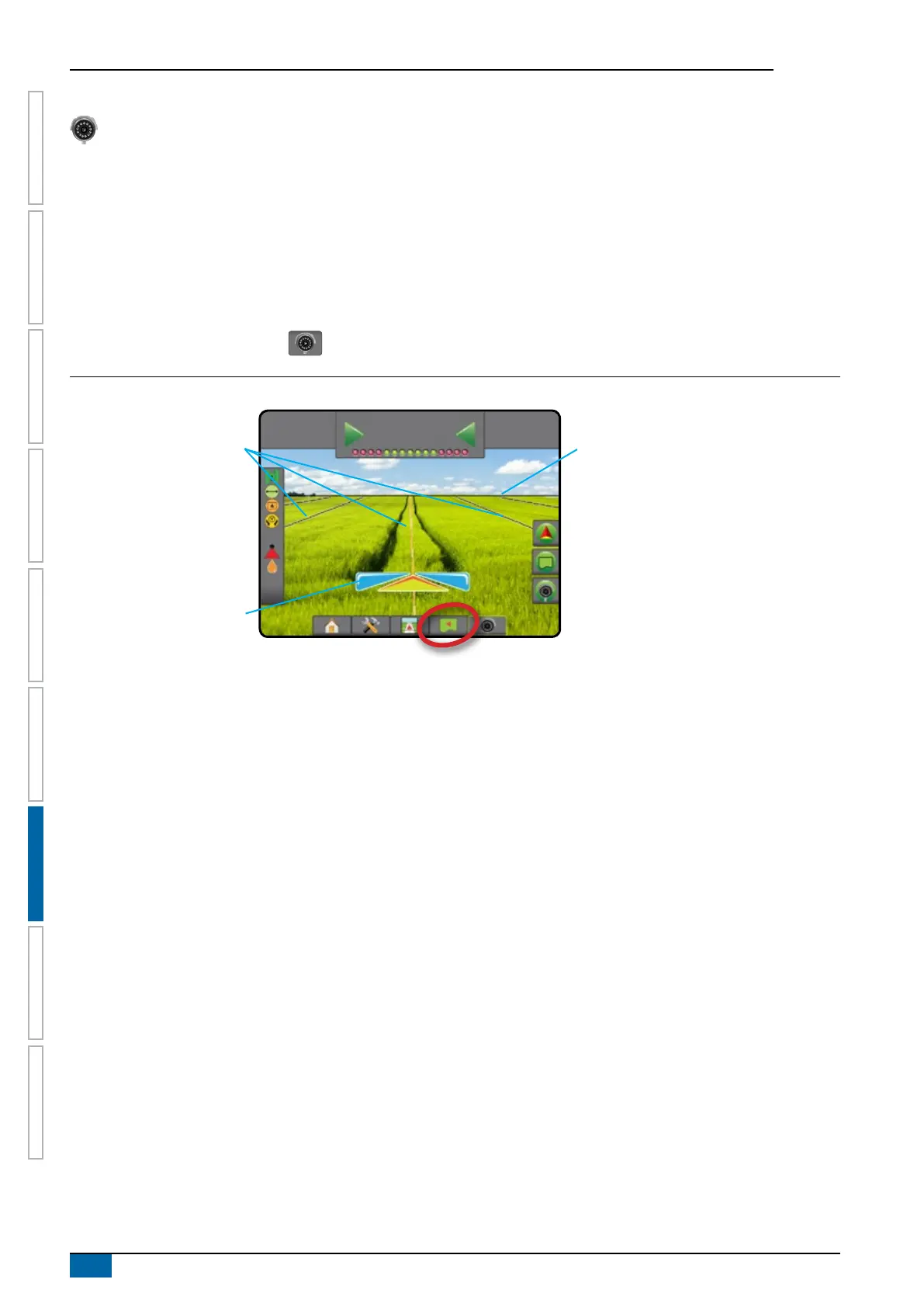
RealView guidance allows live video input to be displayed instead of a computer-generated image. From this screen all setup,
boundary, polygon and navigation options can be accessed via the tabs on the right side of the screen. To adjust the camera view
[reverse, upside down], go to Setup-> Conguration-> Video.
►Single camera – a single camera is directly attached to the console
►Video selection module – if a Video Selection Module (VSM) is installed on the system, two (2) video options are available:
• One camera view – one of up to eight camera inputs can be selected to change the view of the video input.
• Split camera view – one of two sets of four camera inputs (A/B/C/D or E/F/G/H) can be selected to divide the screen into four
separate video feeds.
To access the RealView screen:
1. Press REALVIEW GUIDANCE tab .
Figure 7-8: RealView guidance
27.00
ac
10.0
mph
0.0
Status bar
Guidance bar
Navigation guidelines
Steering angle
Navigation and guidance options tab
Boundary and polygon options tab
Horizon line
RealView options tab
On screen guidance
• Guidelines
◄Orange – active guidance line
◄Black (multiple) – adjacent guidance lines
◄Horizontal black line – adjustable horizon line
◄Black – exterior boundary line
◄Grey – interior boundary line
◄Blue – polygon boundary line



 To Next Page