7
98-05273-EN R7
MATRIX
®
Pro 570GS
•
MATRIX
®
Pro840GS
SETUPGUIDANCE FULL SCREENIMPLEMENT INTRODUCTIONGNSSRATE CONTROLAPPENDIX HOME
CHAPTER 2 JOBS / HOME SCREEN
Once the power up sequence has completed and the console is
receiving GNSS, the Home screen will appear with the option to
start a new job or continue an existing job.
Setup for the specic machine and its components
must be completed before starting a job. Once a
job is active, some setup options can no longer be changed. See
“Matrix Pro GS Console Menu Settings” in the appendix of this
manual.
To change between simple and advanced mode, go to Data->
Options-> Job Mode in the System Setup.
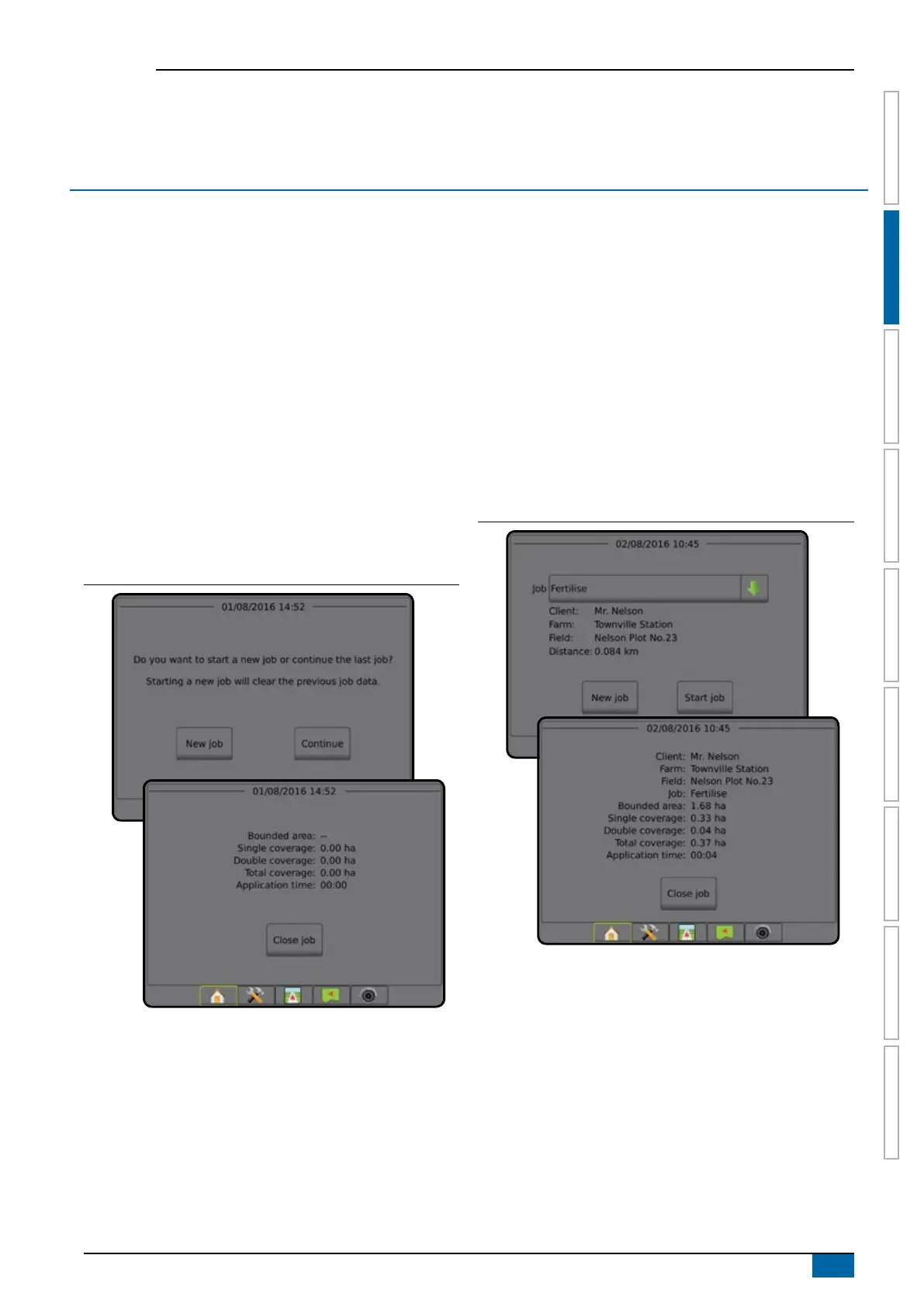
Simple mode
In simple mode, only one job will be available at a time. Only
bounded area, coverage areas, and application time are displayed
on the home screen. Only the current job is available for saving in
Reports. Use with Fieldware Link is not available.
Figure 2-1: Simple mode home screen
Advanced mode
In Advanced mode, more than one job will be available at any
time. Client, farm, eld and job names; bounded and coverage
areas; application time; and distance from selected job are
displayed on the home screen. All saved job proles can be
exported as a PDF, SHP or KML le to a USB drive using Data->
Reports.
Client information, farm information, eld information, and
prescription maps can only be inputted using Fieldware Link. A job
name can only be edited using Fieldware Link.
A user can duplicate jobs for reuse of guidelines, boundaries,
applied data, prescription map and/or polygons using Fieldware
Link or Data-> Job Data-> Manage in the console.
Figure 2-2: Advanced mode home screen



 To Next Page