88
www.teejet.com
MATRIX
®
Pro 570GS
•
MATRIX
®
Pro 840GS
HOME SETUP GUIDANCEFULL SCREEN IMPLEMENTINTRODUCTION GNSS APPENDIXRATE CONTROL
MAPPING OPTIONS
On vehicle view or eld view guidance screens, in any guidance
mode, the mapping options tab displays options to display polygon
maps, coverage maps and application maps.
Polygon and coverage mapping are available when a polygon has
been established.
GNSS-based product application mapping is available when a
rate controller is on the system. Rate control mapping can record
areas covered by the implement (Coverage) or how much product
has been applied and where (Application), and can direct single-
and variable-rate product application (Preset Target rate and
Prescription, respectively).
NOTE: Before using mapping, set or verify product mapping
options under Configuration->Product. Refer to “Product”
in the System setup chapter.
Duplicating and transferring maps
Maps are stored in the job data. Using Data-> Job data, job data
containing maps can be duplicated or transferred to Fieldware
Link so the maps can be opened, viewed, edited, and printed, and
transferred back to the console. See “Data management->Job
data->Transfer” and “Data management-> Job data-> Manage” in
the System setup chapter for details.
Using Data-> Reports, reports in multiple formats can be
generated that contain data and any maps from the job.
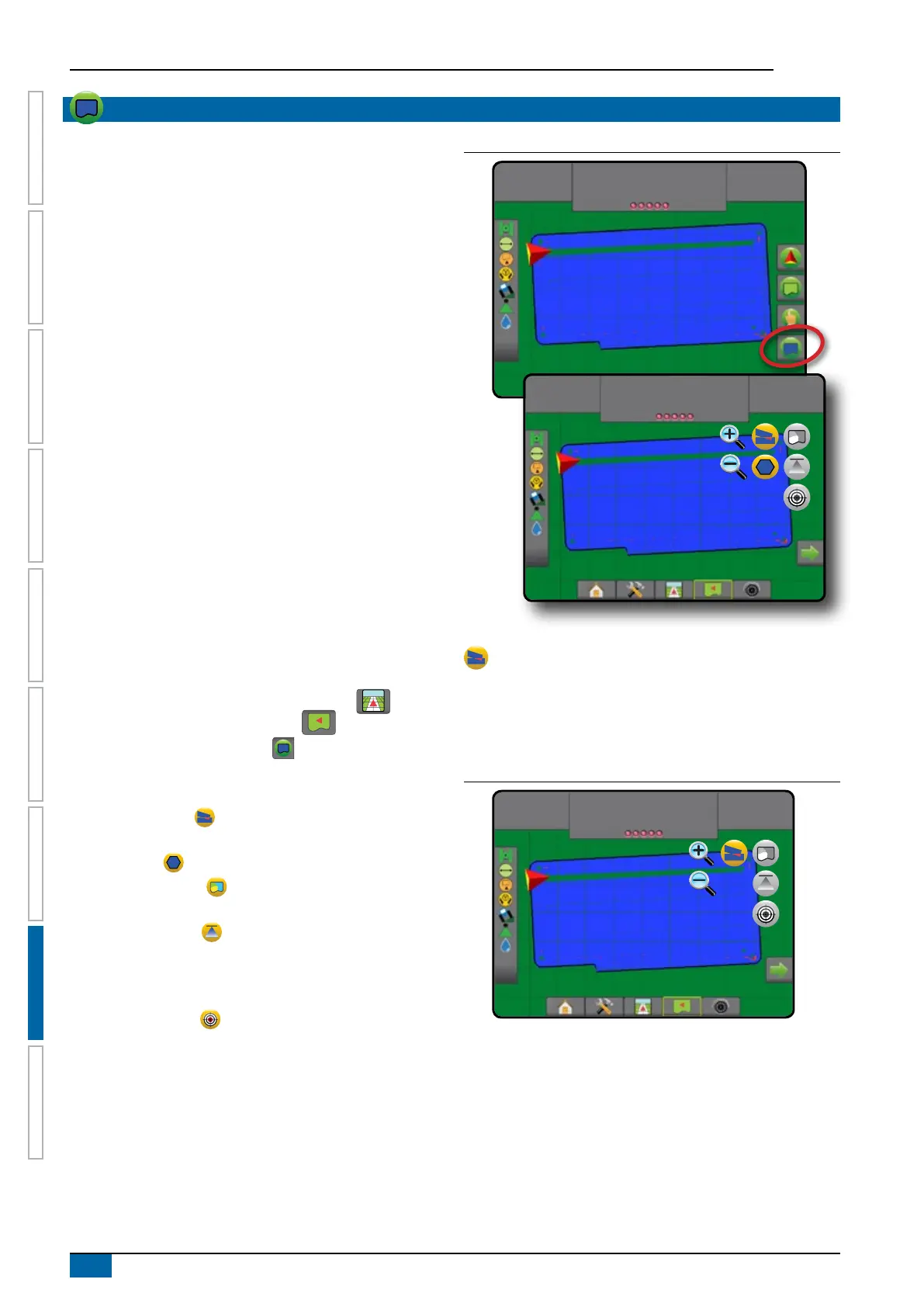
To access Application mapping:
1. Press VEHICLE VIEW GUIDANCE bottom tab . or
FIELD VIEW GUIDANCE bottom tab .
2. Press MAPPING OPTIONS tab to display mapping
options.
3. Select one or more:
►Coverage map – shows areas covered by the
implement, regardless of whether product was applied
►Polygons – shows all mapped polygons
►Prescription map – pre-loaded map that provides
information to the rate controller for use in applying product
►Application map – shows how much product has
been applied and where, using colour to indicate level in
proportion to preset or automatically set maximum and
minimum levels
►Target rate map – shows the application rate that the
rate controller attempted to achieve at each location
NOTE: Application map and Target rate map cannot be selected
simultaneously.
Figure 8-6: Coverage, polygon and target rate maps
10.0
km/h
27.00
ha
Mark A
27.00
ha
10.0
km/h
Mark A
Coverage map
Coverage map showing areas covered by the implement.
On screen mapping
• Coverage area – illustrates applied area and overlap:
◄Blue – one application
◄Red – two or more applications
Figure 8-7: Coverage map
27.00
ha
10.0
km/h
Mark A



 To Next Page