Chapter 6 - Working With Image Files Finding Stored Images and Loops
Terason t3000 / Echo Ultrasound System User Guide 137
To find a specific image or loop:
• If you loaded patient information before saving the file, look in the Patient folder for
the patient’s name, and then in the dated folder under that patient’s name.
• If you did not load or enter patient information when you saved the file, look in the
Image folder, in a folder with the date of the exam.
• If you used the File
> Export menu, double-click Browse and use the Windows dialog
box to locate the image.
• If you do not know the date of an image, or there are several that could be the one you
are looking for, view the folder in the Review window (see Finding Files in the Review
Window on page 139).
• If you have moved, deleted, or renamed files using Windows Explorer while the
Terason software is running, right-click in the Terason Explorer window and select
Refresh to update.
The Terason software loads the selected image file into a new tab in the Image Display
window. When finished with the image file, select
File > Close Image and the Terason
software removes the tab.
For .ult files (Terason ultrasound format), the image control settings are also loaded. You
can edit those settings as described in Editing Images and Loops on page 145.
For AVI, Bitmap, JPEG, or TIFF file types, an Info tab replaces the Image Control tabs.
The Info tab shows the file type, size, and the dates it was created and last modified.
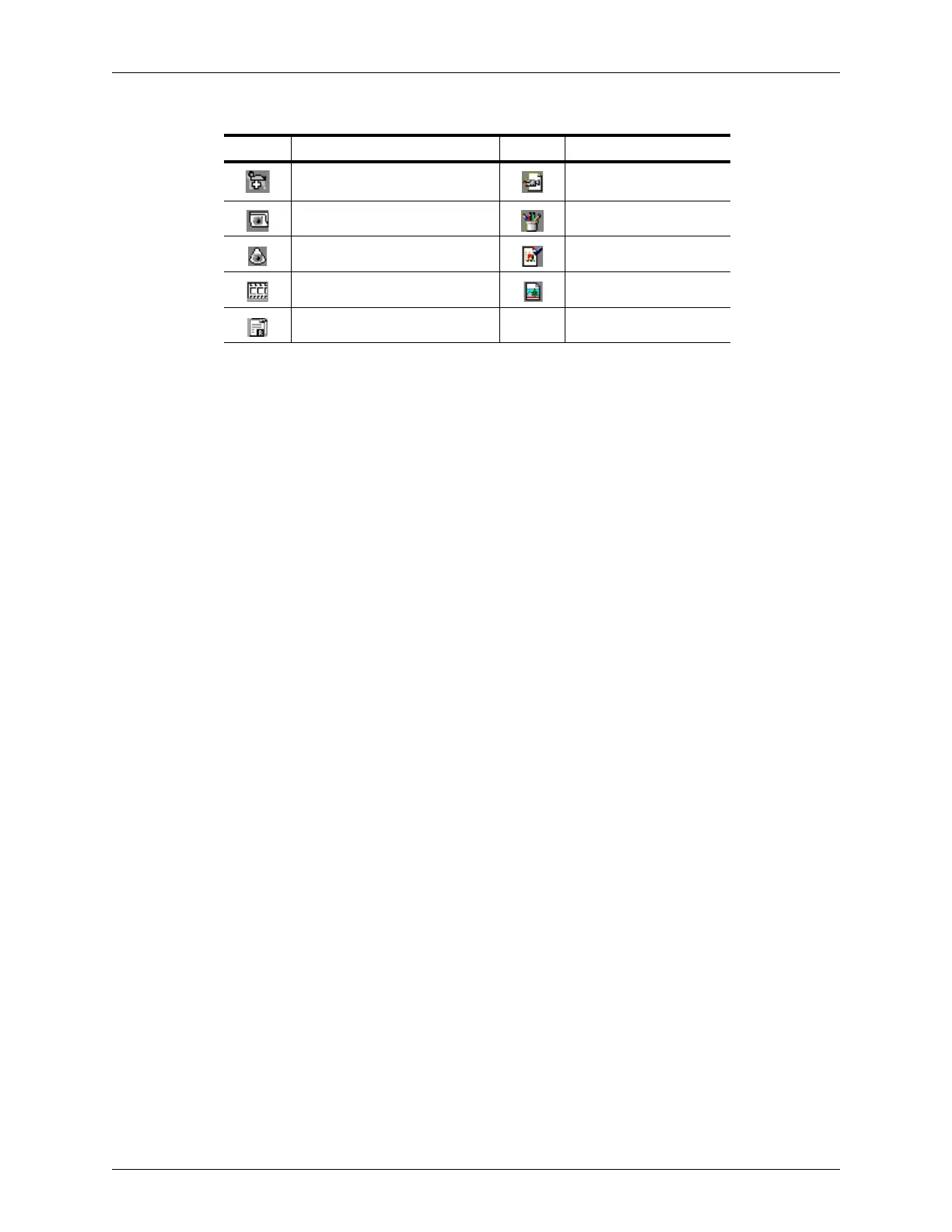
Image folder in a Patient Folder AVI Loop
Image folder Bitmap Image
Terason Ultrasound Image JPEG Image
Terason Ultrasound Image Loop TIFF Image
Report File
Terason Explorer File Icons
Icon Description Icon Description



 To Next Page