Chapter 10 - Working With DICOM Using DICOM Worklist
Terason t3000 / Echo Ultrasound System User Guide 235
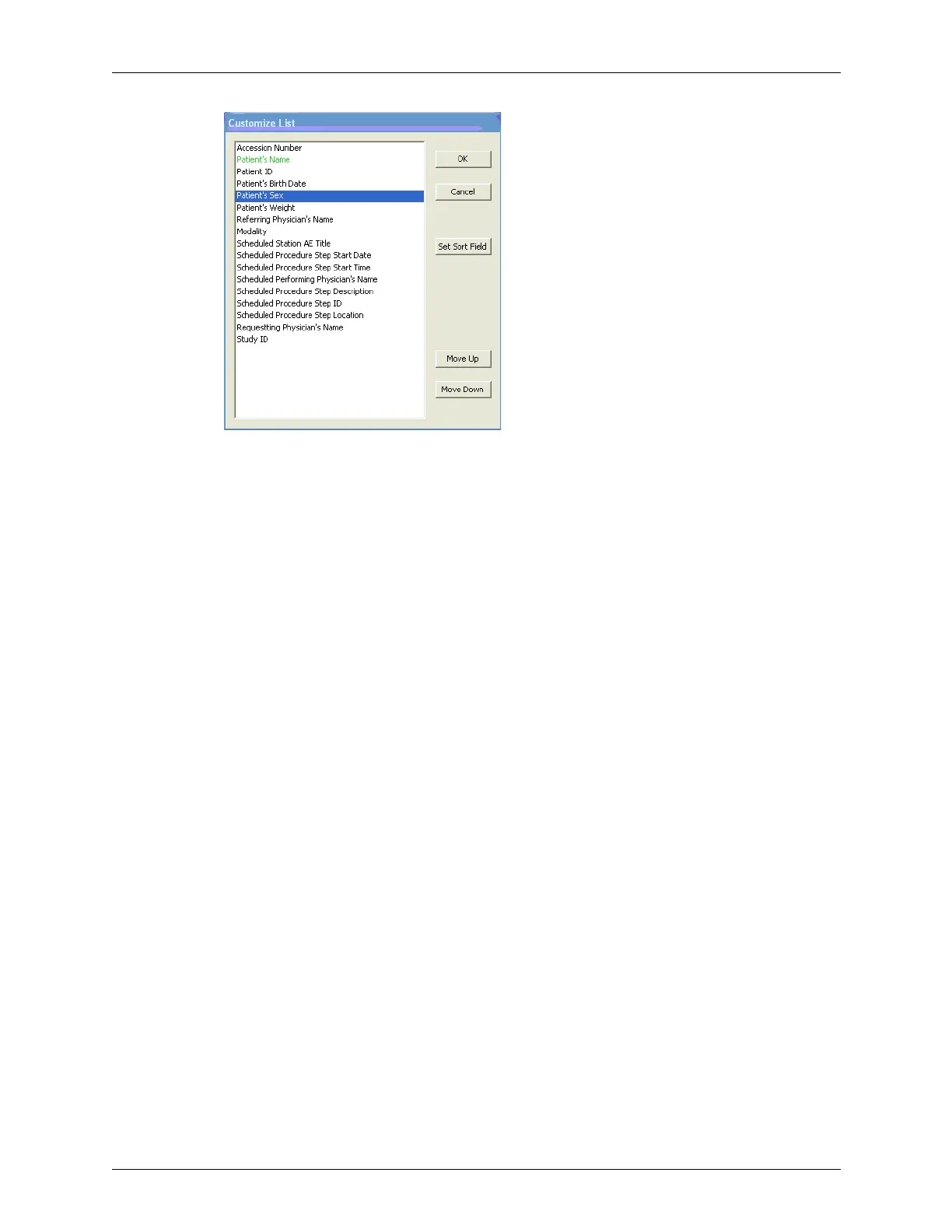
Customize List Window
2. To move a value type to the left on the worklist, select the name of the field in the list
and click
Move Up until the name is in the desired place on the vertical list in the
Customize List window.
The top of the list in the Customize List window corresponds to the left side of the
patient-information header on the Worklist window. The bottom of the list in the
Customize List window corresponds to the right side of the patient-information header
on the Worklist window.
3. To move a value type to the right on the worklist, select the name of the field in the list
and click
Move Down until the name is in the desired place.
4. Repeat with any other fields you want to move.
5. Click
OK.
Worklist displays the values in the patient info sets in the order you specified. When
you make a new query, the worklist displays the values in the order you set with this
procedure.
Sorting the Results
To sort the list of results using a specific value type:
1. On the Worklist window, click
Customize List....
The Customize List window opens. (See Customize List Window, above.)
2. Click to select the field name you want to use for sorting the results.
In the figure,
Patient’s Sex is selected.
3. Click
Set Sort Field.
4. Click
OK.
Worklist sorts the patient info sets in its list using the value type you selected. It sorts
alphabetically starting with A, or numerically starting with 0. When you make a new
query, the worklist uses the value type you set with this procedure to sort the results.



 To Next Page