(2) The combo box contains all connected devices of the computer and is
automatically selected. So you can easily selected the one you want transfer the
project. (The selected device will be saved in the 'MainSettings.ini' file of the updater.
For all other projects the device will be chosen, too)
When the device is available at program start the 'green check' is visible, otherwise a
red cross is shown.
(3) The dialog has an USB auto-detection, so whenever a new USB drive is plugged-
in the new device will be automatically chosen in the device combo box.
(4) Opens the 'Add User Files' page. The page helps to add separate files which
shall be transfered to the device.
(5) Go back to the Start Page
(6) Start USB Transfer.
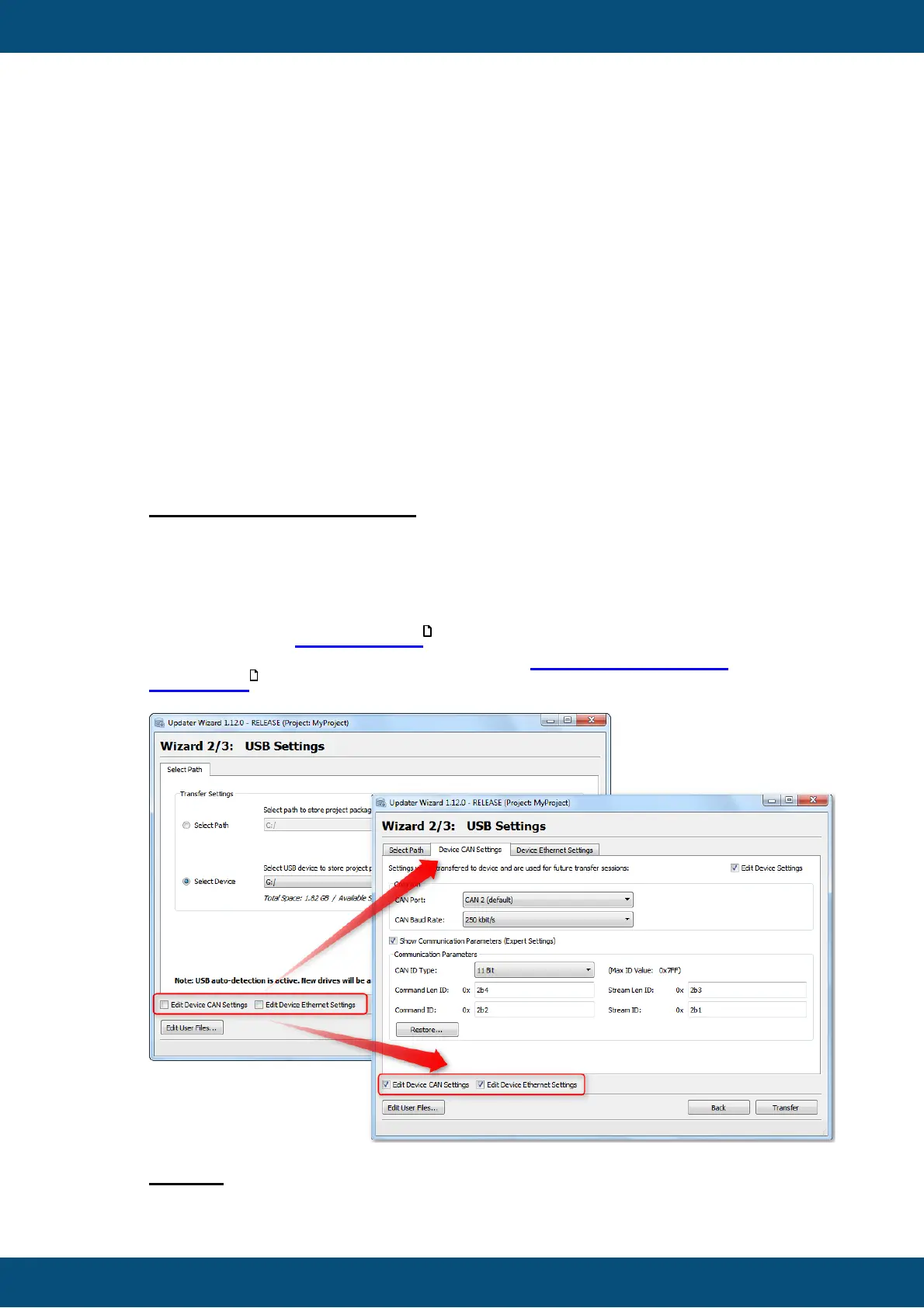
Edit Device CAN/ETH Settings
If the checkbox is selected a new tab is shown, where the CAN/ETH Device
Settings can be set. ( => this is only important if you want to prepare to
transfer projects via CAN or Ethernet, otherwise you can ignore it)
These settings are important if the CAN or Ethernet update shall be enabled. Please
have a look at the CAN Checklist in this case.
Please have also a detailed look at the chapter How to configure CAN
parameters
Legend:



 To Next Page