4 Vehicle
50 FM-750 Display User Guide
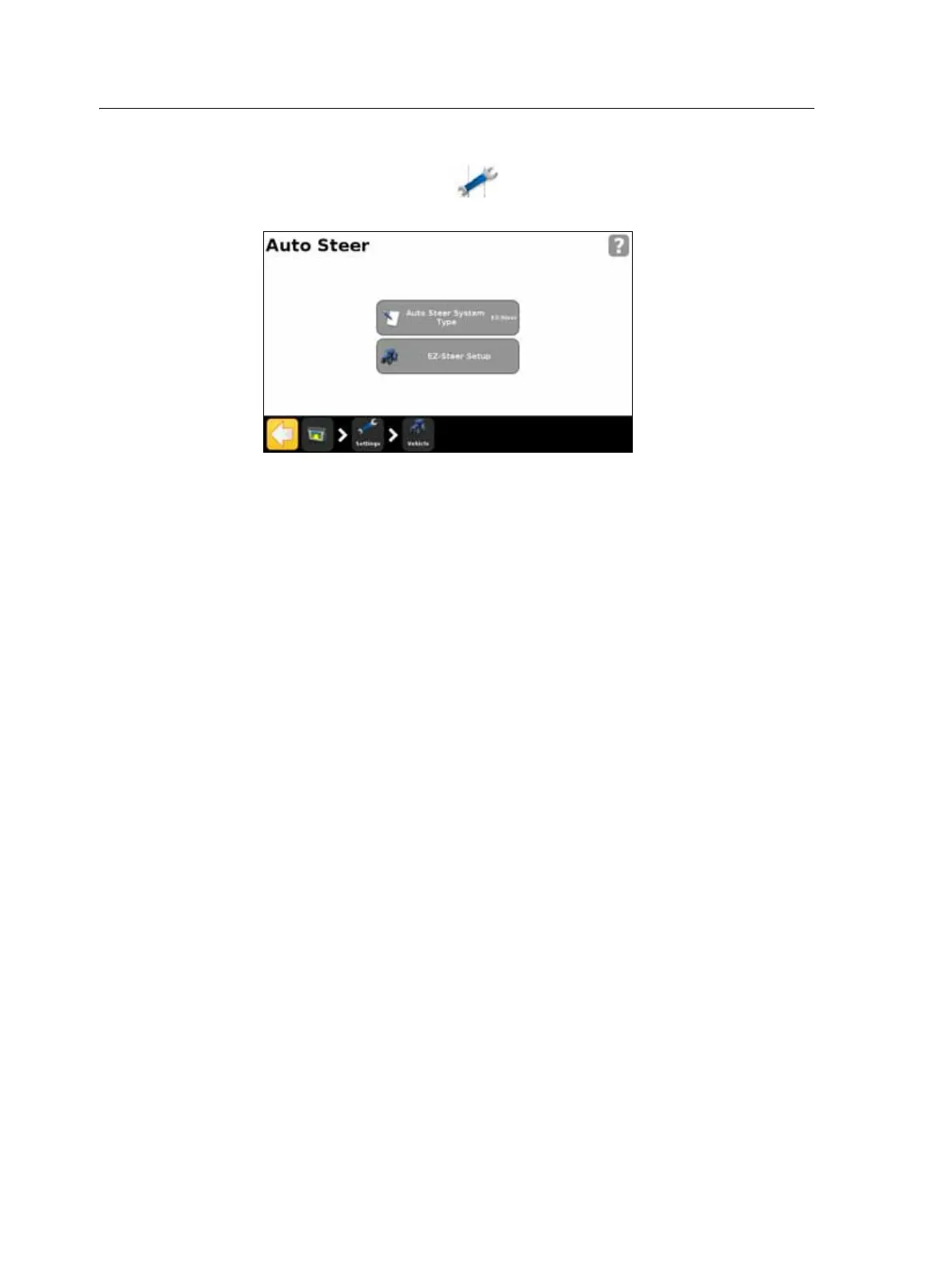
To calibrate the EZ-Steer system at a later time, complete the following process:
1. In the guidance screen, tap and then tap
Vehicle.
2. Tap
Auto Steer and then EZ-Steer Setup:
Note – If the EZ-Steer Setup button does not appear, tap Auto Steer System Type and then
select EZ-Steer for your controller.
3. In the EZ-Steer Setup screen, tap
EZ-Steer Calibration Wizard.
The wizard guides you through the following processes:
– Entering your vehicle measurements
– T2 roll calibration
– EZ-Steer calibration
Note – To complete the above processes, you must have GPS connected.
Entering vehicle measurements
For optimum guidance, you must take accurate vehicle measurements and enter them
into the display.
Note – Do not enter calibration numbers from EZ-Guide Plus or EZ-Steer T2 systems. This
may cause very poor vehicle control, including swerves and/or large oscillations.
To streamline the calibration process, you may want to take the vehicle measurements
and record them for entry later on.
The techniques for taking vehicle measurements are described below; to learn about
implement measurements, see Implement Setup options, page 95.
Before you take the measurements, position your vehicle as follows:
1. Park the vehicle on level ground.
2. Make sure that the vehicle is straight, with the centerline of the body parallel to
the wheels.



 To Next Page