82 • Viewing and Saving Test Results User Guide Ver. 7.1.0 2100 Cap Inspector
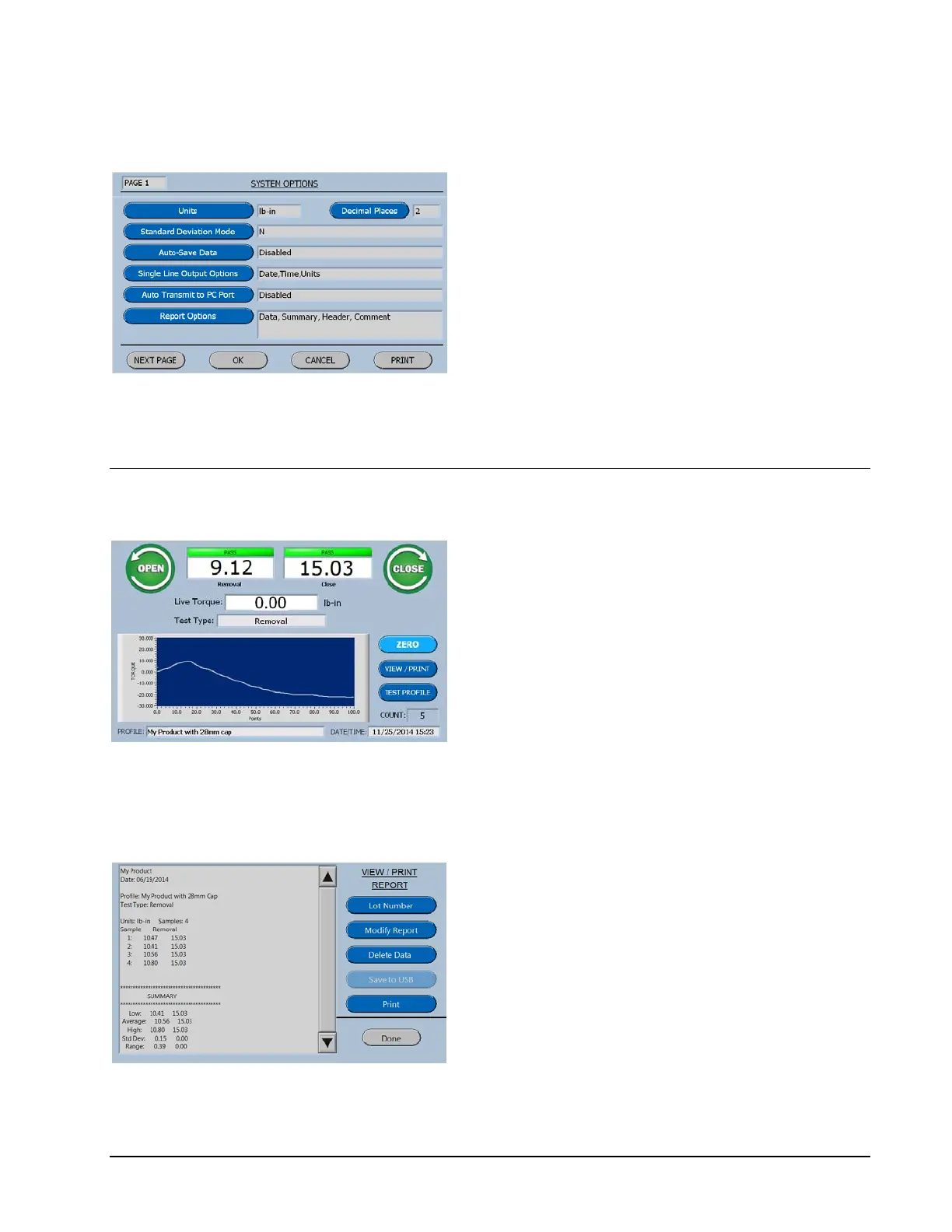
Auto Save Data
By pressing the Auto Save Data button on the
System Option Menu, this feature will be
enabled.
When enabled the data will automatically be
saved in memory and then the software will
return to the Run Screen.
Viewing Test Results
On the Run Screen press the View/Print
Button and the Test report for the currently
selected profile will be displayed.
View / Print Report
The option keys shown to the right of the
report enable the user to customize the report
prior to printing.
Test Data can also be deleted and corrected
prior to printing.



 To Next Page