Version 16.10 AF-6600 AF-5000 Series Install Manual 164
Advanced-SV Network Configuration
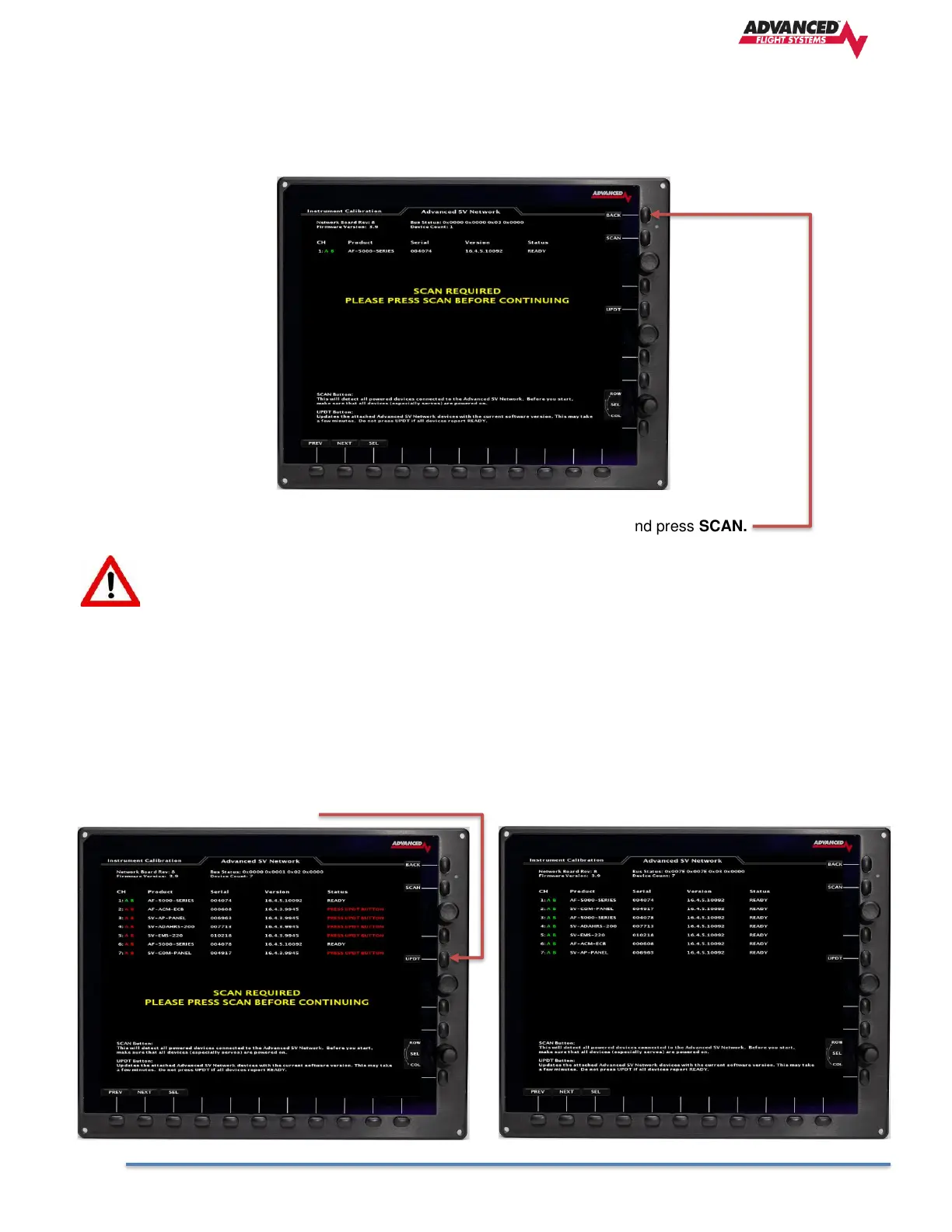
The first thing you should do after powering up the system for the first time is SCAN for all the components
that are connected to the Dynon Advanced SV Network. Make sure you have the Ethernet cable connected
between EFIS screens and they are all powered up. You should also have power to any Dynon Com Radios
and Autopilot Servos.
SCAN for Network Devices
Select menu item 2. Advanced SV Network from the PFD Pilot side EFIS and press SCAN.
You will need to do a new SCAN anytime a different or new component is connected to the SV
Network.
Updating Network Components
After you SCAN for components you should get a list of all the Dynon components that are connected to the SV
Network. If any of the components have old software you will need to press the UPDT button to update the software
on all network devices. Once the new software is loaded on the network devices you will be instructed to power down
the system. Once all the EFIS screens are shut down you can turn on power to the systems and verify that all Items
are ready (red text gone) and the Chanel A and B lanes are green. If you have a red A or B lane you need to check the
network wiring.
Need to press UPDT All Components Ready


 To Next Page