Radio Test Instruments
Subject to Export Control, see Cover Page for details.
7-29
[Markers] Soft Key
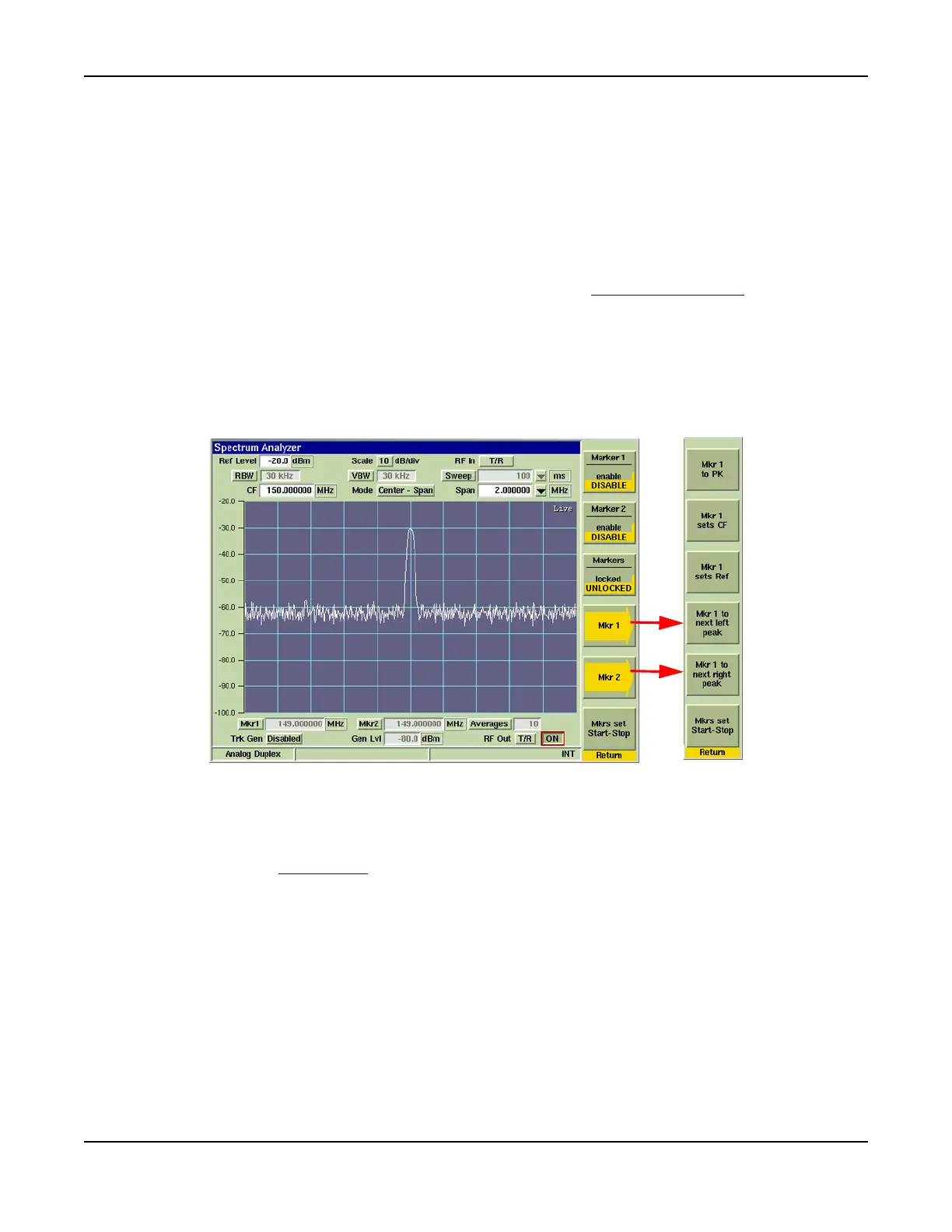
The [Markers] Soft Key accesses a group of soft keys (refer to Fig. 7-33) that provide additional
marker functions. Marker(s) must be enabled to use some of these functions. To define marker
position:
1. Enable marker(s) using the Mkr1 / 2 toggle buttons or by pressing the [Marker1 / 2] Soft
Key(s).
2. Select Mkr1 / 2 data field and adjust marker position using any of the following methods:
● By focusing on the Mkr1 or Mkr2 field and entering a new value in the data field;
● By focusing on the Mkr1 or Mkr2 field and using the Rotary Control Knob
to move
selected marker to a new reference point. Setting three or four significant figures in the
settings box makes adjusting the marker position easier when using the Rotary Control
Knob. If the markers are locked, moving either marker moves the other marker.
● (Mouse option) By focusing on the Mkr1 or Mkr2 field and using a mouse to click and drag
the selected marker to the desired location on the display field.
● [Mkr 1 / Mkr 2] Soft Keys access additional soft keys (refer to Fig. 7-33) that also adjust
marker position on the display field.
Fig. 7-33 Spectrum Analyzer Markers Soft Key Menu
[Marker 1/Marker 2] Soft Key
Enables or disables markers displayed on the Spectrum Analyzer graph. Markers can also be
enables using the Mkr1 / Mkr2
toggle buttons.
[Marker Locked/Unlocked] Soft Key
When Marker 1 and Marker 2 are both enabled, LOCKED sets the markers at the current
frequency spacing. When the markers are LOCKED, moving either of the markers also moves
the other marker while maintaining the current frequency spacing. Enable and define BOTH
Markers prior to selecting LOCKED state since Markers maintain spacing that is defined when
LOCKED is enabled. UNLOCKED removes the link between markers.
[Mkr 1 / Mkr 2] Soft Key
Opens a Soft Key sub-menu that provides automatic marker functions. Markers must be enabled
to use automatic marker functions.



 To Next Page