5
Press .
➠ Copying starts.
● To cancel copying, tap <Cancel> <Yes>. Canceling Copies(P. 111)
When placing documents in the feeder in step 1
The document is automatically scanned.
When placing documents on the platen glass in step 1
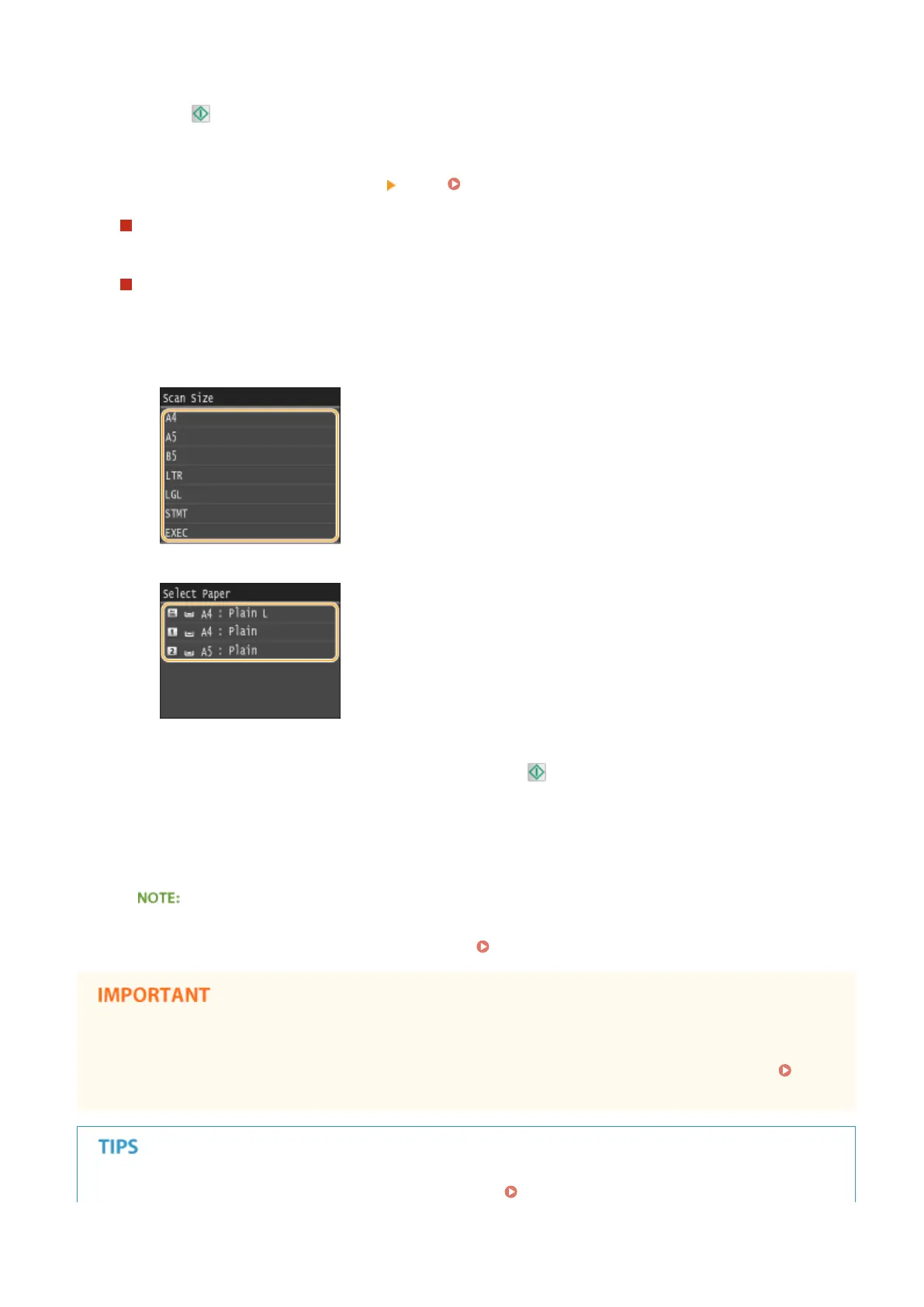
Depending on the copy settings you made, the screen for selecting the document size and paper source are
displayed when copying multiple documents. Follow the procedure below.
1
Select the document size.
2
Select the paper source that contains the paper you want to use.
● If the screen is not displayed, proceed to step 3.
3
Place the next document on the platen glass, and press .
● Repeat this step until you nish scanning the entire document.
4
Tap <Start Copying>.
● When the <Paper Size & Settings Mismatch> or <The memory is full. Scanning will be canceled. Do you
want to print?> message is shown in the display. When an Error Message Appears(P. 734)
When copying documents with text or images that extend to the edges of the page
● The edges of the document might not be copied. For more information about the scan margins, see
Scan
Area(P. 857) .
● If you always want to make copies with the same settings: Changing Default Settings(P. 131)
Copying
108



 To Next Page