● Select [Flexible] to change the output size and the ratio of width to height. Drag the area you want to scan on
the preview image or enter values for width and height. If you specify the magnication percentage in the
[%] entry eld on the right side of the width and height entry elds, the document is enlarged or reduced for
scanning.
[Data Size]
Displays the data size of the image when it is scanned with the set [Output Resolution] and [Output Size].
Adjusting Image Quality
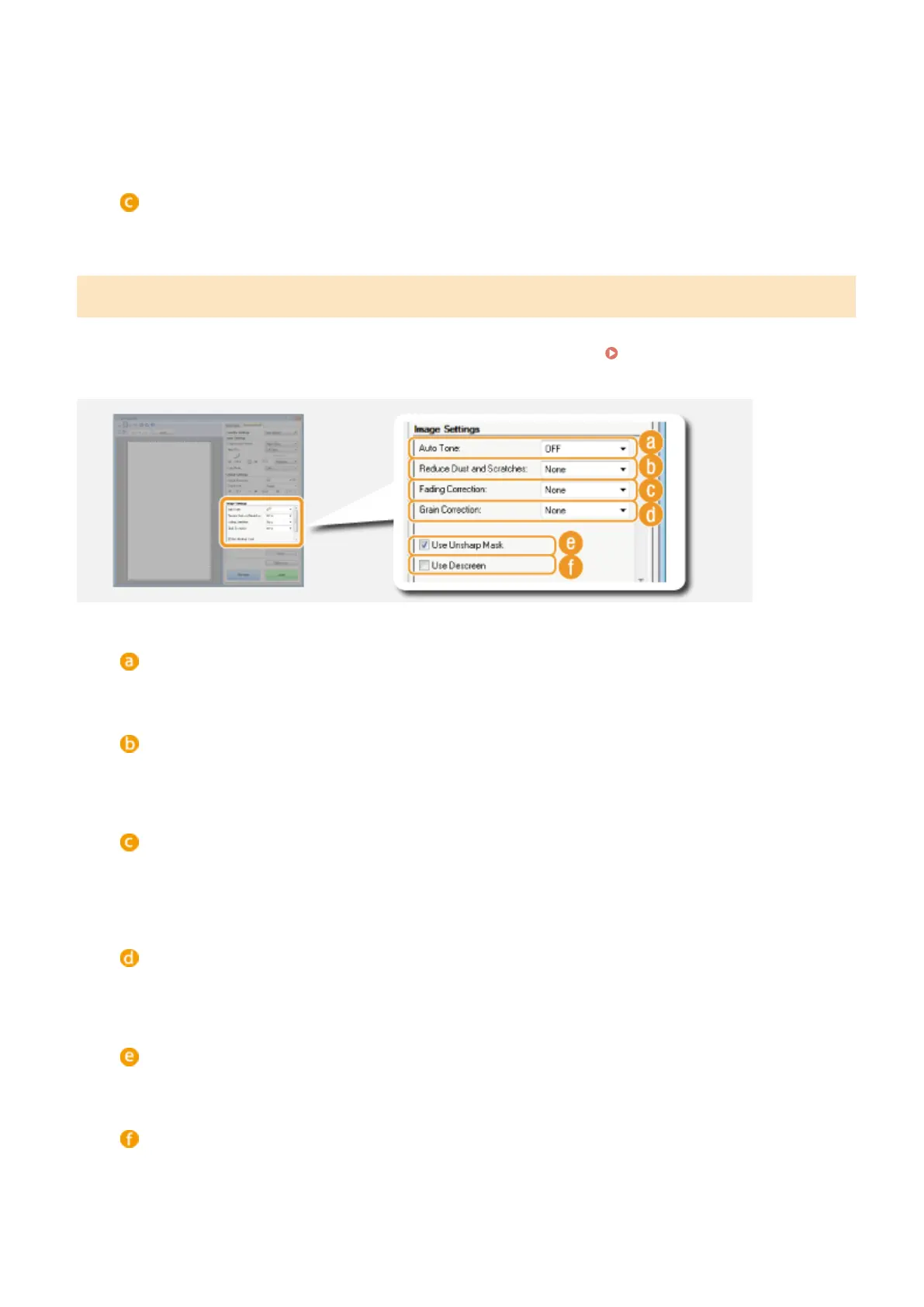
Congure settings for improving the image quality, such as correction of scratches or faded colors on a photograph.
These settings are available if you select [Color] or [Grayscale] for [Color Mode] (
Specifying Settings for
Documents and Color Mode(P. 318) ).
[Auto Tone]
Automatically adjusts the color tone of the image.
[Reduce Dust and Scratches]
Makes dust or scratches on the document less noticeable. [High] makes large scratches and dust less
noticeable, but may ruin details on the image.
[Fading Correction]
The setting is available if you select [Color] for [Color Mode]. Corrects faded colors on the document or
enhances the color saturation of dull-colored documents. [High] dramatically corrects the faded colors, but
may change the color tone of the entire image.
[Grain Correction]
Reduces graininess to create a smooth color tone when scanning photographs taken with high-speed lm.
[High] dramatically reduces graininess, but may also reduce image sharpness or degrade image quality.
[Use Unsharp Mask]
Emphasizes the edges and lines in the image, creating a sharper appearance.
[Use Descreen]
Reduces the color unevenness and moire that occur when scanning printed images.
Using the Machine as a Scanner
321







 To Next Page