Sending I-Faxes
0UWX-040
To send a fax to a computer or another I-Fax-compatible device, specify an e-mail address instead of a fax number as
the destination. If you send an I-Fax to a computer, it is sent as an e-mail attachment in TIFF format. And in the same
way as when you send e-mail to a computer, you can specify multiple destinations and specify Cc and Bcc destinations.
1
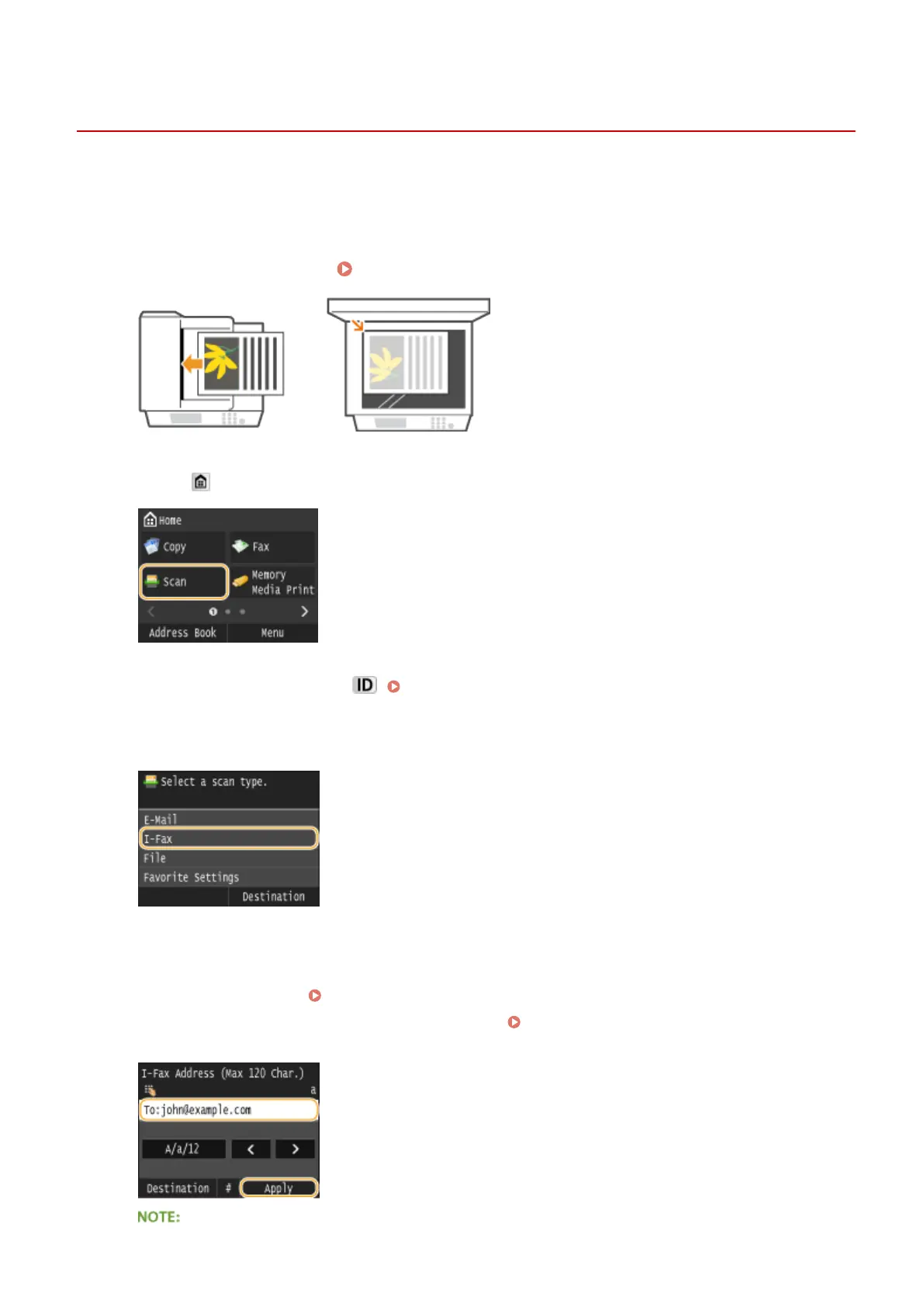
Place the document(s). Placing Documents(P. 47)
2
Press and tap <Scan>.
● When the logon screen appears, use the numeric keys to enter the user name and password. Then select the
authentication server and press . Logging on to Authorized Send(P. 45)
3
Tap <I-Fax>.
4
Enter the destination using the numeric keys, and tap <Apply>.
● On how to enter text, see Entering Text(P. 41) .
● To use the Address Book to quickly specify destinations: Sending Using Registered Destinations (E-
Mail/I-Fax/Shared Folder/FTP Server)(P. 361)
Faxing
224







 To Next Page