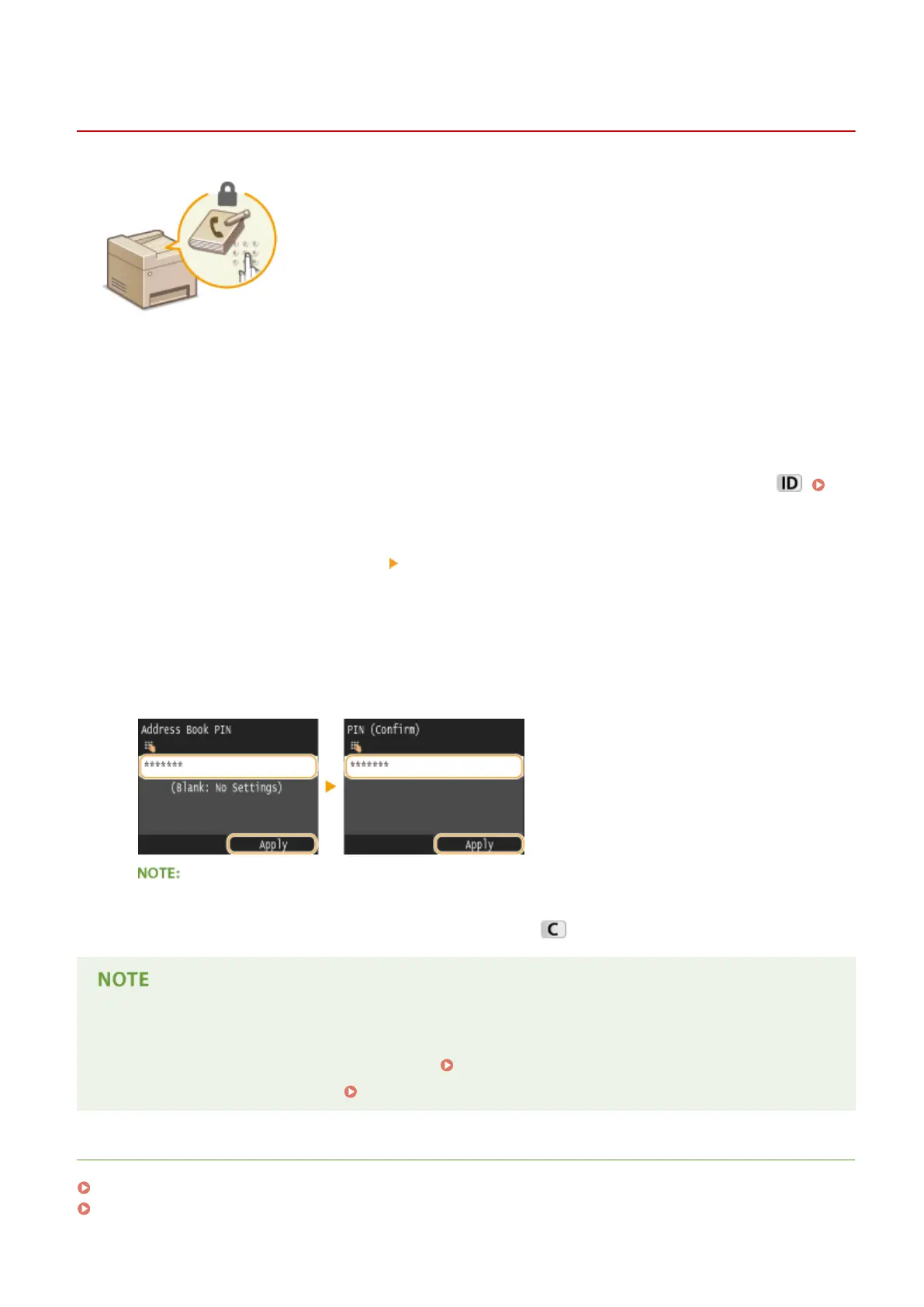
Setting a PIN for Address Book
0UWX-098
The Address Book can be set to require users to enter a PIN in order to add new
entries to the Address Book or edit existing entries. Setting a PIN to the Address
Book can reduce the risk of documents being sent to unintended recipients because
changes to the Address Book can only be made by users who know the PIN.
1
Tap <Menu> in the Home screen.
2
Tap <System Management Settings>.
● If the logon screen appears, enter the correct ID and PIN using the numeric keys, and then press .
Logging on to the Machine(P. 44)
3
Select <Restrict TX Function> <Address Book PIN>.
4
Set the PIN for editing the Address Book.
● Enter a number of up to seven digits using the numeric keys, and tap <Apply>.
● When <PIN (Conrm)> is displayed, enter the PIN once again to conrm.
● You cannot set a PIN that consists only of zeros, such as "00" or "0000000".
● To cancel the PIN setting, clear the information entered in
and tap <Apply> with the elds blank.
In addition to setting the Address Book PIN, you can further enhance security by performing the following
operations:
● Restricting the addition of new destinations, see Limiting Available Destinations(P. 558) .
● Disabling the PC fax function, see Prohibiting PC Faxing (MF419x / MF416dw)(P. 559) .
LINKS
Registering in the Address Book(P. 78)
Registering Destinations in the Address Book from Remote UI(P. 624)
Security
556







 To Next Page