Starting Remote UI
0UWX-0A3
To operate remotely, you need to input the IP address of the machine into a Web browser and start the Remote UI.
Check the IP address set to the machine in advance ( Viewing Network Settings(P. 445) ). If you have any
questions, ask your Network Administrator.
1
Start the Web browser.
2
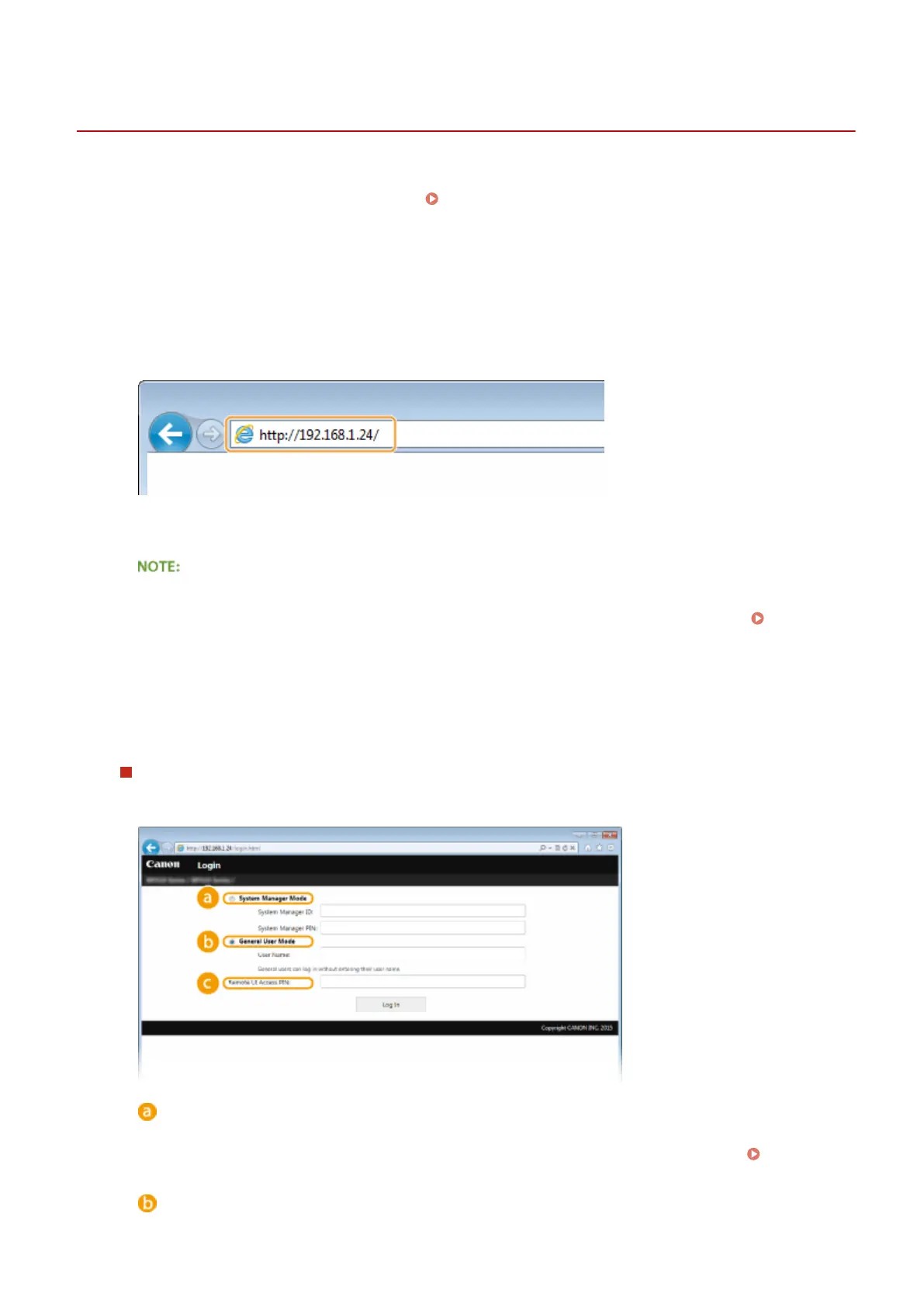
Enter "http://<the IP address of the machine>/" in the address eld, and press the
[ENTER] key.
● If you want to use an IPv6 address, enclose the IPv6 address with brackets (example: http://
[fe80::2e9e:fcff:fe4e:dbce]/).
If a security alert is displayed
● A security alert may be displayed when the Remote UI communication is encrypted (
Enabling TLS
Encrypted Communication for the Remote UI(P. 570) ). When certicate settings or TLS settings have no
errors, continue browsing the website.
3
Log on to the Remote UI.
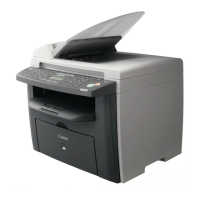
When the Department ID Management is disabled
Select [System Manager Mode] or [General User Mode], and enter a value in [Remote UI Access PIN] as
necessary.
[System Manager Mode]
You can perform all the Remote UI operations and settings. If a System Manager ID is specied, enter the
appropriate ID in [System Manager ID] and the appropriate PIN in [System Manager PIN]. Setting the
System Manager ID(P. 524)
[General User Mode]
Using Remote UI
606







 To Next Page