<Details>
Displays detailed information about the document selected from the list. If you specied multiple
destinations, the number of specied destinations is displayed on the screen. To check the details of
specied multiple destinations, tap <Destination>.
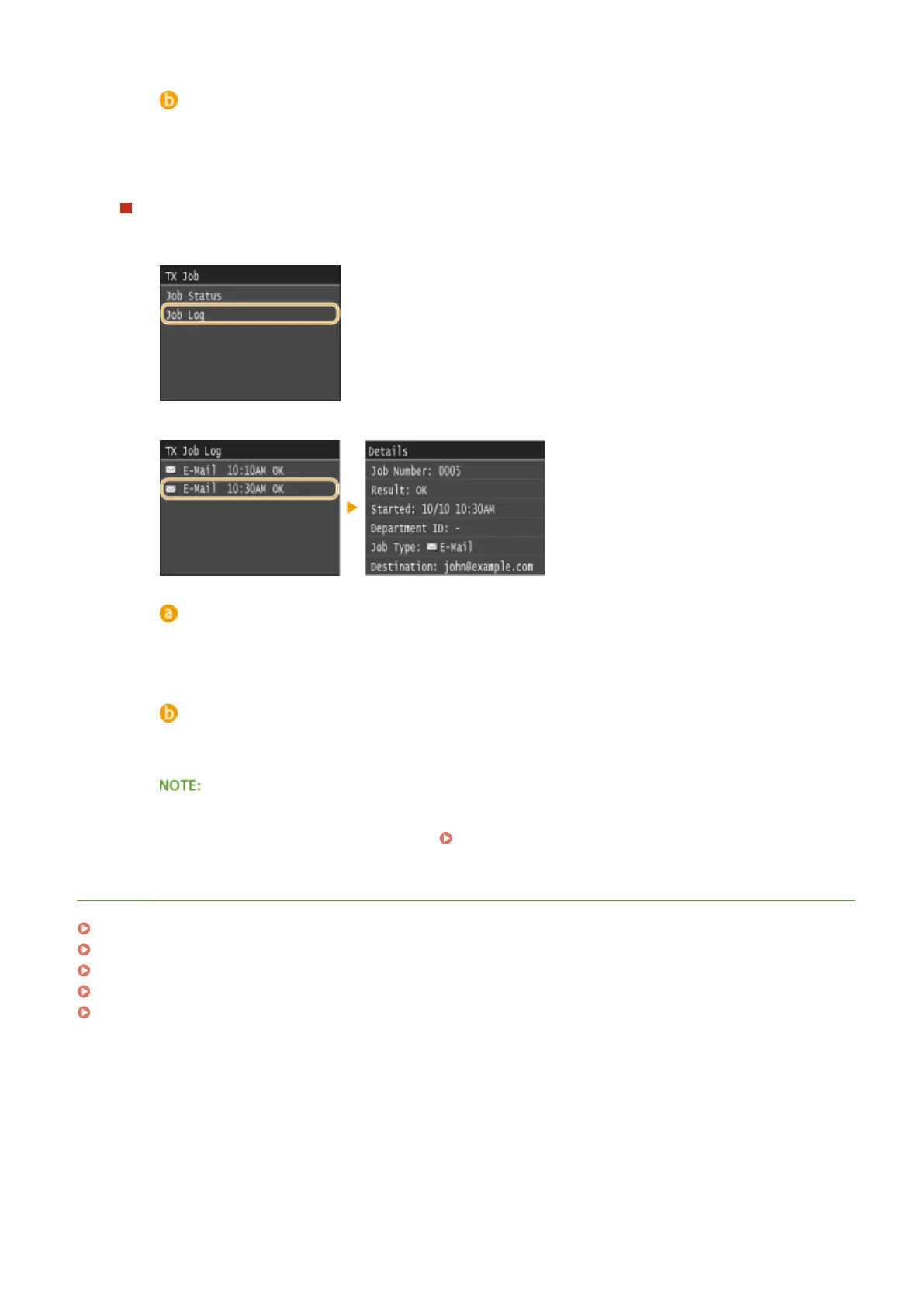
To check the logs for sent documents
1
Tap <Job Log>.
2
Select the document whose log you want to check.
<TX Job Log>
Displays a list of the documents that were sent. <OK> is displayed when a document was sent
successfully, and <Error> is displayed when a document failed to be sent because it was canceled or
there was some error.
<Details>
Displays detailed information about the document selected from the list.
When a three-digit number is shown in the case of <Error>
● This number represents an error code. When an Error Code Appears(P. 747)
LINKS
Sending Documents as E-Mails Directly from the Machine(P. 335)
Saving Documents Directly in Shared Folder/FTP Server(P. 342)
Canceling Sending Documents (E-Mail/Shared Folder/FTP Server)(P. 345)
TX Result Report(P. 809)
Communication Management Report(P. 812)
Using the Machine as a Scanner
384







 To Next Page