USING THE CORE VOCABULARY OVERLAY
ECO Manual
102
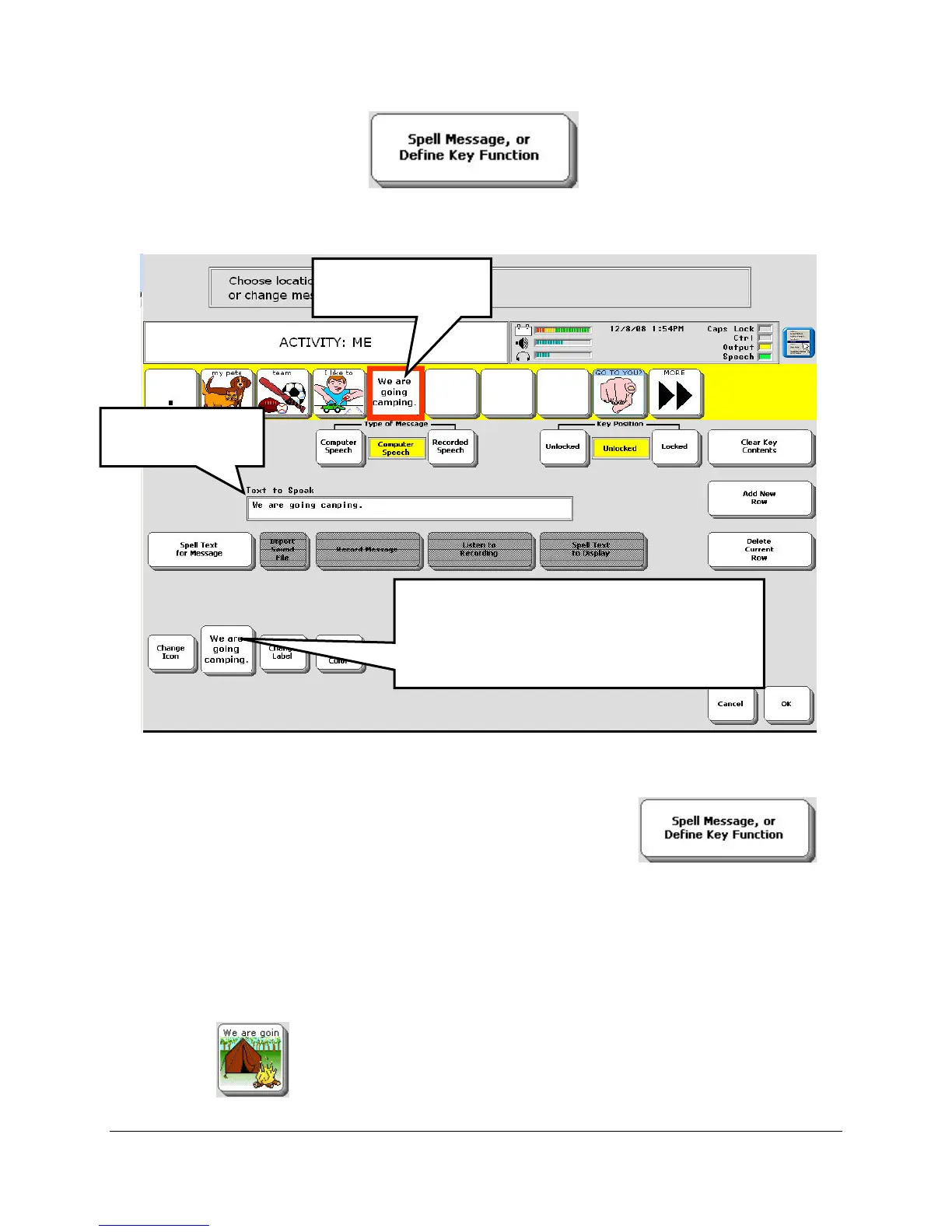
6. Press the Spell Message… key . You see your Spelling Overlay.
7. Type in a message. For now, you might type: "We are going camping." Then select the OK
key on your spelling overlay.
.
8. Notice that you can see your message in the Text to Speech box. You also see it on the icon
you used.
If you want to edit your message, just select the Spell Message… key
and edit the message on your Spelling Page.
9. You can add an icon to your key by selecting the Change Icon key. Let's look for an icon
that makes us think of a camping. Select the Change Icon Key.
10. If you want, you can look through the categories to see if you can find an icon you like or
you can select the Spell Icon to Find key and spell the word "camp". Select an icon.
Notice that your key now has the icon on it that you selected but it still has part of your message
on it too.
. Let's change this.
You see your
message here.
Your message (or part of it) will show up
on this icon, too. You can use Change
Icon and Change Label to add a picture
and change the text.
You see your
message here.



 To Next Page