ACTIVITIES
ECO Manual
121
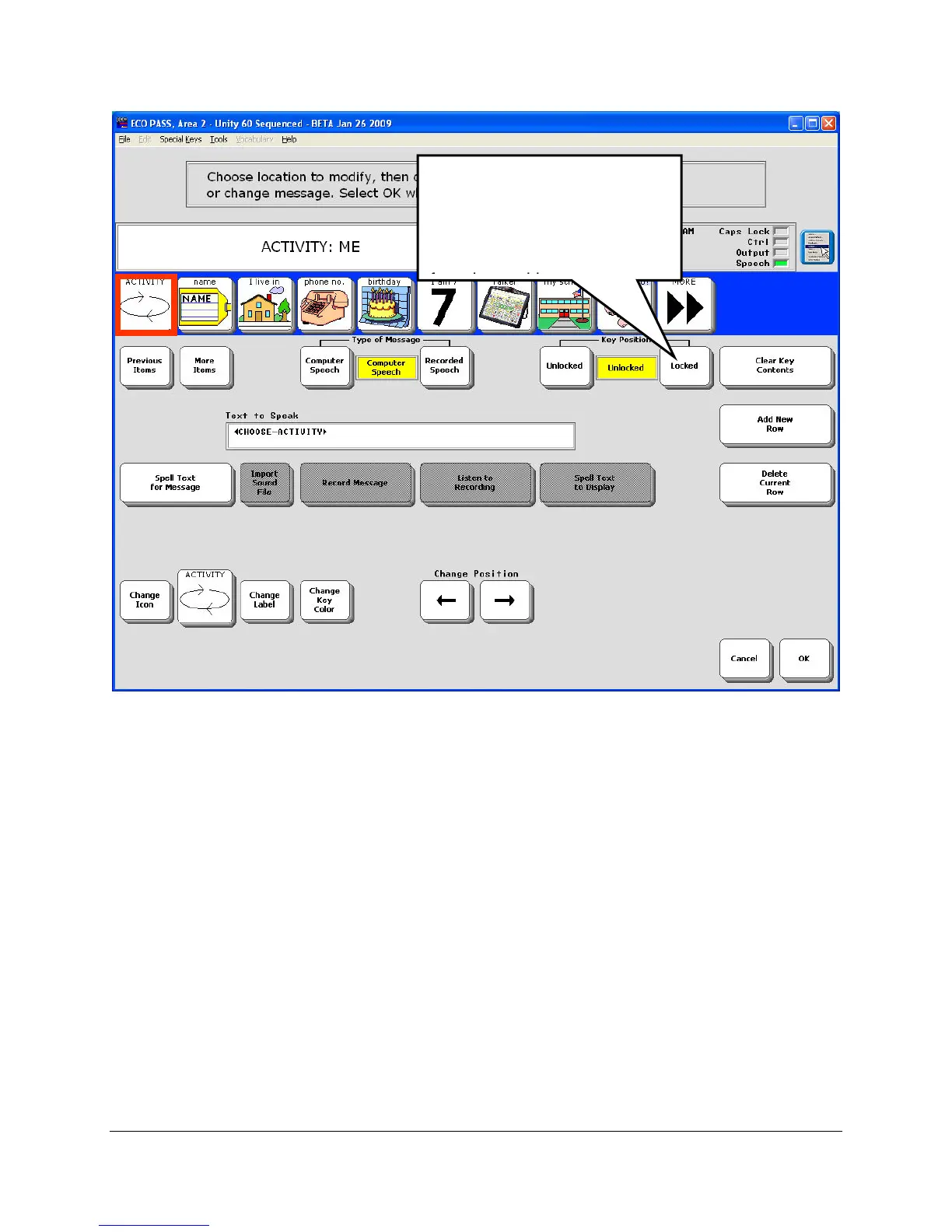
5. You see the screen that contains the keys in this activity. Select the MORE key. If you want
this key to stay in its place in the row, turn the Key Position option to Locked.
6. Select each key that you don't want to have predicted and set it to Locked.
Remember! If Picture Prediction is turned OFF in the FEEDBACK MENU, no
Activities or keys in an Activity will be predicted.
Picture Prediction is very helpful with Dynamic Activities. You might often select the sequence
for the FOOD Activity but then have to go through 2 or 3 rows of food keys before you see the
food you mention a lot. With Picture Prediction, those keys you use frequently will eventually
move to the front (first row) of the Activity.
Select the key you don't
want to have predicted.
Then select Locked to lock
that key so it won't move.



 To Next Page