Configuring Security
80 TIMS MVP™ Setup and Configuration Guide
Import and Export TIMS MVP™ Configuration File
• Export your configuration to a file as a backup or to use with another TIMS MVP™
system.
• Import a configuration file to use with your TIMS MVP™.
Export Configuration
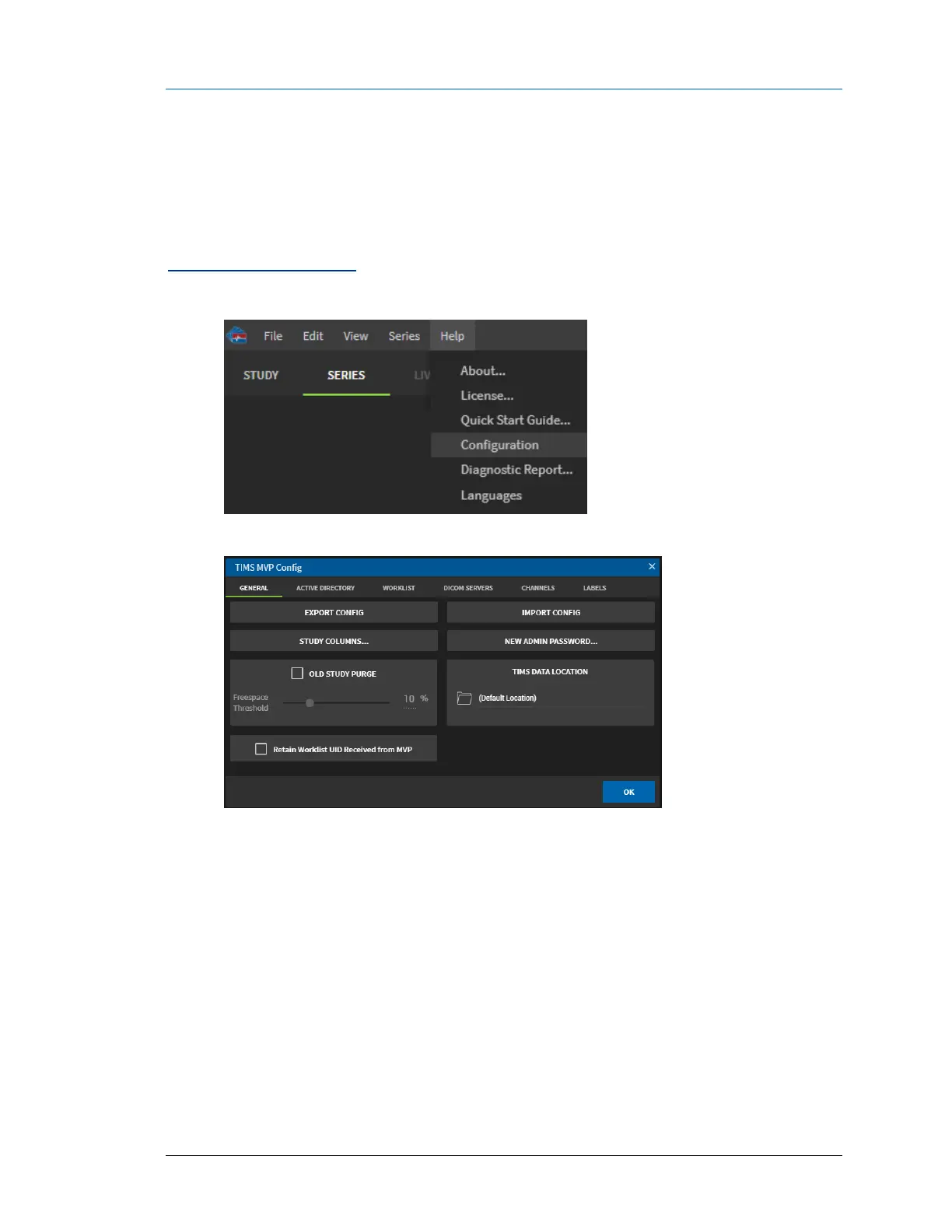
1. Click the Help menu and select Configuration.
2. From the TIMS MVP Config page, if not selected, click the General tab.
3. Click the EXPORT CONFIG button. A Windows dialog opens.
4. Accept the default file name (settings-archive.mvp_settings), or, if you have multiple
configuration files saved, type in a unique name for the file which makes it easy to
identify.
Note: You can also browse for a new folder location to place your file.
5. Click Export Config and the file is saved to the TIMS MVP™ computer.


 To Next Page