IDEA Auto-SYNC with RGB/VGA/DVI Analog Video
140 TIMS MVP™ Setup and Configuration Guide
If diagonal lines appear unusually ragged or text in the image appears broken (“shaken”), change
the Field Polarity value. This adjusts the order in which the fields of the image are assembled
and reverses the ordering of adjacent scan lines in the video.
If there appears to be some twisting at the top edge of the image, the Vertical Sync Type may
need to be adjusted from “Normal” to “Block” or “Extended Block”.
The user can run the White Balance procedure to adjust the red, green, and blue channel gain
and offset compensation values for the particular source to assure that pure white and pure
black are properly calibrated. White balancing should be performed when the video source
changes.
Click the Finish button to complete the Auto-SYNC Wizard process. You can restart the
Auto-SYNC Wizard at anytime by selecting a CHP file and clicking the Auto-SYNC Wizard toolbar
icon or by selecting the View > Auto-SYNC Wizard menu item.
Example
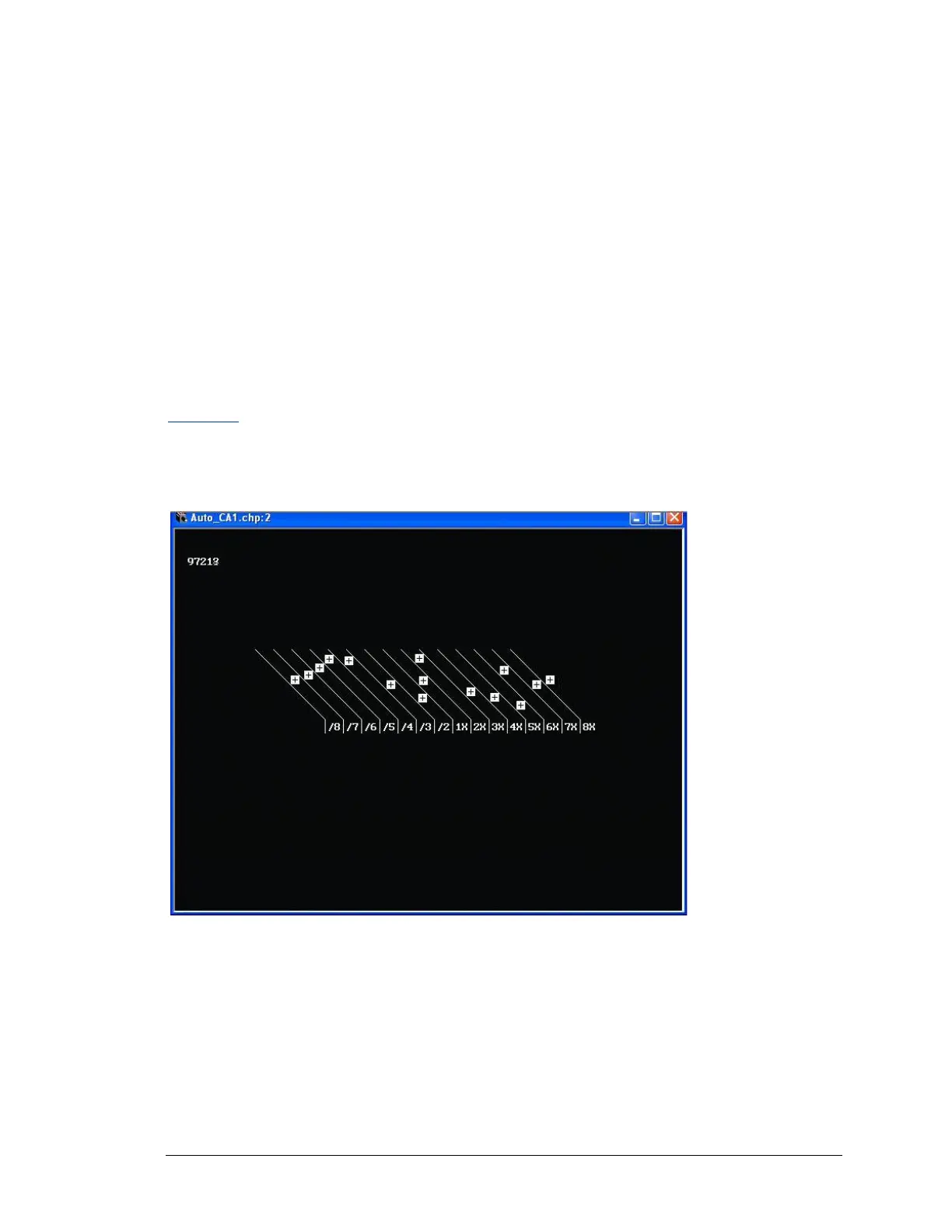
In this example, the first image shows a video image in motion. Notice there is no broken or
distorted lines.
Figure 45: Example of video image with the proper Field Polarity setting


 To Next Page