Configuring Security
TIMS MVP™ Setup and Configuration Guide 81
Import Configuration
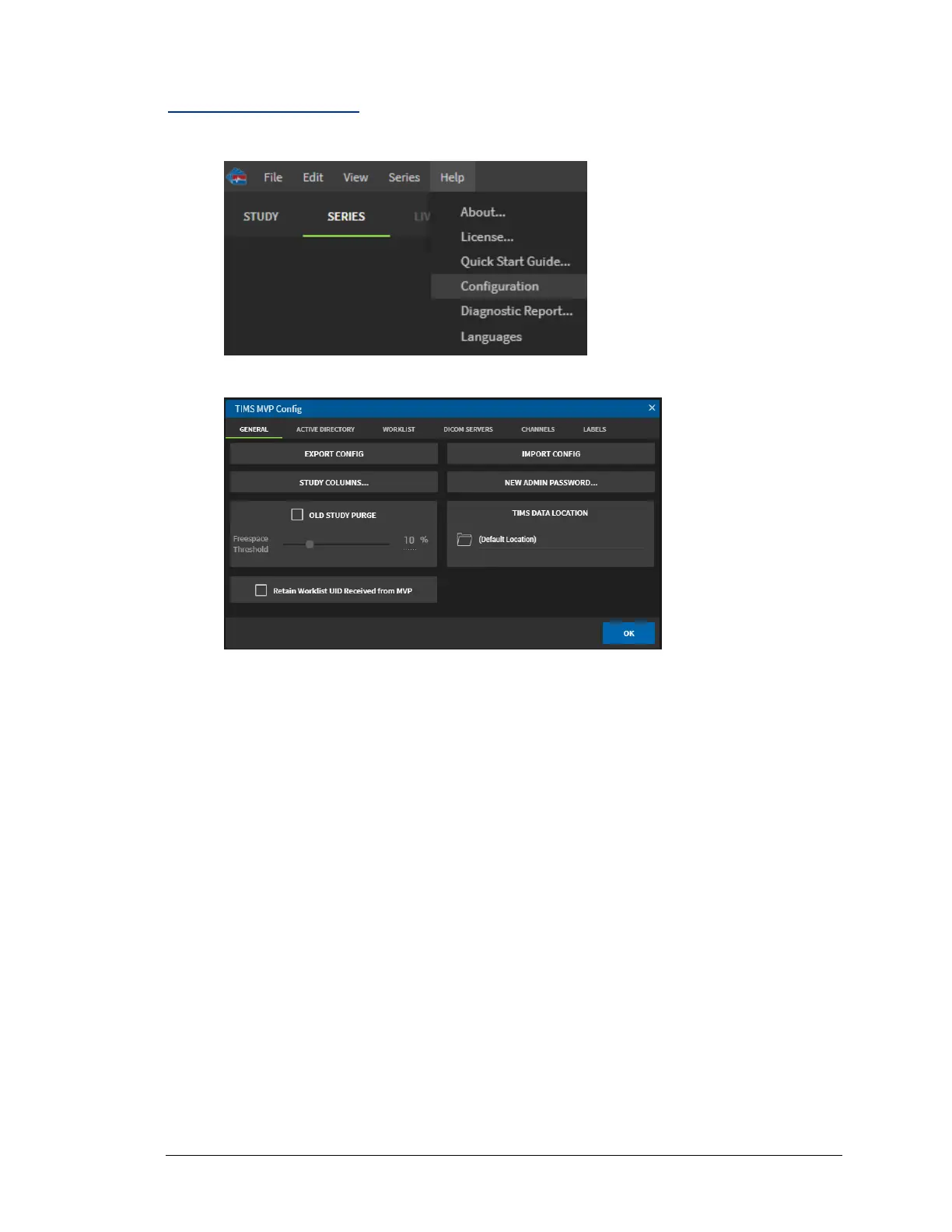
1. Click the Help menu and select Configuration.
2. From the TIMS MVP Config page, if not selected, click the General tab.
3. Click IMPORT CONFIG button. A Windows dialog opens.
4. Browse to locate the file you want to import. When you locate the file, click to select it.
Note: You can only import files to TIMS MVP™ with a *.mvp_settings extension.
5. Click Import Config and the configuration is placed on the TIMS MVP™ system.
It is recommended you check the settings imported to ensure the file imported
correctly.


 To Next Page