Using Auto-SYNC for Digital Input Connections
TIMS MVP™ Setup and Configuration Guide 163
Using Auto-SYNC for Digital Input Connections
Select the Connection Type
Auto-SYNC determines the input selection availability based on the model frame grabber being
used. Thus an AccuStream+ and AccuStream Express+
will not display the Input Connector options as those boards only uses
DVI-A or DVI-D inputs.
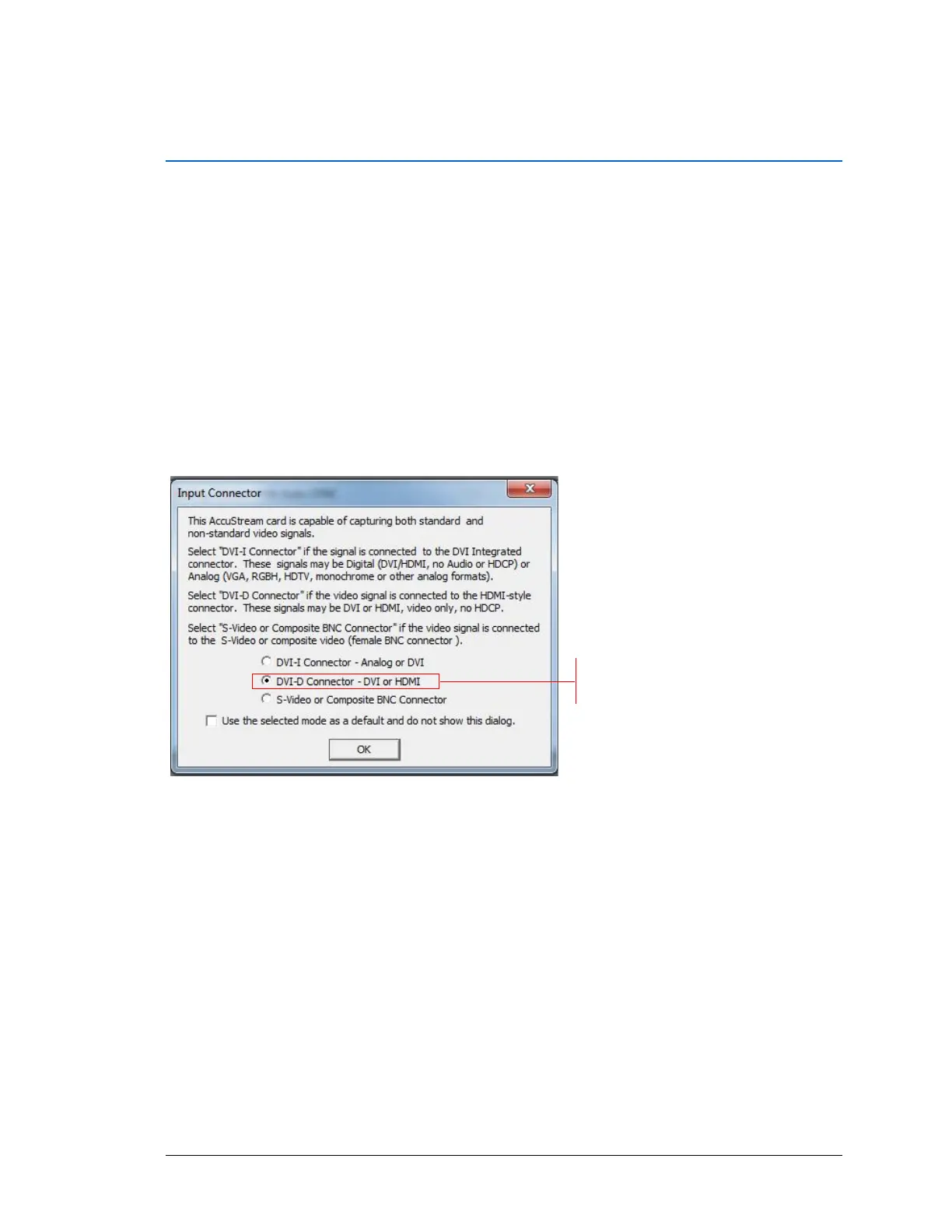
After verifying the board’s capabilities, IDEA Auto-SYNC will first prompt you to identify the
AccuStream board mode. Select the connection you have to the AccuStream board and then
click OK. If you want to keep the selection as your default, click the checkbox below the
connection selection so that this dialog does not appear again.
Figure 64: AccuStream Input Connector
After you make your selection and click OK, the Hints dialog appears. It is recommended that
you read the dialog and click OK. If you do not want this dialog to appear each time you start an
Auto-SYNC session, uncheck the Always display hints before an Auto-SYNC session box.


 To Next Page