Advanced Settings
68 TIMS MVP™ Setup and Configuration Guide
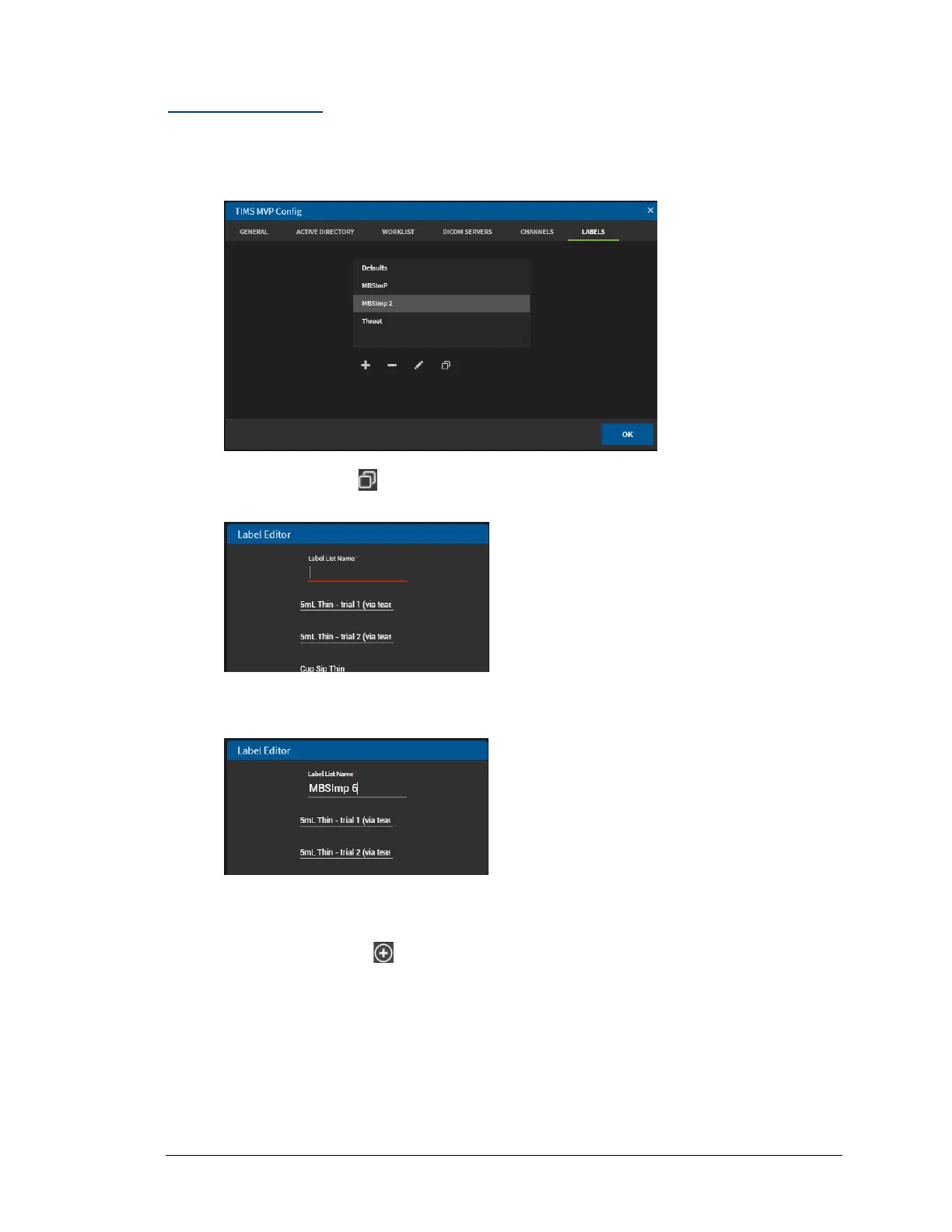
Duplicate a Label
To duplicate a label:
1. Select the label you want to duplicate from the list of labels.
2. Click the Duplicate icon. The Label Editor opens.
3. Enter a new unique label name in the Name field at the top of the page.
• Make any required changes needed for the new label.
Add a label: To add a label, move your mouse to the right of an existing label.
click the plus sign. Use the drop-down menu to select a label.
• Remove a label: To remove a label, move your mouse to the left of the label
you want to delete. Click the minus sign to remove it.
• Change the label: To change your label selection, move your mouse to the right
of the label you want to change. Click the X to display the drop-down menu of
labels and make a new selection.


 To Next Page