Configuring Security
78 TIMS MVP™ Setup and Configuration Guide
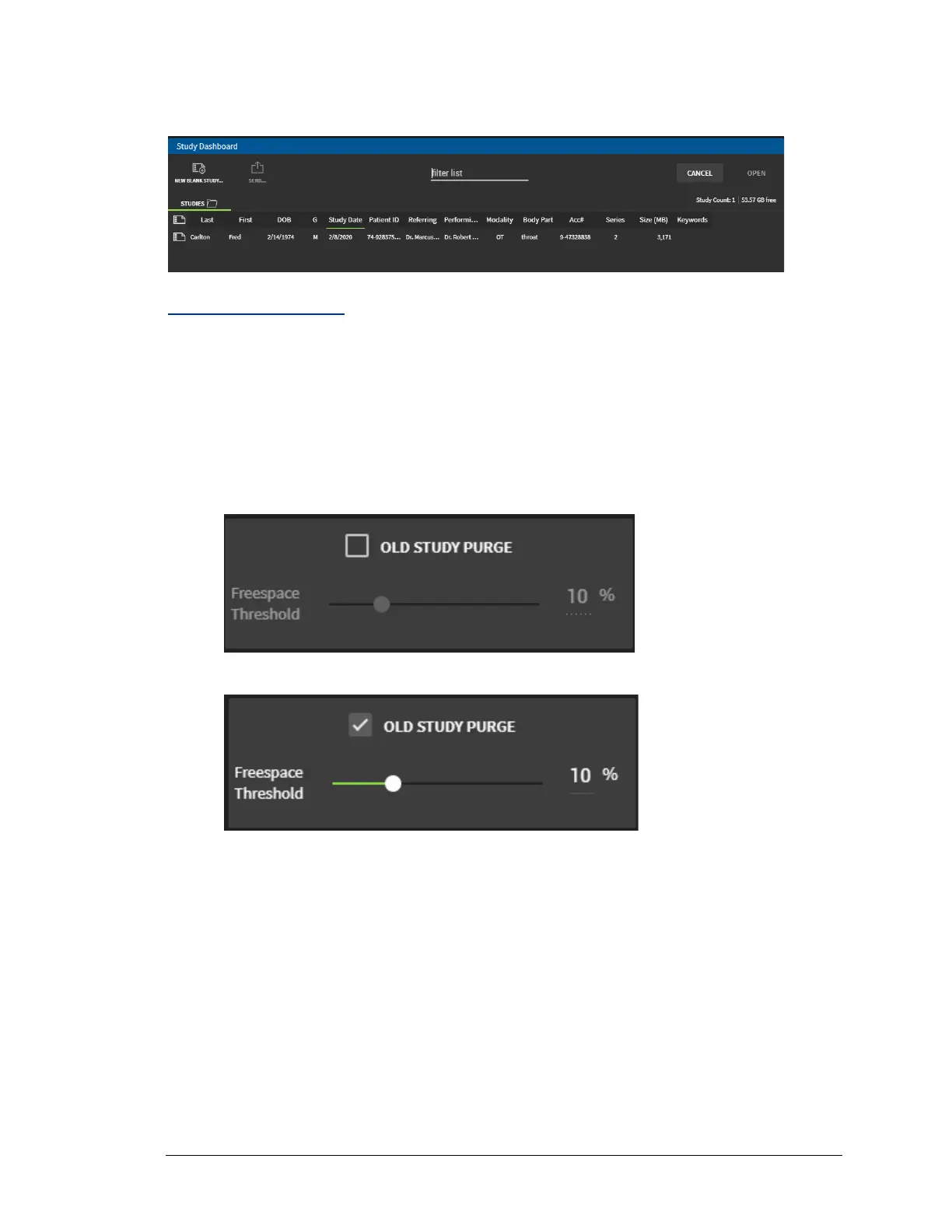
When you open a study in TIMS MVP™, the Study Dashboard appears with the study columns
you selected.
Purging Old Studies
By selecting a percentage, you indicate when new studies are saved, the oldest studies are
deleted to maintain disk usage below the specified percentage. You can select a percentage
from 5 to 25 percent from the drop-down menu. Use the slider to select the percentage you
want. Use the TIMS MVP Config General page to set the free space threshold for studies.
To select a percentage:
1. Click the checkbox OLD STUDY PURGE to set a free space threshold.
2. Move the slide bar to select the percentage, the default is 10%.
3. Click OK if you are finished with General settings.


 To Next Page