IDEA Auto-SYNC with RGB/VGA/DVI Analog Video
142 TIMS MVP™ Setup and Configuration Guide
▪ Miscellaneous Information
One frame is one screen of visible data
A frame of data contains visible AND non-displayed information, image blanking and
synchronization
Interlaced signals are comprised of an Odd and Even field of separate Odd and Even lines
Two fields comprise a frame
Non-interlaced, also called progressive scan, is one frame of sequential lines
Fields must be paired properly and “ordered” properly
After the Auto-SYNC Wizard is Finished for Analog Connections
Once the user finishes running the IDEA Auto-SYNC Wizard, the Video Setting controls
are displayed.
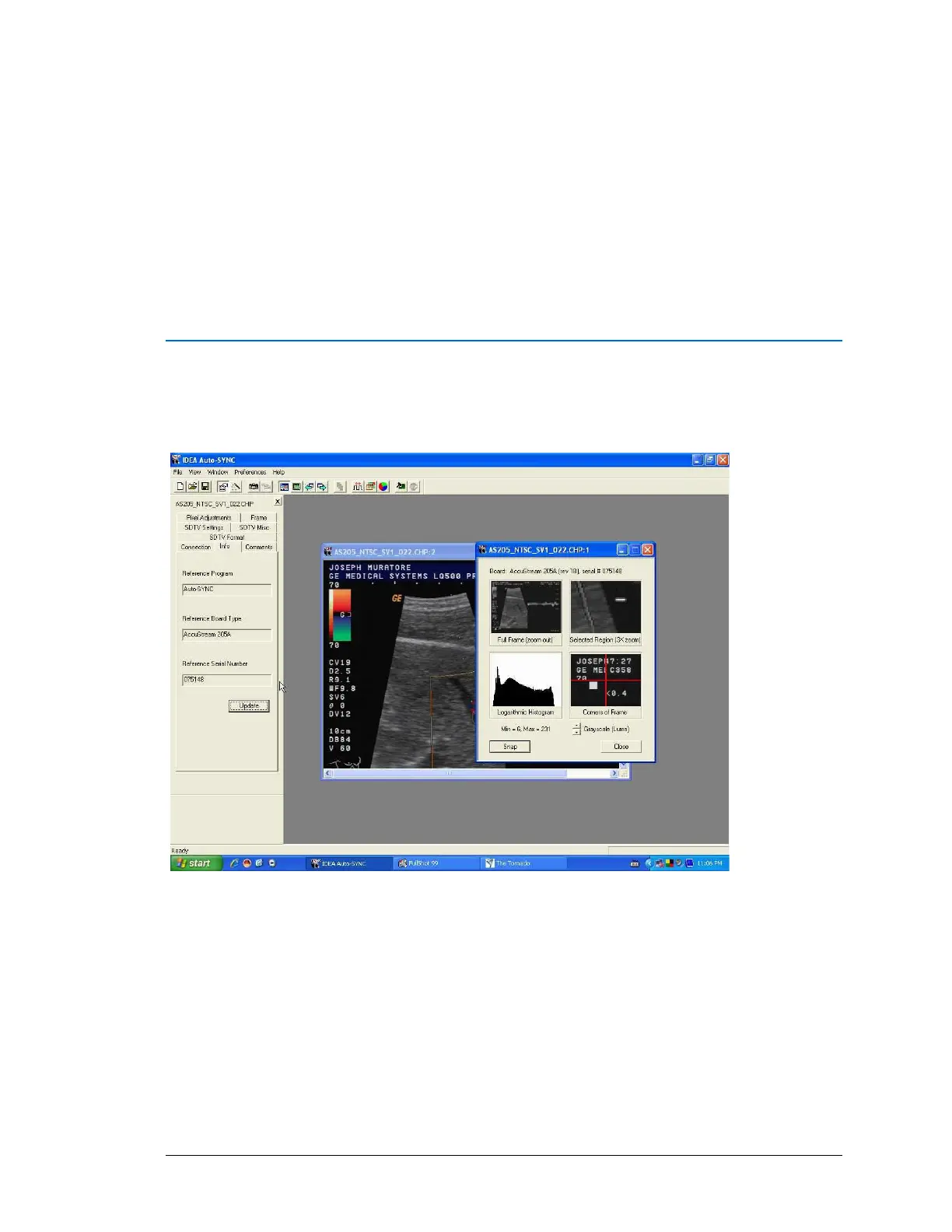
Figure 47: IDEA Auto-SYNC screen after completing Auto-SYNC Wizard.
The window on the right side is the same “Multi-view window” used by the Auto-SYNC Wizard.
To open a new full-size window:
▪ click the “Full-size image window” icon from the toolbar or
▪ click View > Full-size image window (<F10>).
The Full-size image window will be RGB or Monochrome for DVI-Analog connections or
NTSC/PAL Video composite for S-Video Composite connections.


 To Next Page