Using Auto-SYNC for Digital Input Connections
202 TIMS MVP™ Setup and Configuration Guide
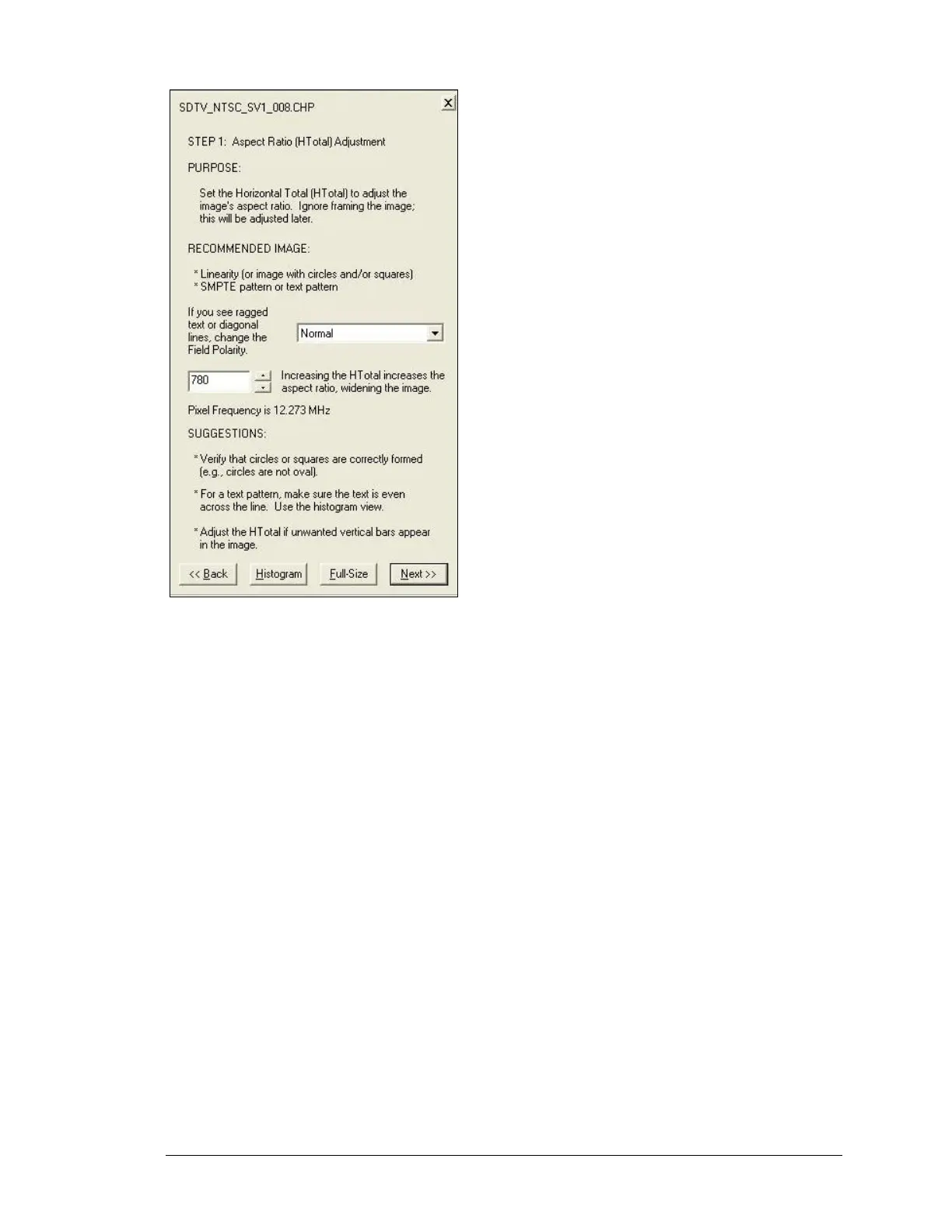
Figure 102: Auto-SYNC Wizard Step 1
HTotal adjustments require a video image that highlights errors in aspect ratio. An image with
circles or squares or a text pattern is recommended.
Note: Htotal’s value must be divisible by 4.
If your video is interlaced, look at the image to see if text or diagonal/curved lines appear
ragged. If the text or lines do, try adjusting the Field Polarity to change the ordering of
fields/frames. Depending on the video pattern, changes to the field ordering may have
invalidated the results of the Auto-SYNC session. You may want to rerun Auto-SYNC to generate
a new CHP file.
The HTotal is adjusted by typing a new value into the edit box or using the up/down buttons; the
arrow and Page Up/Down keys also work. Changes to the HTotal are reflected in any open views
of the CHP file (multi-view, full-size view). Focus on getting the aspect ratio correct; the image
framing will be adjusted in a later step.


 To Next Page