Chapter 14: Unit Configuration Menu Traps Menu (Web Manager Only)
© Harmonic Inc. Manual p/n 101543/Ver 1.0 14-17 ProView 2900 Series/SW Version 1.94
The following describe managing the Trap Destination:
To add a new Trap Destination:
1. Access the Traps tab. From the web-interface, go to: Unit
Traps.
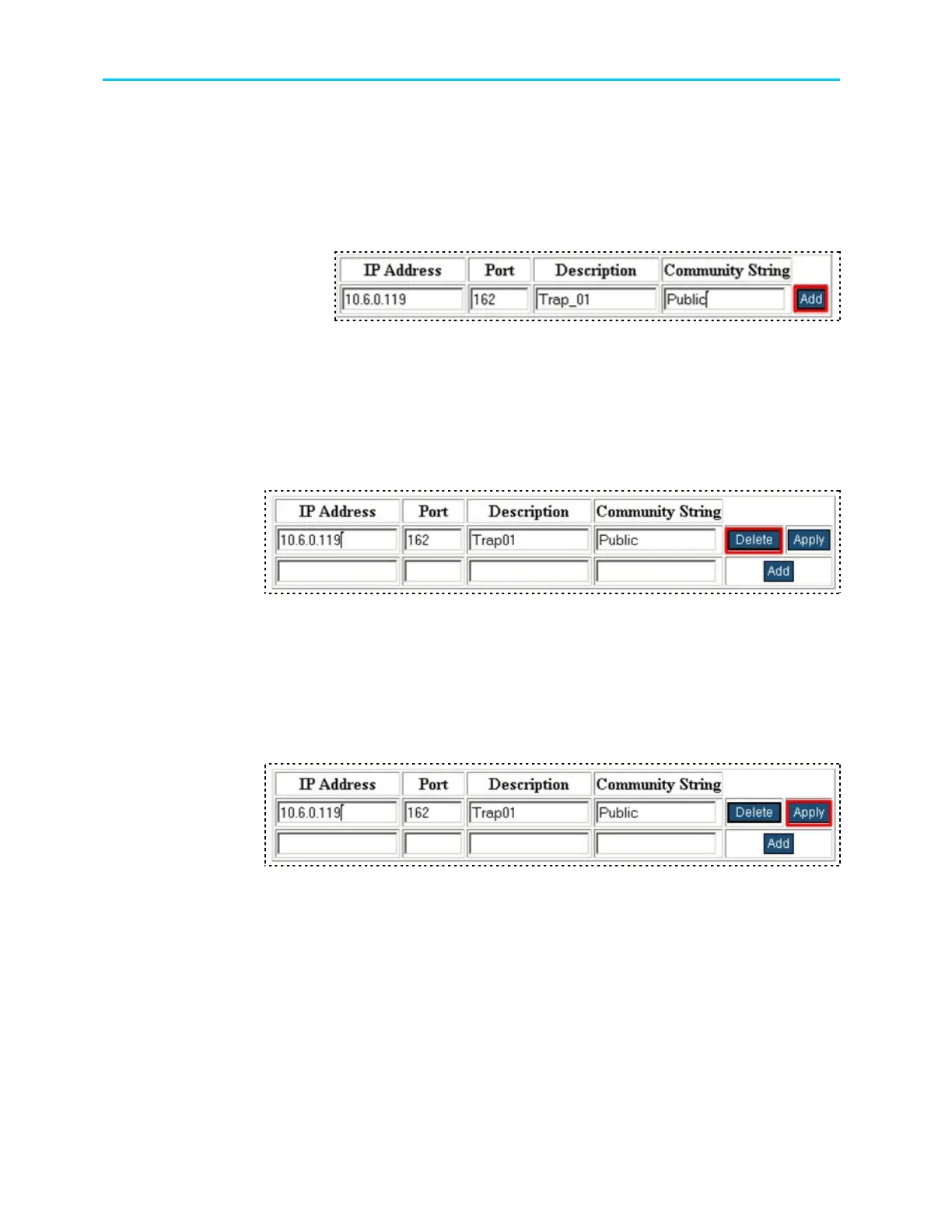
2. In the Trap Table, type valid values for the IP Address, Port, Description (optional)
and Community String (optional) parameters. For example see Figure 14-12.
Figure 14-12: Add New Trap Destination
3. Click ADD.
To drop a Trap Destination:
1. Access the Traps tab. From the web-interface, go to: Unit
Traps.
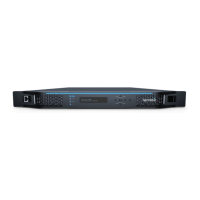
2. Click the Delete button located right to the trap entry. For example see Figure
14-13.
Figure 14-13: Delete Trap Destination
To modify a Trap Destination:
1. Access the Traps tab. From the web-interface, go to: Unit
Traps.
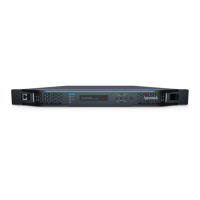
2. Change the Trap entry parameters.
2. Click the Apply button located right to the trap entry. For example see Figure
14-14.
Figure 14-14: Modify Trap Destination



 To Next Page