Chapter 4: ProView 2900 Control Interfaces Front Panel Control Interface
© Harmonic Inc. Manual p/n 101543/Ver 1.0 4-2 ProView 2900 Series/SW Version 1.94
• [Esc] Key
The [ESC] key is used to abort a configuration setup or to return to the menu's previous
level.
• Programmable Keys
The [F1] and [F2] buttons allows quick access to specific front-panel menu screen. Each
programmable key can store one menu screen path.
To create a quick access shortcut:
1. Go to the wanted front-panel menu screen. Use the keypad to navigate.
2. Press and hold the [F1] key or the [F2] key, when press [Esc].
3. Press [ENTER] (while holding the [F1] key or the [F2] key).
4. Release the [ENTER] key.
5. Release the [F1] key or [F2] key.
4.1.2. ProView 2900 Front Panel Screen Types
The ProView 2900 Front Panel Menu tree leads to the following five screen types:
• Menu Navigation screen
• Edit Menu screen
• Table Menu screen
• Edit Value screen
• Select Value screen
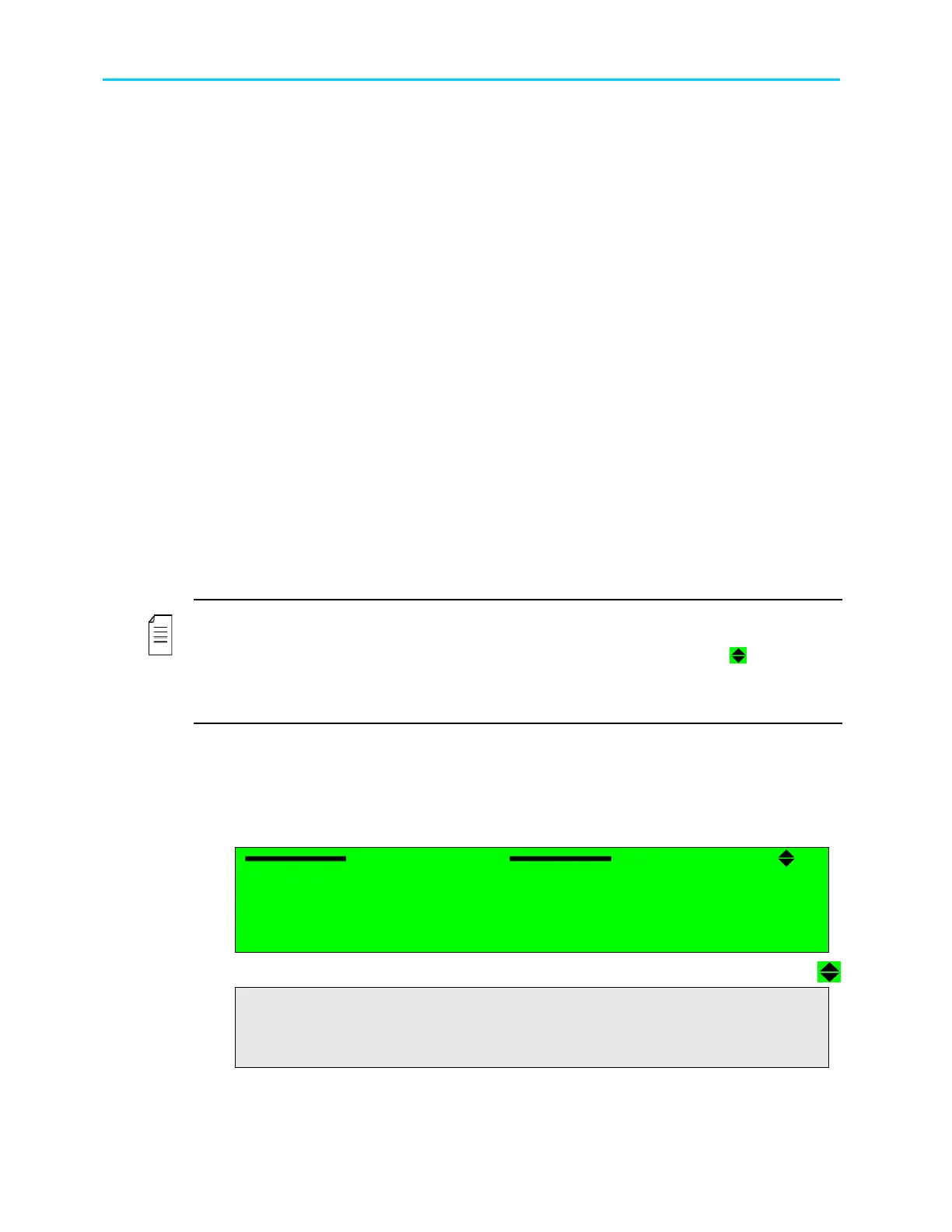
NOTE
The Front panel can display only up to four menu items at a time. When a menu has more
than four items, the first four are visible in the panel, followed by a scroll icon [ ]. Additional
items can be accessed using the [Up]/[Down] arrows. To illustrate the difference between the
two types of items, two types of screen shots were used in this user manual: dark grey for the
visible items and light grey for the hidden ones.
4.1.2.1. Menu Navigation Screen
The Menu Navigation screen enables navigating through the tree structure of the
ProView 2900 menu.
In this example, the menu navigation screen displays the following items:
Configuration
Configuration Configuration
Configuration
1
11
1-
--
-2
2 2
2
1 Receiver
1 Receiver1 Receiver
1 Receiver
2 Stream
2 Stream2 Stream
2 Stream
3 Service
3 Service3 Service
3 Service
4 Video
4 Video4 Video
4 Video
5 Audio
5 Audio5 Audio
5 Audio
6 Data
6 Data6 Data
6 Data
7 Conditional Access
7 Conditional Access7 Conditional Access
7 Conditional Access
Unit
Unit Unit
Unit



 To Next Page