Chapter 5: Operation and Management ProView 2900 Preset Menu
© Harmonic Inc. Manual p/n 101543/Ver 1.0 5-6 ProView 2900 Series/SW Version 1.94
5.2.2. Save Current Preset
The ProView 2900 can store up to 10 different setups. Save Current submenu allows saving
the unit's current setup. To access the Save Current menu through the front panel, go to
Root
Preset
Save Current.
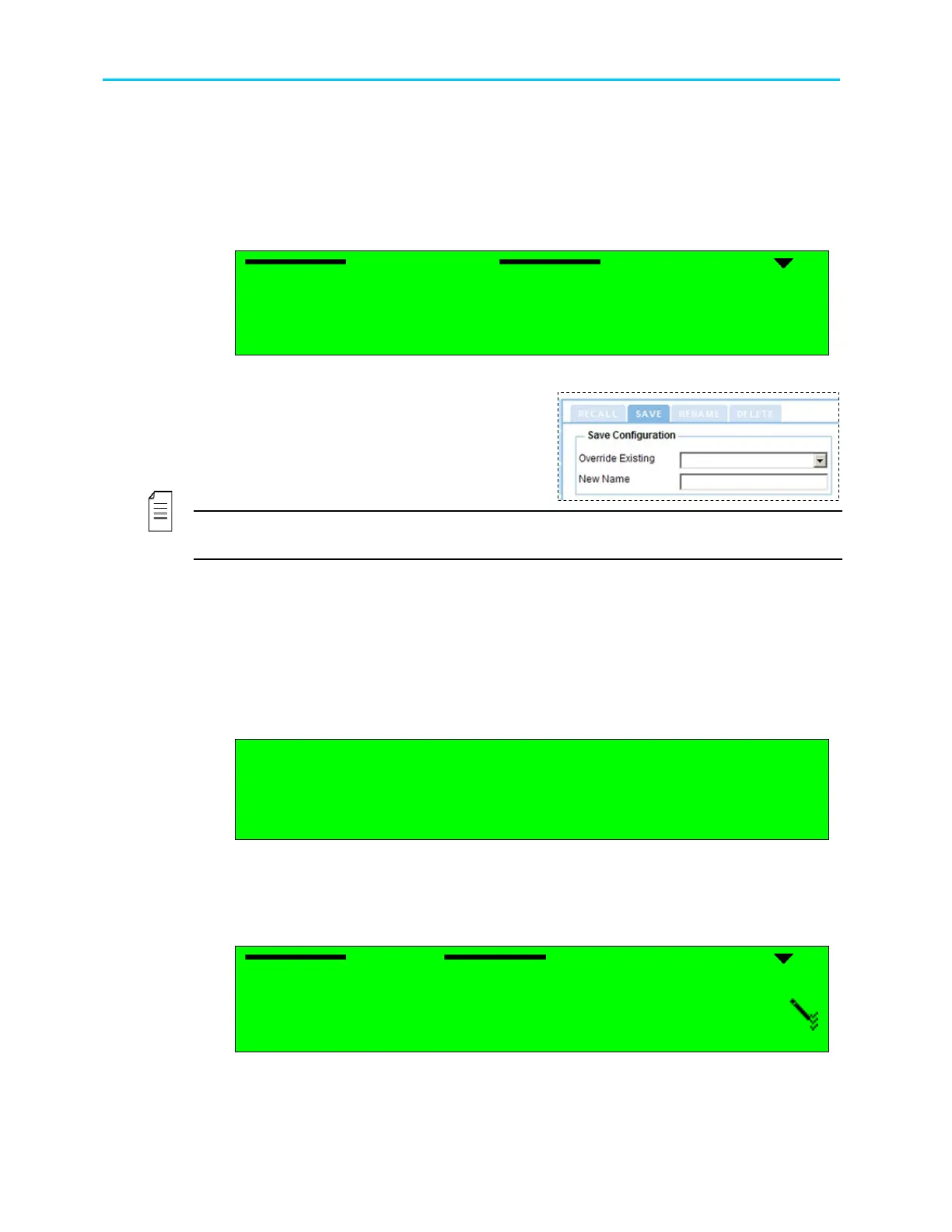
The following figure shows the front panel Save Current submenu screen:
Save Current
Save CurrentSave Current
Save Current
1
11
1-
--
-1
1 1
1
1
1 1
1 Overwrite Ex
Overwrite ExOverwrite Ex
Overwrite Existing
isting isting
isting
2
2 2
2 New Name
New NameNew Name
New Name
To access the Save menu from the web-interface, go to Preset
Save.
Save Current menu includes two options:
Overwrite Existing –For details see section
5.2.2.1.
New Name- –For details see section 5.2.2.2.
NOTE
Harmonic recommends storing the default manufacture's setup as a preset.
5.2.2.1. Overwrite an Existing Preset
The Overwrite Existing option allows saving the unit's current setup over a stored one.
TO OVERWRITE AN EXISTING PRESET THROUGH THE FRONT PANEL:
1. Access the Overwrite Existing screen. From the front panel go to
Root
Preset
Save Current
Overwrite Existing.
The following figure shows the front panel Overwrite Existing screen:
Name
Name Name
Name
1
1 1
1 Default
DefaultDefault
Default
2
2 2
2 Setup_1
Setup_1Setup_1
Setup_1
3
3 3
3 Setup_2
Setup_2Setup_2
Setup_2
4
4 4
4 Setup_3
Setup_3Setup_3
Setup_3
The Overwrite Existing screen lists all stored presets and allows selecting a
preset to overwrite.
2. Select one of the listed presets by using the [Up], [Down] and [ENTER] keys.
When selecting a preset to overwrite – the following screen appears:
Setup_1
Setup_1Setup_1
Setup_1
1
11
1
OVERWRITE
OVERWRITEOVERWRITE
OVERWRITE
3. Select OVERWRITE.



 To Next Page