Chapter 5: Operation and Management ProView 2900 Preset Menu
© Harmonic Inc. Manual p/n 101543/Ver 1.0 5-9 ProView 2900 Series/SW Version 1.94
5.2.4. Delete Preset
The Delete submenu allows removing stored preset.
TO DELETE A PRESET THROUGH THE FRONT PANEL:
1. Access the Delete screen. From the front panel go to Root
Preset
Save
Current
Delete.
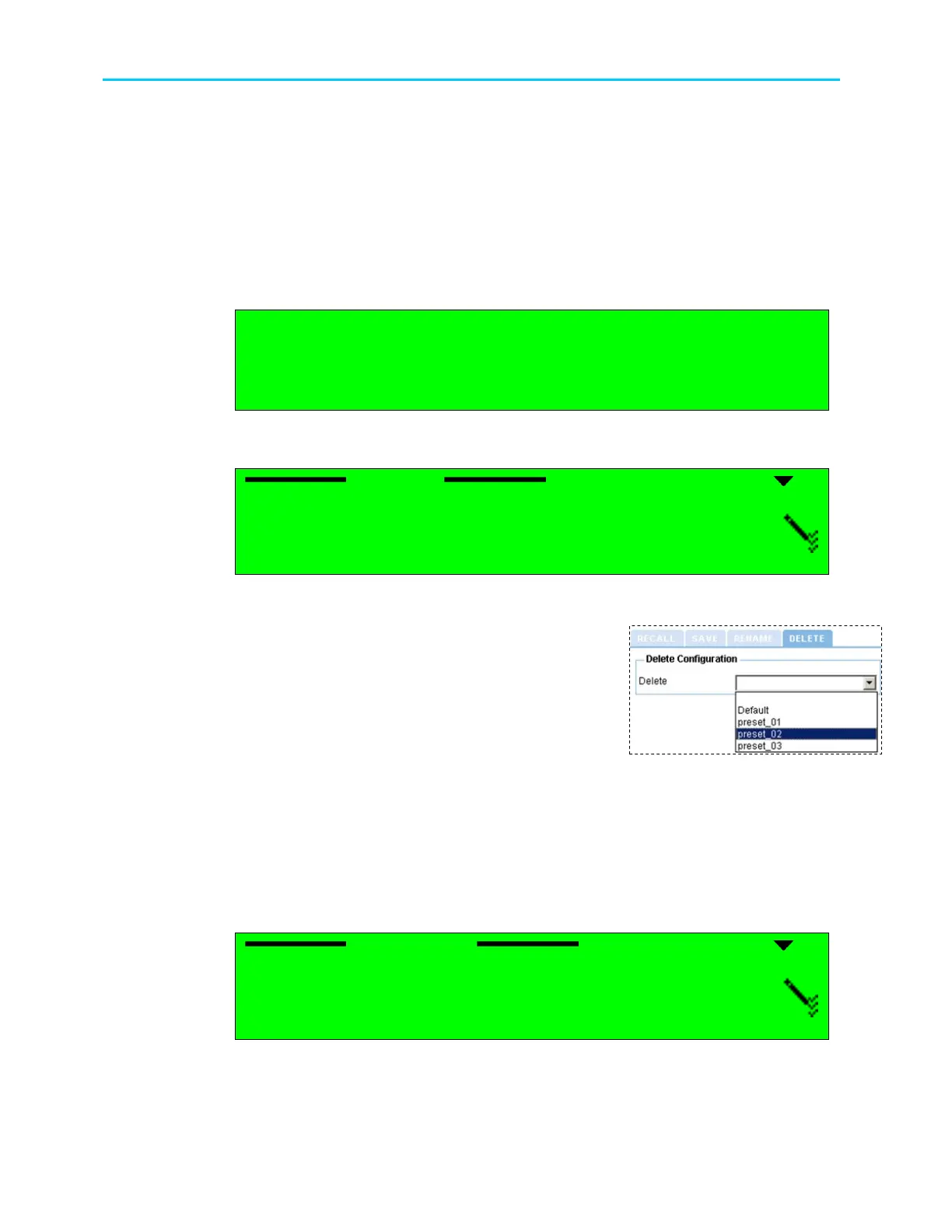
The following screen appears, lists all stored presets and allows selecting a
preset to delete.
Name
Name Name
Name
1
1 1
1 Default
DefaultDefault
Default
2
2 2
2 Setup_1
Setup_1Setup_1
Setup_1
3
3 3
3 Setup_2
Setup_2Setup_2
Setup_2
4
4 4
4 Setup_3
Setup_3Setup_3
Setup_3
2. Select one of the listed presets by using the [Up], [Down] and [ENTER] keys.
When selecting a preset to delete – the following screen appears:
Setup_1
Setup_1Setup_1
Setup_1
1
11
1
DELETE
DELETEDELETE
DELETE
3. Select DELETE.
TO DELETE A PRESET THROUGH THE WEB-INTERFACE:
1. From the management bar, click on the Preset
tab.
2. Click on Delete tab.
3. Open the Delete drop-down menu. From the list
select a preset to delete.
5.2.5. Delete All Presets (Front Panel Only)
The Delete All submenu allows removing all stored preset configurations.
TO DELETE ALL PRESETS THROUGH THE FRONT PANEL:
1. Access the Delete screen. From the front panel go to Root
Preset
Save
Current
Delete All.
The following figure shows the front panel Delete All screen:
Delete All
Delete AllDelete All
Delete All
1
11
1
OFF
OFFOFF
OFF
1
11
1
ON
ONON
ON
Save Current menu includes two options:OFF (disables the function) and ON to
delete all stored presets.
2. Select ON.



 To Next Page