© Harmonic Inc. Manual p/n 101543/Ver 1.0 4-1 ProView 2900 Series/SW Version 1.94
Chapter 4
ProView 2900 Control Interfaces
This section explains the ProView 2900 Front Panel and Web Management control interfaces
used for operating, configuring, and monitoring the ProView 2900 operation.
4.1. Front Panel Control Interface
4.1.1. Controls and Displays
The front panel is used for extensive local control and for monitoring the device’s operation.
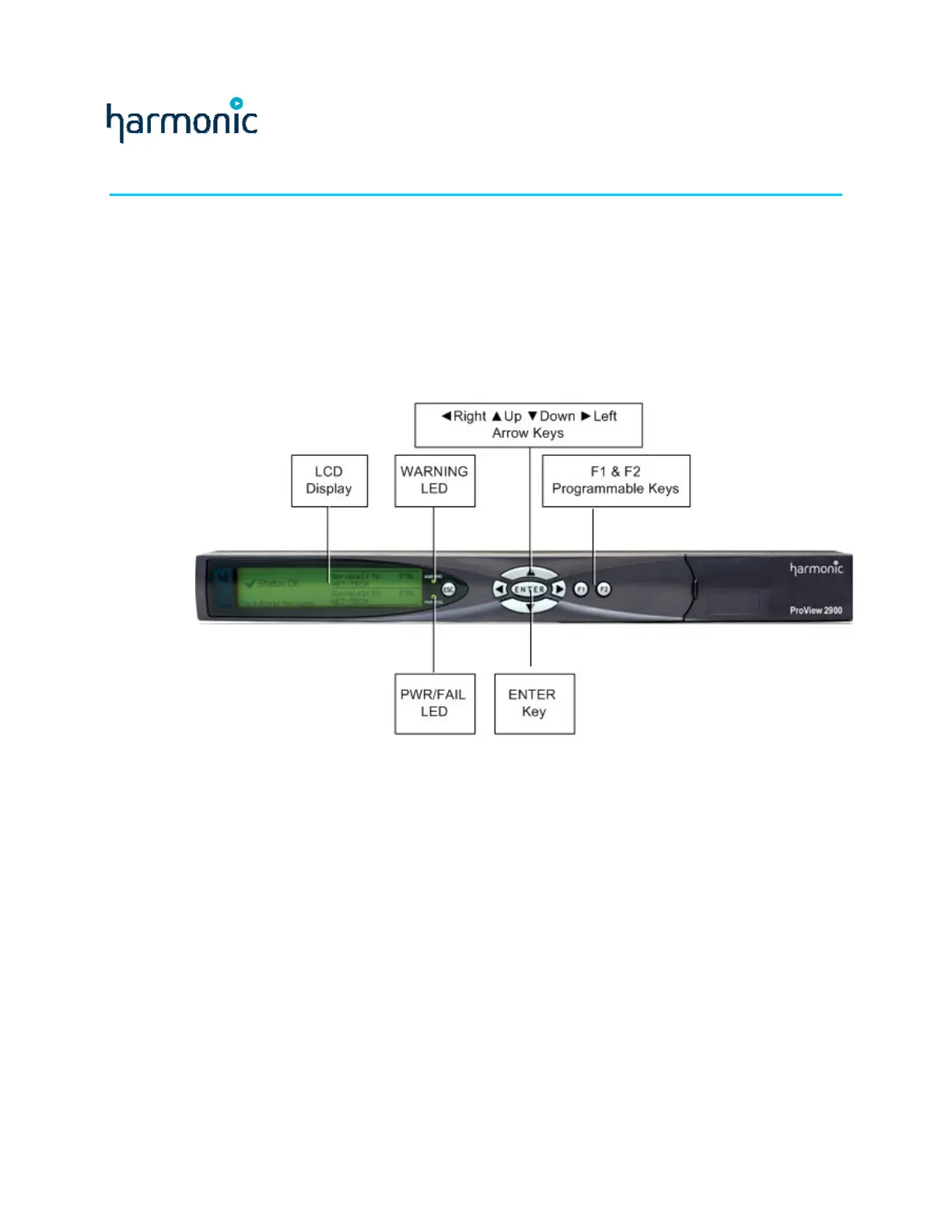
Figure 4-1 illustrates the ProView 2900 front panel.
Figure 4-1: Front Panel
The ProView 2900 front panel contains:
• LCD Display
The LCD display is a large, easy to use, graphical display. It is used to display enhanced
menus with graphical interfaces, such as: charts, radio buttons, tables, and icons.
• Status LEDs
The two LEDs indicate WARNING and PWR/FAIL statuses.
When both LEDs are lit green the ProView 2900 status is OK.
The WARNING LED (Green/Orange) indicates the operational status.
The PWR/FAIL LED (Green/Red) indicates the hardware status.
• Arrow Keys
The arrow keys include [Up], [Down], [Right], [Left]. The keys are used to navigate
between the different menu items and sub-menus. They are also used to select and
change parameters during setup and configuration procedures.
• [Enter] Key
The Enter key is used for selecting or entering a configuration setup.



 To Next Page