Chapter 13: CA Configuration Menu Common Interface Configuration Menu
© Harmonic Inc. Manual p/n 101543/Ver 1.0 13-3 ProView 2900 Series/SW Version 1.94
13.2. Common Interface Configuration Menu
The Common Interface (CI) menu displays the current status of the ProView 2900 CI slots.
To access the Common Interface menu in the front panel control interface go to
Configuration
Conditional Access
Common Interface.
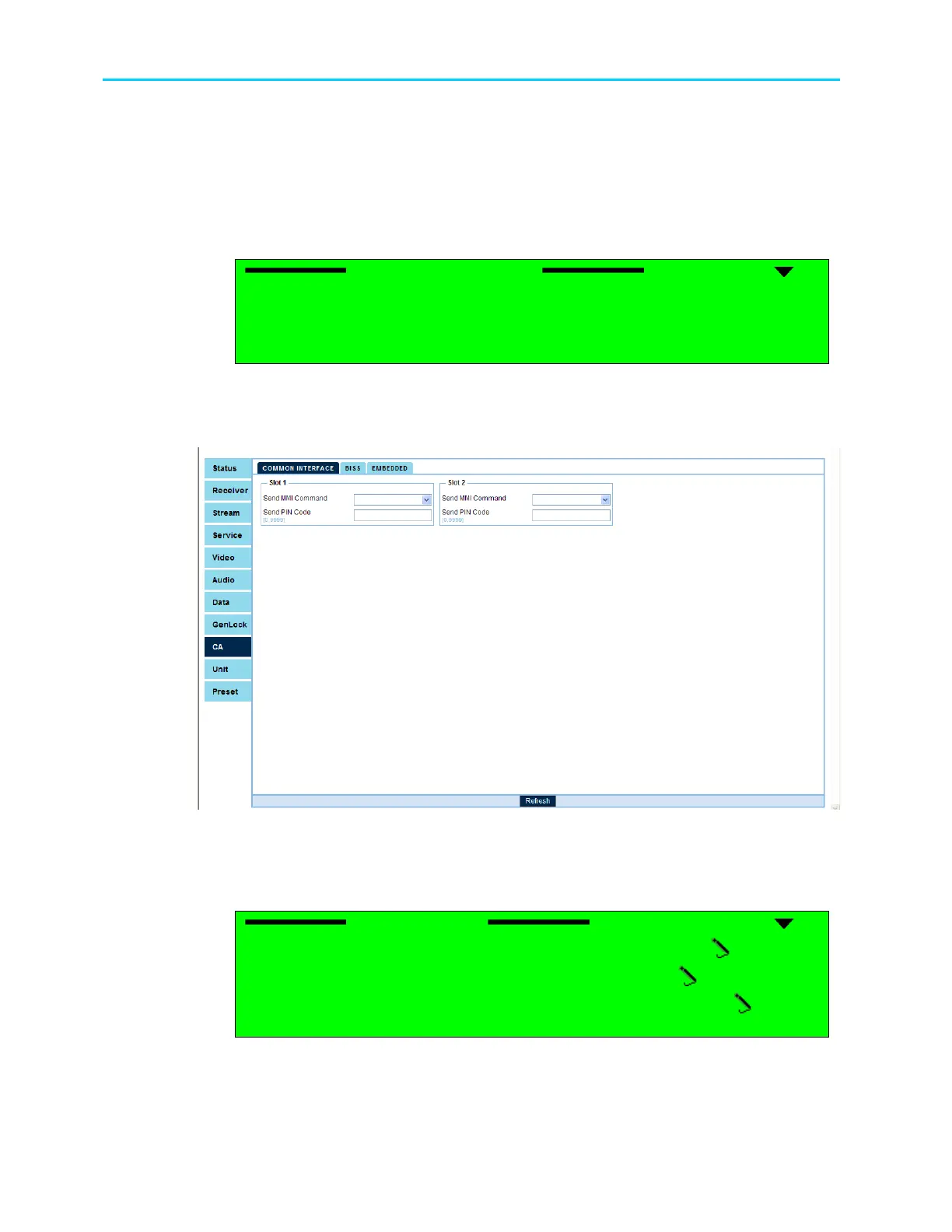
The following screen displays the Common Interface menu:
Common Interface
Common Interface Common Interface
Common Interface
1
11
1-
--
-2
22
2-
--
-7
77
7-
--
-1
11
1
1 Slot 1
1 Slot 11 Slot 1
1 Slot 1
2 Slot 2
2 Slot 22 Slot 2
2 Slot 2
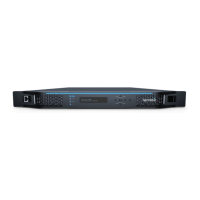
To access the Common Interface configuration screen through the web-interface go to
CA
Common Interface tab.
Figure 13-3 shows the web-interface Common Interface screen:
Figure 13-3: Web Interface Common Interface Screen
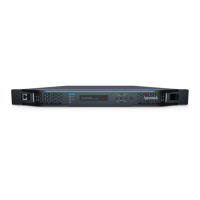
Once a CI Slot is selected from the front panel, an Edit Menu screen is displayed. The Slot 1
and Slot 2 Configuration edit menu provides access to the CI parameters for the respective
ProView 2900 CI Slot:
Slot (1..2)
Slot (1..2) Slot (1..2)
Slot (1..2)
1
11
1-
--
-2
22
2-
--
-7
77
7-
--
-1
11
1-
--
-1
11
1
1 Operation
1 Operation1 Operation
1 Operation
ENABLE
ENABLEENABLE
ENABLE
2 Send MMI Command
2 Send MMI Command2 Send MMI Command
2 Send MMI Command
MENU
MENUMENU
MENU-
--
-menu
menumenu
menu
3 Send PIN Code
3 Send PIN Code3 Send PIN Code
3 Send PIN Code
1111
11111111
1111
The following paragraphs detail the Slot Configuration options.



 To Next Page