Appendix
H000002007-RDS User Manual │Version 5.0.0 (2018-09-17) │189
M.1.8 POLYWORKS
Delete last point / scan
patch
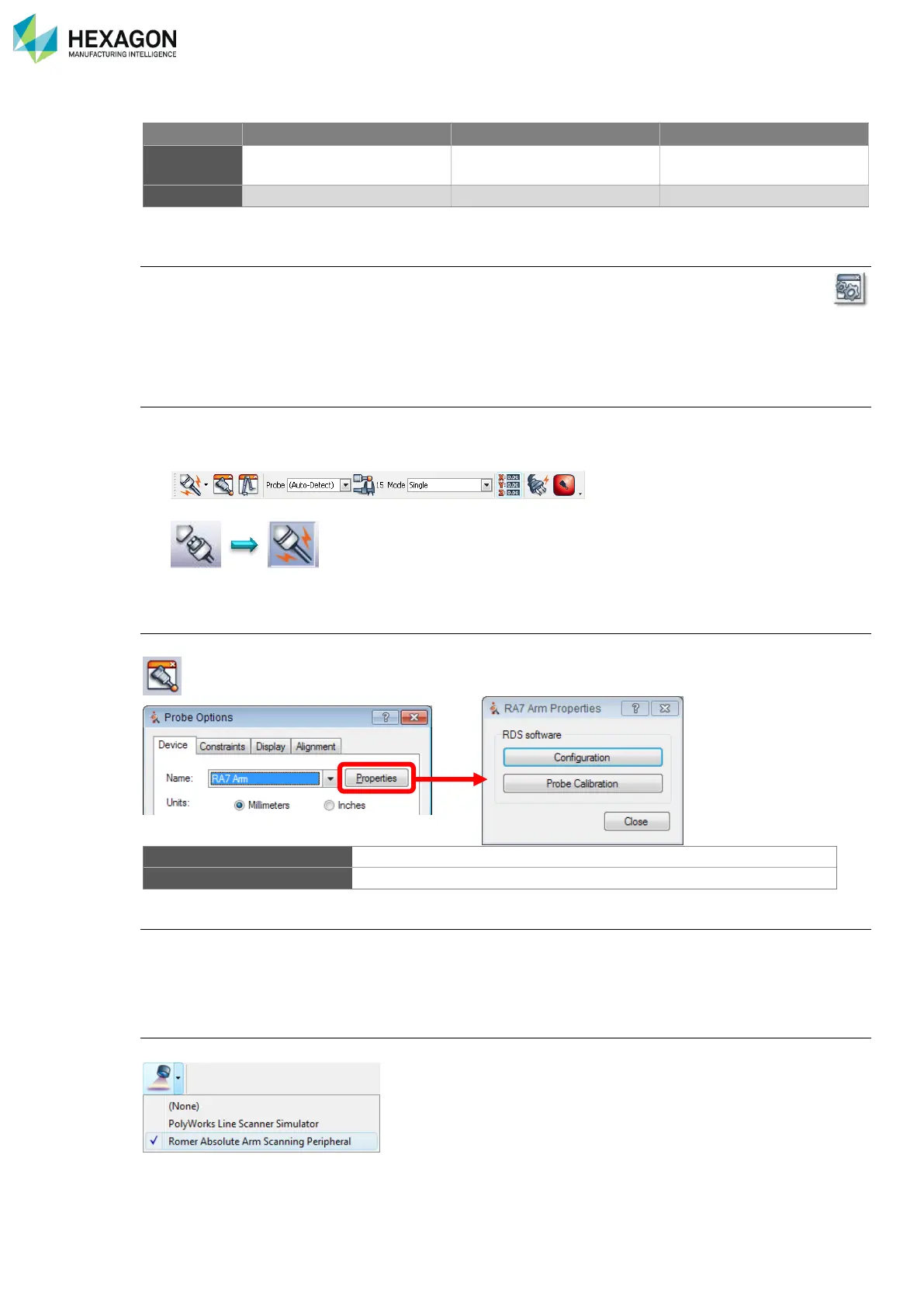
Device activation
1. In the Workspace Manager, access the options > tab “Plug-ins”
2. In the Plug-ins tab, select only “Absolute Arm and Scanning peripheral” (plus “Perceptron” in case of a
Perceptron scanner).
Configuration for contact Probe (ImInspect only)
1. Start PolyWorks, then IMInspect
2. In IMInspect “Probing toolbar”, select “Absolute Arm”
3. Click on the connection button to connect to the Arm
Absolute Arm settings:
In “Probing toolbar”, click on the probe button, then click on “Properties:
Opens “RDS Control Panel”
Opens “Probe alignment” script in “RDS Data Collector”
Arm buttons use for message boxes:
When a message box appears, the arm buttons can be used to make a choice in the box:
• A short press on any button (BT, B2S), switches to the next choice.
• A long press on any button validates this choice.
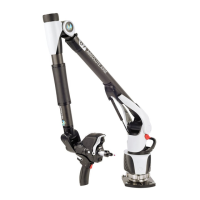
Configuration for HEXAGON
®
Scanners (RS5 / HP-L-20.8)
In ImAlign or ImInspect, click on the “Scanning” button and select “Absolute Arm Scanning Peripherals”
Configuration button in Absolute Arm section gives access to RDS control Panel.


 To Next Page